· productivity · 7 min read
Top 5 Controversial Tips for Overhauling Your ClickUp Setup
Break free from conventional ClickUp setups. These five controversial but practical changes-from flattening your hierarchy to making ClickUp your single source of truth-will reduce friction, cut noise, and accelerate delivery for your team.
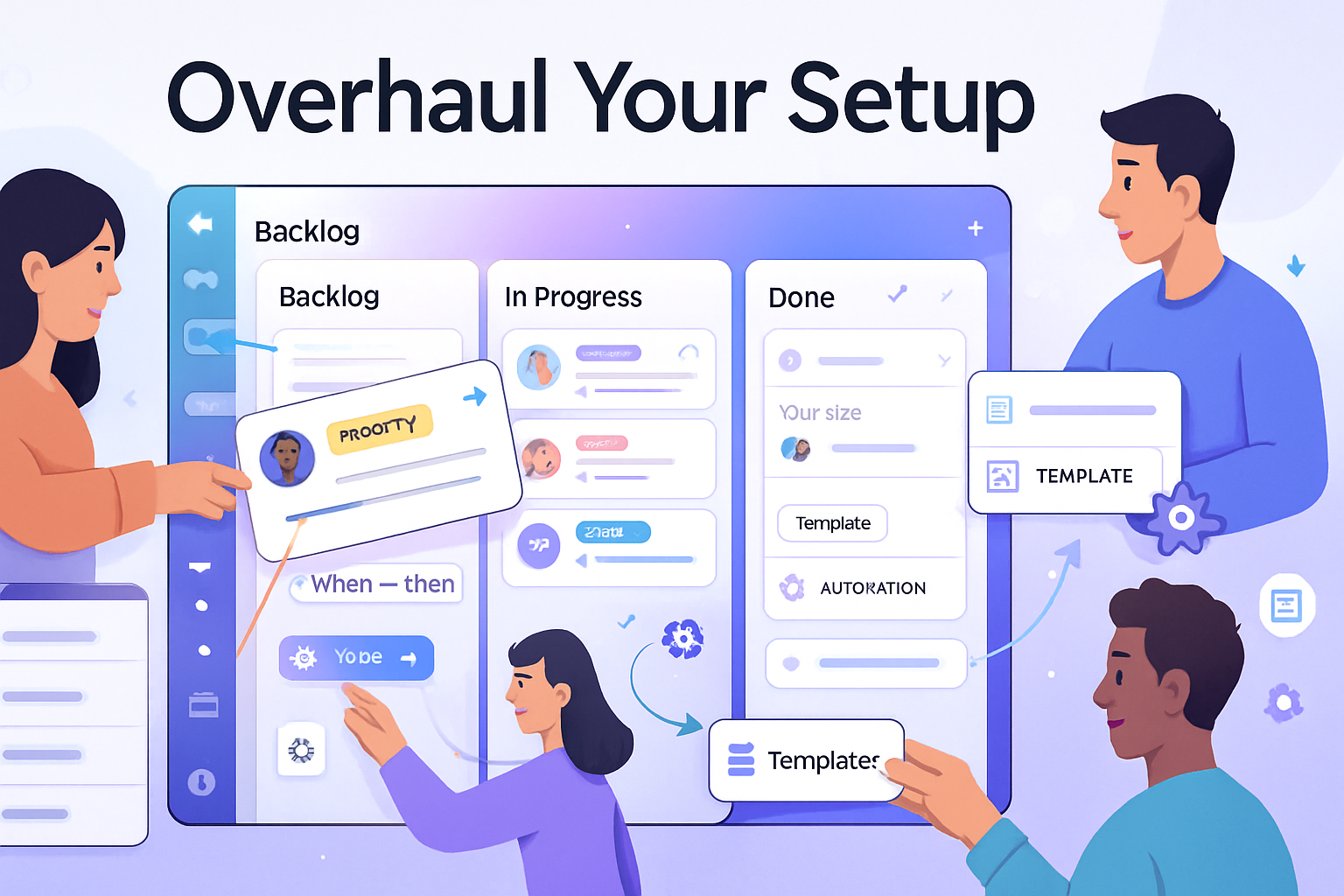
Outcome: Cut noise, shorten cycle times, and give your team clarity - in weeks, not months.
You can overhaul ClickUp so your team spends less time managing the tool and more time delivering. Keep reading. You’ll get five bold, actionable changes you can pilot this sprint and measure next month.
Why ‘controversial’ matters
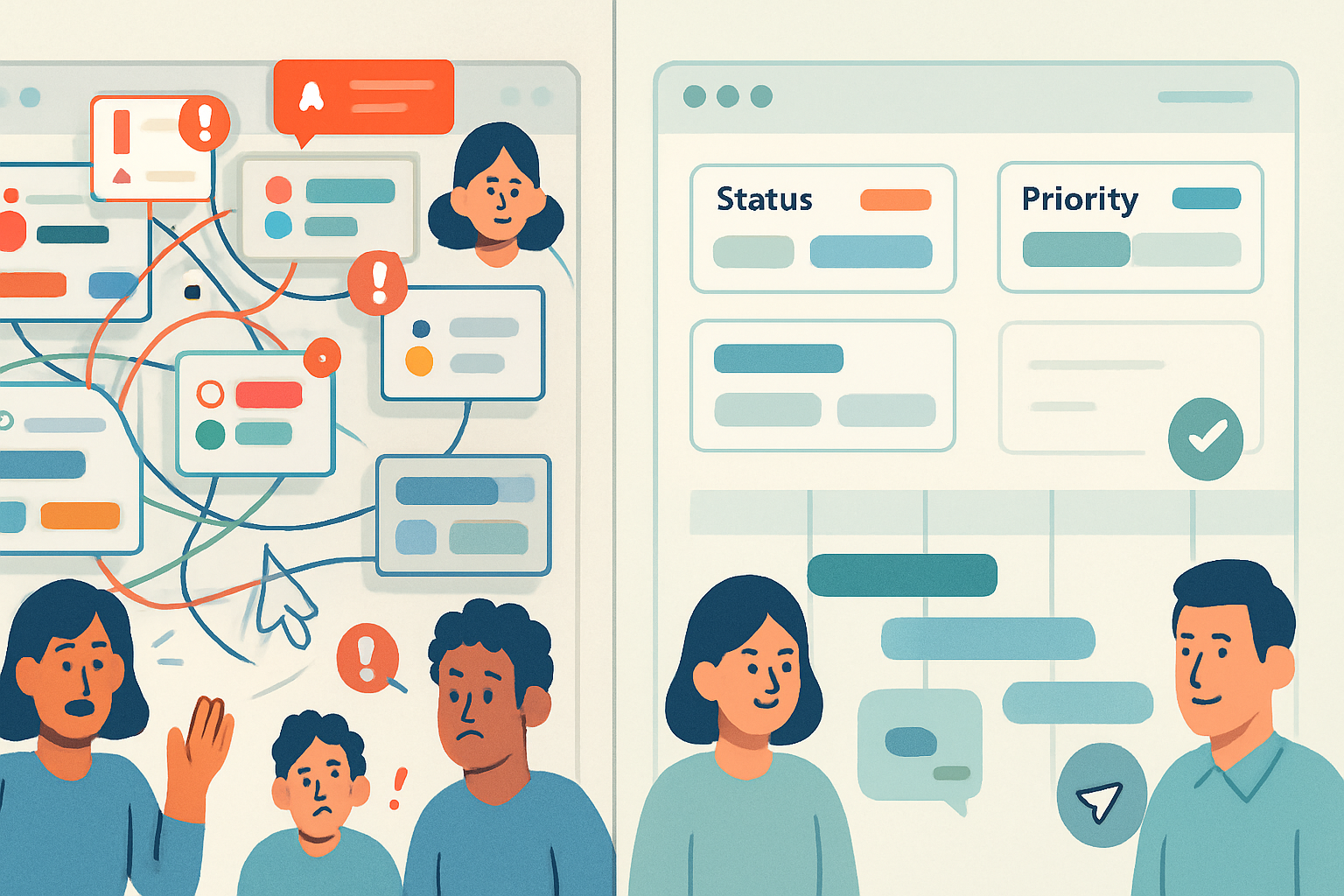
Most ClickUp advice sounds safe: more folders, more statuses, assign everything, and make recurring tasks for every rhythm. It’s comfortable. But comfort breeds complexity. Complexity hides work, creates duplicate signals, and pumps up busywork.
This post goes against the grain. The goal isn’t to be contrarian for its own sake. It’s to remove the friction that hides progress and replaces false activity with real output.
References you may want while you read:
- ClickUp hierarchy and structure: https://help.clickup.com/hc/en-us/articles/360043614054-ClickUp-Hierarchy
- Automations overview: https://help.clickup.com/hc/en-us/articles/360046700151-Automations
- Docs and collaborative notes: https://help.clickup.com/hc/en-us/articles/360043618014-Docs
- Workload planning: https://help.clickup.com/hc/en-us/articles/360043714134-Workload
- Getting Things Done (GTD) basics: https://en.wikipedia.org/wiki/Getting_Things_Done
- Research on multitasking and task switching: https://www.apa.org/research/action/multitask
1) Flatten or specialize the hierarchy - fewer Spaces, fewer Folders, more Lists (yes, really)
Conventional: mirror your org chart in ClickUp - one Space per department, dozens of folders for projects, and lists for every subproject.
Controversial move: aggressively flatten. Use a handful of Spaces (e.g., Product, Ops, Growth) and then organize projects as Lists. Or - even more radical - use a single cross-functional Space and use Lists as single-source projects.
Why this helps
- Reduces friction when moving work between teams. Simple. Quick.
- Makes global filters and dashboards actually useful because there’s less structural noise.
- Encourages reuse of templates and automations across similar Lists.
How to implement (30–60 minute pilot)
- Pick a pilot area (one department or product line).
- Identify 3–5 high-value Lists to keep.
- Merge or archive low-value Folders and move Lists into the chosen Space. Use bulk move on tasks/lists.
- Add a custom field for “Project Type” or “Team” to preserve metadata lost from folder structure.
Pitfalls and mitigations
- Fear of chaos - avoid it with naming conventions and a mandatory custom field for origin or team.
- Overused Everything view - teach saved filters and Dashboards so people don’t drown in tasks.
Success metrics
- Time to find a task (surveyed) down by X%.
- Number of cross-Space task moves reduced.
2) Reduce statuses to 3–5, and use custom fields for nuance
Conventional: build a status for every micro-step. “Research, Ready, In Design, Review, Ready for QA, QA, QA Review, Ready to Ship…” It looks thorough. It’s not.
Controversial move: collapse statuses to a minimal set (Backlog, In Progress, Blocked, Done) and use custom fields to capture stage, priority, SLA, or gating info.
Why this helps
- Simplifies reporting and automations. Fewer status transitions means fewer brittle automation rules.
- Makes board views readable. Quick.
- Removes false positives - a task stuck in a long status chain looks busy but may not be moving.
How to migrate
- Map old statuses to the new set in a spreadsheet.
- Use bulk edit to reassign statuses and populate a new custom field like
Workflow Stage. - Replace status-based automations with custom field triggers where needed. Example automation pseudo-rule:
When custom field 'Workflow Stage' changes to 'Ready for QA' -> Set status 'In Progress' + Notify QA ListPitfalls and mitigations
- People will still want many statuses - enforce the change by locking status creation to admins and creating a clear
Success metrics
- Fewer failed automations.
- Faster sprint burndown because statuses reflect true progress.
References: ClickUp Automations: https://help.clickup.com/hc/en-us/articles/360046700151-Automations
3) Make tasks unassigned by default; assign at the moment of pull
Conventional: assign tasks immediately when created. The problem: it creates a hidden queue and inflates WIP.
Controversial move: use a team-level “unassigned pool” and require team members to pull tasks (assign to themselves) when they have capacity. Pair this with Workload and WIP rules.
Why this helps
- Encourages prioritization by the team instead of single-person assignment bias.
- Reduces context-switching and phantom ownership.
- Improves accuracy of Workload views and capacity planning.
How to implement
- Create a List called “Team Backlog / Pull Queue.” Put all new incoming tasks there.
- Build automations - when a task is moved to “In Progress” (or when
- Educate the team on the pull policy. Use daily standups to confirm who will pull for the day.
Sample automation (UI flow):
- Trigger - When status changes to “In Progress”
- Action - Assign the task to {triggered user or specific role}
Pitfalls and mitigations
- Risk - nobody pulls tasks. Solution: create SLAs and owner-of-day rotations.
- Risk - accountability concerns. Solution: require an owner on tasks in certain Lists (e.g., client work) via automation.
Success metrics
- Average time from “ready” to “in progress” reduced.
- Work-in-progress (WIP) per person is more predictable.
Reference: Workload in ClickUp: https://help.clickup.com/hc/en-us/articles/360043714134-Workload
4) Stop using recurring tasks for repeatable work - generate tasks from templates via automation
Conventional: a recurring task that keeps being reused. It’s convenient. It also hides history, obscures ownership, and often gets edited in place.
Controversial move: delete most recurring tasks. Instead, create a task Template and use an automation to generate a fresh task at the cadence you need.
Why this helps
- Each occurrence becomes its own task with independent history, attachments, and comments.
- Ownership, audit trails, and metrics become meaningful (cycle time, completion rate).
- Templates can include checklists, custom fields, assignees, and descriptions - consistent and flexible.
How to implement
- Convert recurring tasks into Templates. Copy any checklist or instructions to the template.
- Create an automation to create a task from the Template on a schedule, or trigger creation from a calendar event or a goal milestone.
- Archive the old recurring task.
Example automation pseudo-rule:
When date is X or When Goal reaches milestone -> Create task from template 'Monthly Ops Checklist' in List 'Ops - Active'Pitfalls and mitigations
- Slightly more complexity to set up automations. Balanced by better data.
- If your need truly is a persistent record (e.g., a running log), keep a doc, not a recurring task.
Success metrics
- Number of audit-friendly task instances increased.
- Reduction in retro confusion over which comment applied to which occurrence.
Reference: ClickUp Templates: https://clickup.com/templates
5) Make ClickUp your single source of truth - stop shunting info into emails, Slack threads, and shared drives
Conventional: ClickUp is for tasks only; docs stay elsewhere, decisions in Slack, and files in a separate drive.
Controversial move: centralize decisions, meeting notes, action items, and project context inside ClickUp - Docs linked to tasks, decisions captured as tasks, and files attached in place.
Why this helps
- Context travels with the task. No more digging through threads to reconstruct a decision.
- Search becomes meaningful because the record of “why” and “what” lives together.
- Teams gain visibility into intent, not just activity.
How to implement (practical steps)
- Create a decision template doc (title, background, decision options, selected option, owner, review date).
- Require that any major decision has a linked Doc and a task to track follow-ups.
- Use Automations to create action tasks from meeting notes. Example - When a Doc comment contains
- Configure Docs permissions and naming standards. For example:
DOC / Product / YYYY-MM-DD / Decision - Feature X.
Governance and change management
- Run a 30-day pilot with two teams. Measure meeting time, number of emails, and doc views.
- Share wins - “We removed a 2-hour weekly sync because all updates are now in the Sprint Doc and tracked as tasks.”
Success metrics
- Meeting hours per week decreased.
- Email threads replaced by task comments and doc comments.
- Faster onboarding because historical context is navigable and linked.
This is the strongest lever. When ClickUp contains decisions, docs, tasks, and outcomes, it stops being a tool and becomes the team’s memory. That alone shortens feedback loops and increases velocity.
Reference: ClickUp Docs: https://help.clickup.com/hc/en-us/articles/360043618014-Docs
Rollout framework - 30/60/90 checklist
30 days (pilot)
- Pick two teams or one product area.
- Implement 1–2 controversial changes (pick the ones that solve your biggest pain).
- Train the team in a 45-minute session and record it.
- Measure baseline - tasks created, average time-to-start, meeting hours, email volume.
60 days (expand)
- Tweak based on feedback and data.
- Add automations and templates discovered during pilot.
- Create a governance doc with naming conventions and field definitions.
90 days (standardize)
- Apply the changes org-wide, using champions to onboard other teams.
- Make admin-level locks for statuses and automated rules to prevent drift.
- Review metrics and iterate.
Final cautions
- Don’t flip everything at once. Change that fixes the biggest pain first.
- Measure what matters - cycle time, handoff delays, and time spent in meetings.
- Keep the human element front and center. Tools serve decisions and people, not the other way around.
If you apply just one of these tips with discipline - and measure the impact - you’ll already be ahead of 90% of ClickUp setups. Make the platform reflect reality, not the other way around. Make ClickUp the place where decisions, work, and outcomes meet.