· business · 7 min read
The Great Debate: Manual Entry vs. Automatic Scanning in Expensify-Which is Better?
A practical, in-depth comparison of manual expense entry and Expensify's automatic SmartScan - what works, what doesn't, and how to choose the right approach for your team. Includes real user perspectives, expert analysis, and implementation tips.

Outcome first: after reading this you’ll be able to pick the expense workflow that saves your organization the most time, reduces errors, and fits your compliance risk - whether that’s manual entry, automatic scanning (SmartScan), or a hybrid model.
Why this decision matters - fast
Expense processing is overhead. It eats time, attention, and energy. Pick the wrong workflow and you add friction to reimbursements, slow month-end closes, and create audit headaches. Pick the right one and you free people to do their core work while keeping finance accurate and audit-ready.
This article breaks down the trade-offs between manual entry and automatic scanning in Expensify, shows when each wins, shares representative user voices and expert viewpoints, and gives practical setup and governance tips you can apply today.
How Expensify’s automatic scanning works (brief)
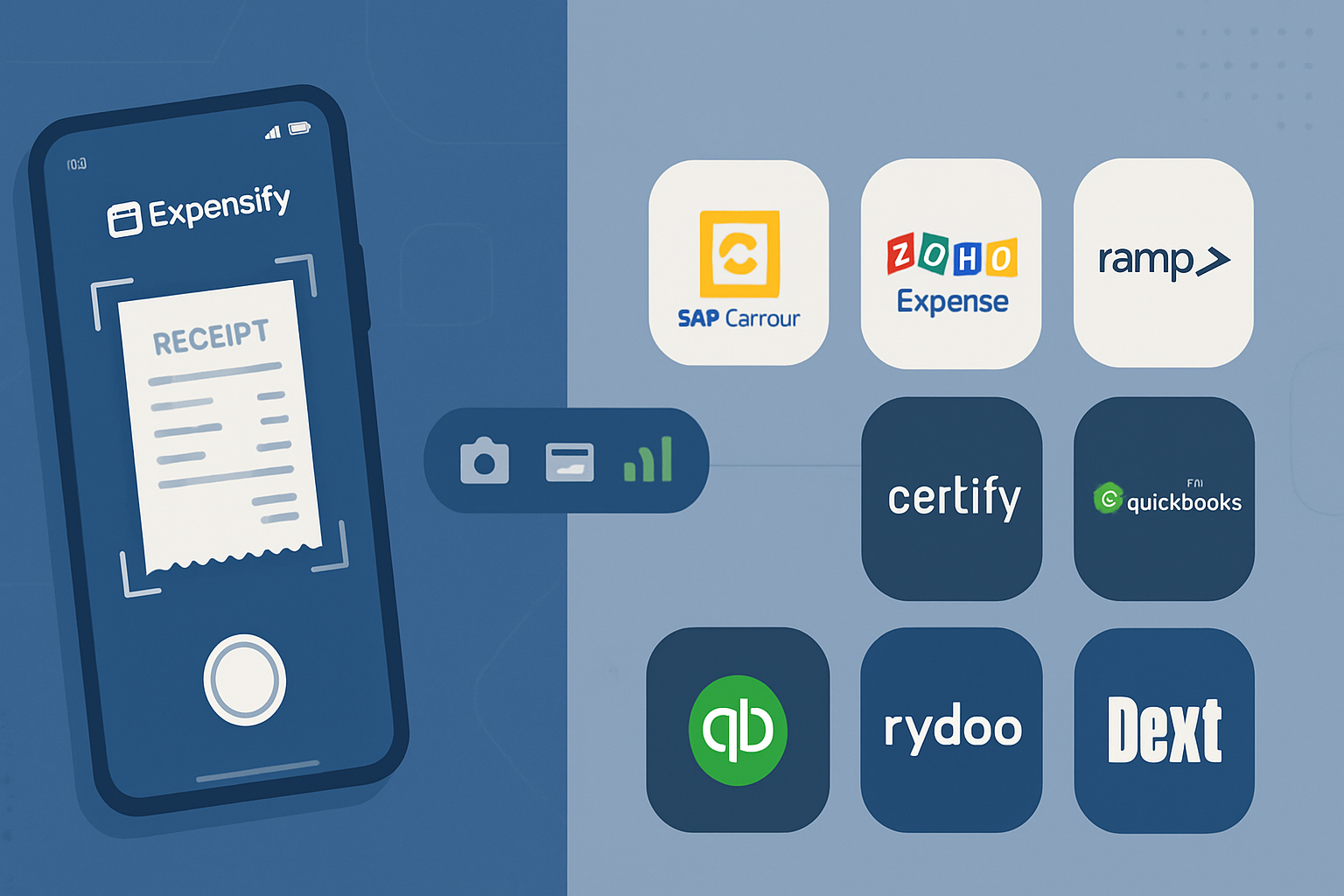
Expensify’s SmartScan uses Optical Character Recognition (OCR) to extract key receipt data - date, vendor, amounts, and sometimes tax info - and turns images into expense line items inside the app. It then attempts to categorize and match receipts (for example to corporate cards) based on rules and historical context. You can read Expensify’s own feature overview and documentation here: Expensify Features & SmartScan.
OCR is not magic; it’s software that’s very good in many cases and fallible in others. For background on the underlying technology, see the overview of OCR technology at Wikipedia: Optical character recognition.
The case for automatic scanning (SmartScan)
- Time savings - Scanning replaces typing. For frequent users this can cut per-expense time from minutes to seconds.
- Consistency - Fields like date and amount are extracted consistently, reducing data-entry variability.
- Faster approvals and reimbursements - Faster creation + automated rules = quicker routing and payouts.
- Better adoption - Users are more likely to snap a photo than to fill a form; higher compliance rates follow.
- Scales for volume - For organizations with high receipt volume, automation scales more predictably than manual headcount.
User voice (representative): “SmartScan saved our sales team hours each week - no one wants to type receipts on the road.” - Product-led startup manager (anonymized)
Expert perspective: Analysts who review expense tools note that OCR-based scanning is the baseline expectation for modern expense platforms, and that accuracy and rule automation are the differentiators between vendors (PCMag Expensify review).
The case for manual entry
- Control and accuracy for complex expenses - When expenses have multiple line items, split taxes, or non-standard charges, a human can interpret context better than OCR.
- Training and policy enforcement - Manual entry allows finance to embed precise fields, force required approvals, and train users to tag expenses correctly.
- Low-volume teams - If you have few receipts, manual entry may be simpler and cheaper to administer.
- Privacy or regulatory concerns - Some organizations prefer not to store scanned images in a cloud OCR pipeline for sensitive receipts.
User voice (representative): “For our legal team’s disbursements, manual entry actually reduces back-and-forth - they add context at entry instead of annotating later.” - Finance lead at a law firm (anonymized)
Accuracy: how good is SmartScan in practice?
SmartScan accuracy depends on receipt quality (photo sharpness, lighting), receipt complexity (handwritten notes, multi-currency), and how well your category rules are set up. Independent reviews and user feedback indicate high accuracy for clear, single-line receipts and reduced accuracy for messy or handwritten receipts (G2 user reviews, PCMag review).
In practice: expect 80–95% correct extraction of key fields for clean printed receipts. Expect lower rates for: handwritten receipts, scans of long multi-line restaurant bills, or receipts where tax is embedded ambiguously. When SmartScan is unsure, it typically flags the expense for user review rather than silently introducing errors.
Time & cost trade-offs (practical lens)
- Manual entry - low software cost, high labor cost. Cost per expense scales linearly with volume and hourly wage for whoever enters the data.
- Automatic scanning - higher initial setup and potential subscription cost, but dramatically lower marginal cost per scanned receipt.
Rule of thumb: If you process hundreds of receipts per month or have a distributed workforce that needs quick reimbursements, automation usually pays back in reduced labor and faster cycles.
Security and compliance considerations
- Data retention and privacy - Verify where scanned images and OCR data are stored and who can access them. Expensify provides documentation on security and GDPR controls in their platform docs.
- Auditability - Scanning + metadata (geolocation, timestamp, matched card data) often provides a stronger audit trail than unstructured manual notes.
- Corporate policy enforcement - Manual entry lets you force custom fields; automation sometimes requires clever rule configuration to replicate the same controls.
Reference: Expensify’s documentation and security statements (Expensify Docs).
When to choose each approach - decision matrix
Choose Automatic Scanning if:
- You process moderate-to-high receipt volume.
- Your users are mobile (sales, travel-heavy roles).
- Fast reimbursement cycles matter.
- You want better adoption and fewer missing receipts.
Choose Manual Entry if:
- Your receipts are complex and require human interpretation.
- Volume is low and direct control outweighs time savings.
- Regulatory or privacy constraints prevent cloud OCR use.
Choose a Hybrid approach (best of both worlds) if:
- You have mixed needs across roles. Let travelers use SmartScan; let specialized teams use manual entry with finance-reviewed workflows.
- You use SmartScan for initial capture and require Finance to finalize category/tax details before closing the book.
Representative hybrid workflows
Capture-first, validate-later
- Employees SmartScan every receipt at point-of-sale.
- Finance runs weekly reviews for policy compliance and corrects edge cases.
- Use Expensify rules to auto-categorize trusted vendors and flag exceptions.
Role-based mode
- Sales and field staff - SmartScan + auto-approve low-dollar expenses.
- Procurement and legal - manual entry with required fields and manager approval.
Card-matching primary, SmartScan backup
- Corporate card transactions are auto-imported and matched to receipts using SmartScan; unmatchable receipts are manually entered.
Practical tips to get the best from SmartScan in Expensify
- Train users on how to take great photos - flat on a contrasting background, good light, avoid reflections.
- Use Expensify’s rules and policy automation aggressively - set merchant rules, category defaults, and auto-categorization for repeat vendors.
- Configure approval chains to catch edge cases without creating bottlenecks.
- Archive or restrict access to scanned images if your company handles sensitive vendor or client data.
- Monitor a small sample of scanned receipts weekly at first to measure accuracy improvements and tune rules.
For specifics on setting rules and policies, see the Expensify Docs: Expensify Policies & Rules.
Real organizational examples (anonymized)
Mid-sized consultancy (200 employees) - Switched to SmartScan + rules. Result: 60% reduction in manual processing time and 40% faster reimbursements. They leveraged vendor rules to auto-categorize client-related travel.
Boutique law firm (20 attorneys) - Keeps manual entry for client-billable disbursements to ensure correct client codes and retain narrative on entries.
Sales-first startup (50 reps) - Defaulted to SmartScan on mobile; finance audits monthly. Reimbursement satisfaction rose; missing receipt incidents dropped by half.
Common implementation pitfalls and how to avoid them
Pitfall - Over-reliance on defaults. Don’t assume SmartScan will always categorize correctly.
- Fix - Build progressive rules and review exceptions.
Pitfall - No training for end users. Users snap bad photos.
- Fix - Short how-to guides and a 5-minute kickoff session.
Pitfall - Single workflow for all teams. One size doesn’t fit all.
- Fix - Role-based policies.
Final recommendation - short and practical
If your organization has significant receipt volume, distributed employees, or a need for quick reimbursements, prioritize SmartScan and invest the time to tune rules and train users. If you process complex, low-volume, or highly regulated expenses, either keep manual entry or adopt a hybrid approach that uses SmartScan for capture and humans for final validation.
Automation speeds things up. But governance and humans close the gap when edge cases appear. Choose both when you want speed with accuracy; choose one when constraints make it necessary. End with this: speed without controls is chaos - automation without governance is merely faster chaos.