· marketing · 7 min read
The HubSpot Hub: A Guide to Building a Custom Dashboard for Your Marketing Needs
Learn how to design and build HubSpot dashboards that track the KPIs your marketing team needs, with practical steps for custom reports, visualization choices, team-specific layouts, governance, and templates to get started fast.
Outcome-first introduction
You’ll walk away with a HubSpot dashboard that tells the true story of your marketing - not noise. Clear KPIs. Actionable visualizations. Team-specific views that promote transparency and faster decisions. Read on and you’ll be able to design, build, and roll out dashboards that your team will actually use.
Why a tailored dashboard matters
Data without context is frustrating. Dashboards, when built intentionally, answer three simple questions at a glance:
- What happened? (performance)
- Why did it happen? (drivers)
- What should we do next? (actions)
A single, well-structured HubSpot dashboard reduces meeting time, aligns teams, and surfaces the highest-impact opportunities.
Plan before you build: the discovery framework
Start here. Skip this step and you’ll create a noisy dashboard.
- Identify top objectives (quarterly). What outcomes will move the business? Examples - increase MQLs by 20%, reduce CAC by 10%, improve landing page conversion to 8%.
- Select 3–6 primary KPIs per objective. Too many KPIs dilute focus.
- Determine required data sources and objects. Contacts, Companies, Deals, Marketing Emails, Ads, Website sessions, CRM properties, custom behavioral events.
- Define owners and cadence. Who reviews weekly? Monthly? Who is responsible for data quality?
- Sketch the layout. Which charts must be first? What needs drill-down?
Suggested primary KPIs for marketing dashboards
- Visits / sessions (by source)
- New contacts created (by campaign/source)
- Marketing qualified leads (MQLs)
- Conversion rate (landing page, form, CTA)
- Deals influenced / opportunities created
- Cost per lead (CPL), Cost per MQL, CAC (with ads/spend data)
- Email open and click rates
- Attribution (first-touch, last-touch, multi-touch)
HubSpot tools and reports you’ll use
- Custom Reports Builder - for cross-object reports and advanced logic. See HubSpot docs: Custom Reports.
- Dashboards - grouping and filtering reports with shared filters. See: Manage dashboards.
- Attribution Reports - understands touchpoints and revenue influence. See: Attribution reports.
- Reports Library - pre-built templates to accelerate setup.
Designing your dashboard: structure and layout
A dashboard should flow from summary to detail. Use a top-down hierarchy:
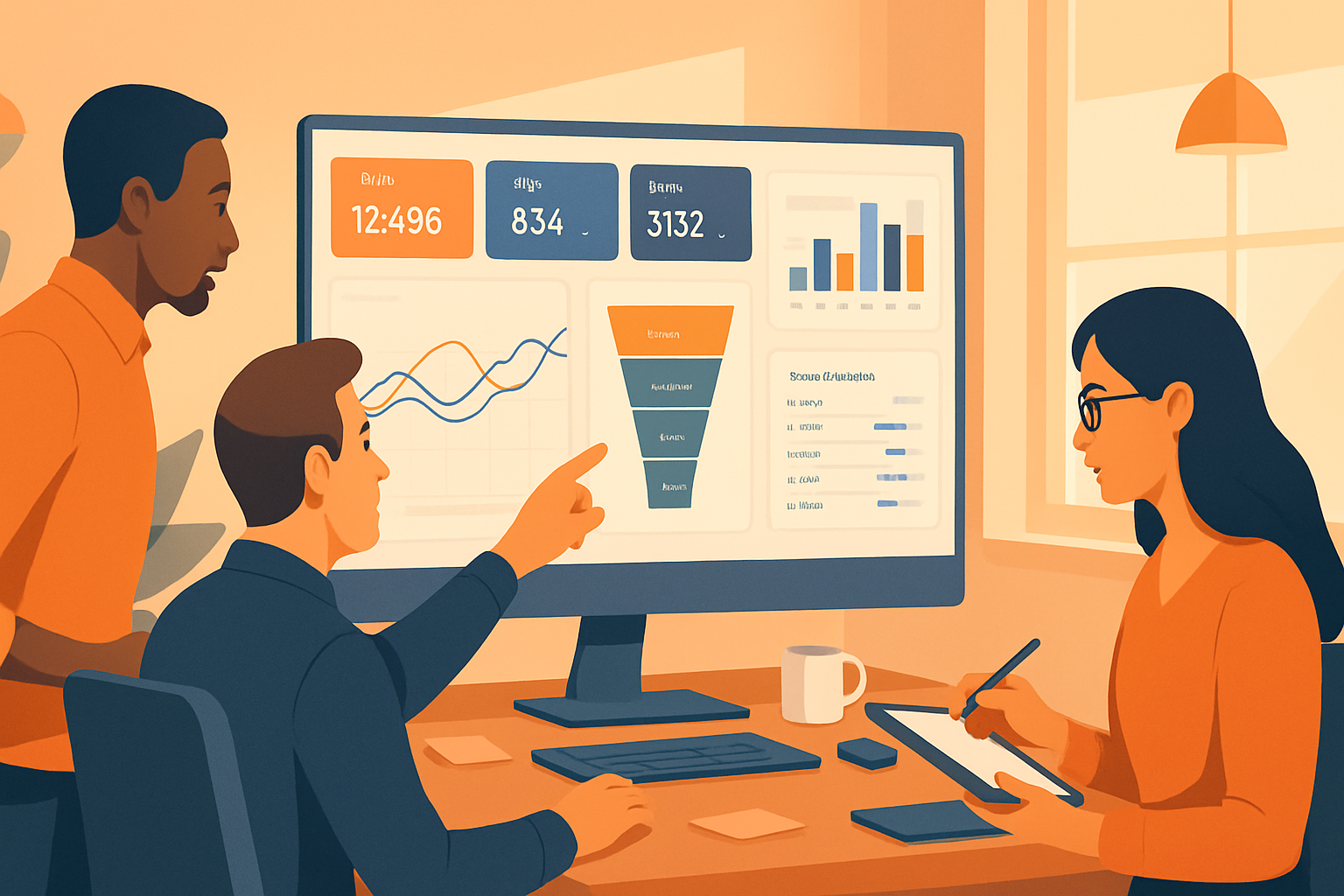
- Header row - four to six KPI cards - high-level metrics (MQLs, Visits, CPL, Pipeline influence, Revenue influenced).
- Trend row - line/area charts showing trajectory over time for primary KPIs.
- Channel and campaign row - source/medium, ad networks, campaigns (bar/stacked bar + conversion rate).
- Funnel and conversion row - landing page performance, form conversion, funnel visualization.
- Pipeline and attribution row - deals influenced, attribution model comparison, ROI.
- Detail row (expandable) - tables and raw lists for immediate drill-down (top landing pages, top campaigns, top contacts).
Visualization techniques and when to use them
- Single metric cards - use for KPIs that require immediate attention. Big, bold, simple.
- Line / area charts - show trends and seasonality. Use 7/30/90-day ranges for marketing.
- Bar / column charts - compare channels, campaigns, or content. Order by value to guide reading.
- Stacked bar - share composition (e.g., channel mix) but avoid too many stacks.
- Funnel charts - show conversion between stages (visit → landed → MQL → opportunity). Great for diagnosing drop-off.
- Tables - best for lists and where exact values matter (top pages, contacts, campaigns).
- Bubble / scatter - use for two-dimensional performance (e.g., impressions vs. CVR; bubble size = spend).
- Cohort charts - measure retention or lead velocity over time.
Practical visualization tips
- Limit colors to 3–5. Use color to encode meaning (green = up, red = down, orange = caution).
- Use consistent date ranges across the dashboard. Apply a global filter when possible.
- Label axes and make callouts for important changes. Don’t assume context.
- Avoid 3D charts - they distort perception.
Building custom reports in HubSpot (step-by-step)
- Start from the Reports > Reports library or click Reports > Create custom report.
- Choose the report type - single object, cross-object, funnel, attribution, or custom-coded (if you need advanced calculations).
- Select objects and properties. For cross-object reporting (contacts ↔ deals), pick both objects and identify the joining key.
- Add metrics and dimensions. Metrics are numeric aggregations (count of contacts, sum of deal amount). Dimensions are groupings (source, campaign, owner).
- Apply filters early to keep results clean (date range, lifecycle stage, campaign membership).
- Add calculations and formulas for derived metrics (e.g., Conversion Rate = MQLs / Sessions).
- Choose visualization and tweak settings (stacking, sorting, axis scale).
- Save report with a clear name and description. Place it in a logical folder.
Example: Create a cross-object report for MQL-to-deal conversion
- Objects - Contacts + Deals
- Filters - Contact lifecycle stage = MQL; Contact create date between X and Y; Deal create date within 90 days of MQL
- Metrics - Count of MQLs, Count of Deals created, Conversion % (calculated)
- Visualization - Funnel or bar with conversion % overlay
Best practices for naming and organizing reports
Use a consistent naming convention so teams can find and reuse reports.
Example naming convention:
[Team] - [Primary KPI] - [Dimension/Filter] - [Frequency]
Marketing - MQLs - by Channel - Weekly
Sales Ops - Pipeline - by Stage - Monthly
Folders and access control
- Create folders by function (Marketing, Sales, Executive) or by objective (Acquisition, Activation, Revenue).
- Use dashboard sharing and permission settings. Limit edit access to maintain layout integrity.
- Use clones for team-specific views so teams can customize without breaking the master dashboard.
Tailoring dashboards for different teams
Marketing leaders
- Focus - high level performance, pipeline influence, channel ROI.
- Visuals - KPI cards, trend charts, attribution summaries.
- Cadence - weekly review, deep-dive monthly.
Content & SEO
- Focus - organic traffic, landing page conversion, top content by sessions and engagement.
- Visuals - tables for top pages, time-on-page distributions, conversion funnels.
- Cadence - weekly for campaigns, monthly for content strategy.
Paid media teams
- Focus - spend, impressions, clicks, CPL, ROAS.
- Visuals - bar charts by network, scatter (CPL vs. conversion), time series of spend vs. leads.
- Cadence - daily to weekly.
Demand gen / Growth teams
- Focus - MQL velocity, campaign attribution, scaling experiments.
- Visuals - cohort charts, funnel by campaign, AB test results.
- Cadence - weekly sprint checks.
Executive / leadership dashboard
Keep it tight. Three to five metrics that map to business outcomes. Use trendlines and one-sentence annotations that explain major moves. Executive audiences want clarity, not details.
Governance, performance, and data quality
- Ownership - assign a dashboard steward responsible for accuracy and updates.
- Validation rules - standardize property values (sources, campaign names) with picklists and canonicalization.
- Refresh cadence - understand HubSpot report caching. For high-frequency data (ads), schedule daily refresh or connect to a BI tool if you need real-time.
- Document calculations - store formulas and logic in the report description.
Advanced techniques
Cross-object joins
- Use cross-object reports to measure influence (e.g., contact → deal conversions). It’s powerful but verify join logic.
Calculated properties and formulas
- Create calculated properties in HubSpot or within custom reports for LTV, conversion rates, time-to-convert.
Attribution models
- Use HubSpot’s attribution reports to compare first-touch, last-touch, and multi-touch. Attribution informs budget allocation.
Dashboards + automation
- Schedule weekly emailed dashboards to stakeholders.
- Use HubSpot workflows to trigger alerts when a KPI crosses a threshold (e.g., MQLs drop by 30% MoM).
Template: Quick-start marketing dashboard (widgets to add)
Header row (KPI cards)
- Sessions (30d)
- New Contacts (30d)
- MQLs (30d)
- CPL (30d)
- Deals Influenced (90d)
Middle rows (visuals)
- Sessions by source (bar)
- New Contacts by campaign (stacked bar)
- Landing page conversion rate (table + sparkline)
- Email opens & clicks trend (line)
Bottom rows (diagnostics)
- Funnel - Visit → Form → MQL → Opportunity
- Attribution comparison - first-touch vs last-touch (bar)
- Top landing pages table (with conversion rates & traffic)
Deployment checklist
- Define owners and review cadence
- Standardize naming and campaign tagging
- Build top-line KPI cards first
- Add trend and channel analysis
- Create drill-down reports for root-cause analysis
- Share dashboards with stakeholders and set permissions
- Schedule reports and automations
Put dashboards to work: adoption tips
- Run a 30-minute walk-through with each team. Show where to look for decisions.
- Add short annotations to important charts explaining major moves or experiments.
- Keep the dashboard lean. Remove reports nobody uses.
- Revisit quarterly. Business priorities and KPIs evolve.
Troubleshooting common issues
- Missing data - check filters (date ranges and lifecycle stages). Confirm campaign tagging and ad accounts are connected.
- Duplicate contacts - implement deduplication rules and use email as canonical identifier.
- Unexpected joins - validate cross-object relationships and date windows.
Resources
- HubSpot Custom Reports: https://knowledge.hubspot.com/reports/custom-reports
- HubSpot Dashboards: https://knowledge.hubspot.com/reports/manage-your-dashboards
- HubSpot Attribution: https://knowledge.hubspot.com/reports/create-and-analyze-attribution-reports
Final thought
A dashboard is successful when it surfaces the decisions you need to make, not just the numbers. Build with intention, keep it focused, and assign ownership. When your dashboard reflects decisions - not just data - your team moves faster and acts with confidence.