· productivity · 7 min read
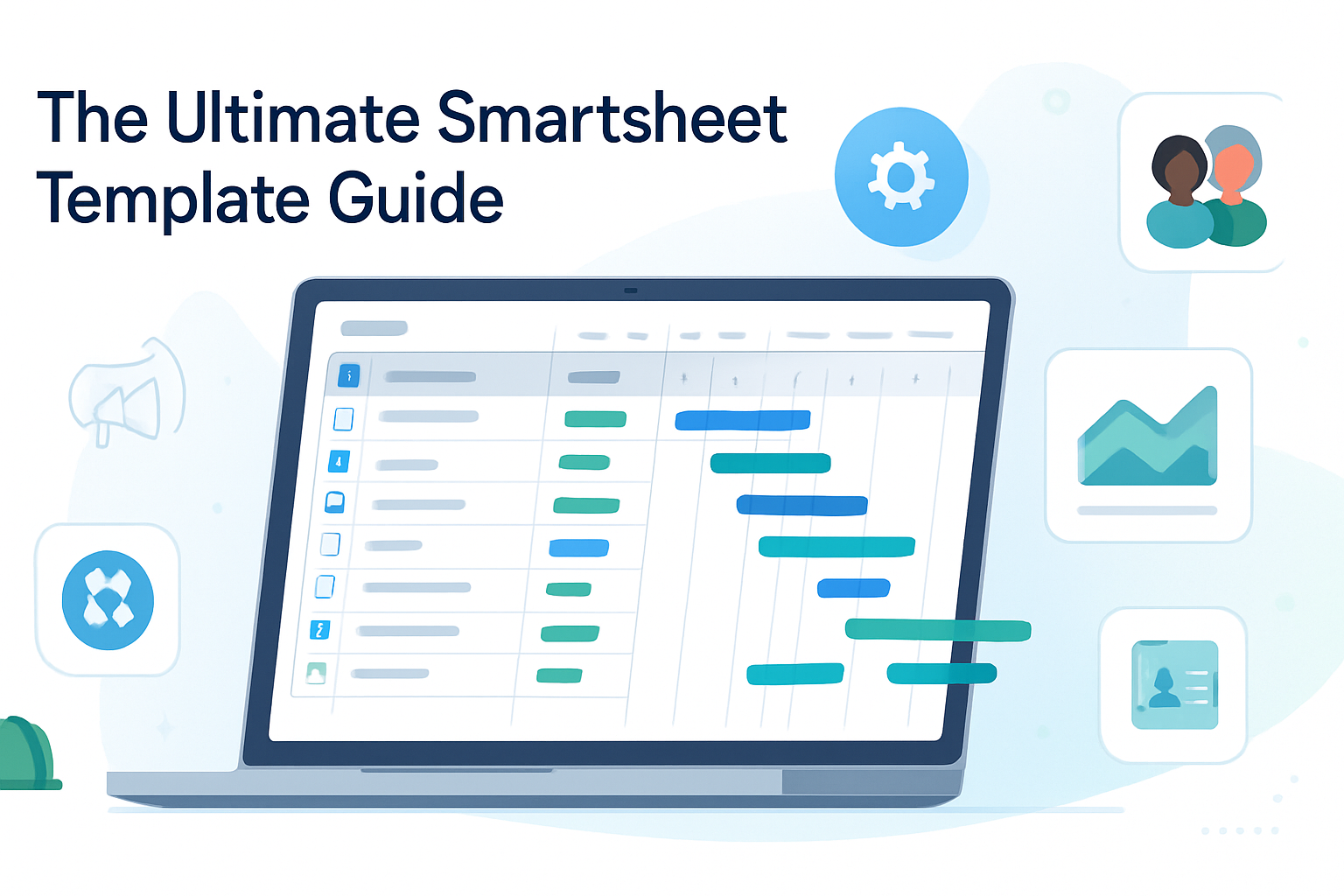
The Ultimate Smartsheet Template Guide: Save Hours on Your Projects
Discover a collection of customizable Smartsheet templates for industries and use cases - plus step-by-step customization tips, formulas, automations, and governance rules to save hours on your projects.
Outcome-first introduction
Get ready to stop reinventing the wheel. In this guide you’ll find ready-to-adapt Smartsheet templates, proven customization recipes, and automation patterns that cut manual work and keep projects moving - without needing to rebuild spreadsheets from scratch. Use these templates to launch faster, standardize delivery, and free hours every week so teams focus on results, not admin.
Why templates matter (quick)
Templates create repeatable structure. They let you capture best practices once and reuse them across projects. The payoff is time saved, fewer mistakes, consistent reporting, and faster onboarding for new team members. Simple as that.
What this guide covers
- High-value Smartsheet templates by industry and use case
- Template anatomy - key columns, formulas, and conditional formatting
- Automations and workflows to cut status-update time
- Dashboards, reports, and integrations for one-click reporting
- Implementation checklist, governance and naming conventions
- Sample formulas and automation recipes you can copy
Which templates to start with (and when to use them)
- Project Tracker / Project Plan - For any multi-task project. Use when you need end-to-end tracking with dates, owners, and dependencies.
- Gantt / Timeline - For visual planning and stakeholder buy-in. Use for cross-functional timelines and milestone presentations.
- Task List / To-Do Tracker - Lightweight for small teams or sprints - daily standups and action-item tracking.
- Resource Planner / Capacity Tracker - Use when balancing people across projects and limiting over-allocation.
- Portfolio Dashboard - Executive view of multiple projects - statuses, risk, and budget snapshots.
- Agile / Sprint Backlog - Simple Kanban or backlog with story points and velocity tracking.
- Marketing Campaign Planner - Content calendar, dependencies, asset approvals and publishing schedule.
- Event Planning Checklist - Detailed vendor, logistics, and timeline management.
- HR Onboarding Template - Tasks, documents, and compliance checklists for new hires.
- Finance Budget & Forecast - Expense tracking, variance, approvals and month-by-month forecasts.
- Construction / Field Job Log - Work orders, safety checklists, inspections and sign-offs.
Each industry can be built from these core templates by adding columns, conditional rules, and automations relevant to your process.
Template anatomy: what every good template includes
- Core columns (the minimum)
- Unique ID (auto-number)
- Task/Item name (primary column)
- Owner/Assigned To (contact list)
- Start Date and End Date (date type)
- Duration (calculated) - example formula shown below
- Status (dropdown - Not Started, In Progress, Blocked, Complete)
- % Complete (numeric)
- Priority (Low/Med/High)
- Predecessors (text or link to row IDs)
- Comments/Notes (rich text)
- Attachments (file column)
- Helpful extras (depending on use case)
- Cost/Estimate/Actual (currency)
- Department/Client (multi-select)
- Approval status (Pending, Approved, Rejected)
- Tags or Phases (for filtering and reports)
Sample Project Tracker layout (copyable)
| Column Name | Column Type | Purpose |
|---|---|---|
| ID | Auto-number | Unique row identifier |
| Task | Primary text | Task description |
| Assigned To | Contact list | Owner for action |
| Start | Date | Planned start date |
| End | Date | Planned end date |
| Duration | Text/Formula | =NETWORKDAYS([Start]@row, [End]@row) |
| Predecessors | Text | Row IDs of dependent tasks |
| Status | Dropdown | Track state |
| % Complete | Number | Progress |
| Priority | Dropdown | Triage |
| Comments | Long Text | Notes |
Must-have formulas and quick examples
- Calculate working days (exclude weekends):
- =NETWORKDAYS([Start]@row, [End]@row)
- Days remaining from today:
- =IF([End]@row < TODAY(), 0, NETWORKDAYS(TODAY(), [End]@row))
- Flag overdue tasks:
- =IF(AND([Status]@row <> “Complete”, [End]@row < TODAY()), “Overdue”, "")
- Percent complete roll-up (parent row reflects children) - use a formula in a parent row such as:
- =IF(COUNT(CHILDREN()) = 0, [Percent Complete]@row, SUM(CHILDREN([Percent Complete])) / COUNT(CHILDREN()))
- VLOOKUP from a reference sheet (e.g., rates):
- =VLOOKUP([Resource]@row, {Rates Range}, 2, false)
Note: Smartsheet formulas use @row references and range names; adapt column names to match your sheet.
Conditional formatting rules to surface what matters
- Highlight overdue rows - Status is not Complete AND End date before Today - red background.
- Show at-risk tasks - Priority = High AND % Complete < 25% - amber highlight.
- Distinguish milestones - Duration = 0 - unique icon or color.
- Completed rows dimmed - Status = Complete - gray text.
Automations & workflows that save hours
Automation types to create once and reuse:
- Reminders - Send weekly reminders to task owners with overdue tasks. Saves the project manager from chasing updates.
- Approval Requests - Route budget or design approvals to stakeholders with a one-click approve/reject flow.
- Update Requests - Automatically request status updates from assignees when a milestone date is approaching.
- Escalation Rules - If an approval is not completed within X days, escalate to the manager and notify stakeholders.
- Row Movement - When Status changes to Complete, move the row to an archive sheet or lock it down.
Example automation recipe (text):
Trigger: When End Date is 3 days away and Status is not Complete Action: Send Update Request to Assigned To with fields: % Complete, Comments
Create this via Smartsheet Workflows (see: https://help.smartsheet.com/articles/2476162-create-automations-with-workflows).
Dashboards & reports: one-click executive views
Build a Dashboard that includes:
- KPI widgets - number of at-risk projects, % on-time, active projects
- Metric widgets fed by charts from reports (budget burn down, task completion over time)
- Shortcut links to underlying sheets and an approval inbox
- Cross-project timeline widget (Gantt)
Use Reports to roll up tasks from multiple project sheets based on filters (e.g., all overdue tasks across the portfolio).
Integration tips (connect the ecosystem)
- Calendar sync - Publish dates to team calendars so stakeholders see milestones.
- Slack/Microsoft Teams - Push notifications for approvals or updates - cut email noise.
- Jira or Azure DevOps - Sync issue status when using Smartsheet for portfolio management and another tool for detailed dev tracking.
- Google Drive / OneDrive - Use attachments for single source of truth on assets.
Smartsheet integration docs: https://help.smartsheet.com/links-to-integrate
Industry-specific tweaks and quick examples
- Marketing Campaign Planner
- Add columns for Channel, Content Type, Publish Date, Approver, Asset Link
- Automations - Send approval request to Legal before publish; reminder 48 hours before Publish Date
- Construction / Field Jobs
- Add site address, contractor, safety checklist, inspection date
- Automations - On inspection fail, create corrective action item and notify supervisor
- HR Onboarding
- Include New Hire data, compliance training tasks, IT provisioning and completion dates
- Automations - When Background Check = Completed, trigger IT provisioning workflow
- Finance Budget Tracker
- Add Budgeted vs Actual, Variance formulas, and Approval column
- Automations - When Actual > 90% of Budget, notify Finance lead
Template governance and naming conventions
- Naming convention (recommended) - [Org]-[TemplateType]-[Region]-[Year] - e.g., Acme-ProjectPlan-US-2025
- Versioning - Keep a master template in a locked workspace. When you change the template, increment the version in the name and log the change notes in a single cell or a change log sheet.
- Permissions - Use view-only master template; give editors permission only on project instances. Restrict who can change columns or automation rules.
Implementation checklist: deploy a new template in 8 steps
- Copy the master template into a Projects workspace.
- Rename using your naming convention.
- Update project-specific metadata (Client, Sponsor, Start/End).
- Link any cross-sheet references (rates, resource pool, budgets).
- Enable automations for the project and test each scenario.
- Create or update project report and add to the project dashboard.
- Share with stakeholders and set appropriate permissions.
- Run a 48-hour pilot with a small set of users, gather feedback, and iterate.
Measuring time saved and ROI
Track baseline manual hours for status updates, approvals, and reporting for a few projects. After template adoption, measure the new hours. Common improvements:
- Status updates - 50–80% reduction in time spent
- Reporting prep - 70–90% faster with dashboards and reports
- Approval cycle times - 30–60% faster with automated approvals
Estimate ROI: (Hours saved per week _ average hourly rate _ number of projects) × 52 - then subtract implementation time. Most teams recoup template build time in weeks.
Common pitfalls and how to avoid them
- Over-automation - Don’t automate everything. Start with the repetitive, high-value tasks (reminders, approvals) and expand.
- Too many columns - Keep sheets focused. Use linked reference sheets for lookups instead of bloating the main sheet.
- Poor naming - Inconsistent names break cross-sheet references. Enforce naming conventions.
- Missing governance - Lock the master template and control who edits automations and column structure.
Where to find pre-built templates and inspiration
- Smartsheet Template Gallery: https://www.smartsheet.com/templates - hundreds of templates you can copy and adapt.
- Smartsheet Help Center and Workflow docs: https://help.smartsheet.com/ - for formula syntax and automation setup.
- Smartsheet Blog & Community - find case studies and best practices at
Quick-reference cheat sheet (copy these to a “Template How-To” section in your master)
- Must columns - ID, Task, Assigned To, Start, End, Status, % Complete
- Key formula - =NETWORKDAYS([Start]@row, [End]@row)
- Overdue flag - =IF(AND([Status]@row <> “Complete”, [End]@row < TODAY()), “Overdue”, "")
- Automation starter - Reminder 3 days before End Date if Status <> Complete
Wrap up - what you’ll gain
Use templates to capture what your team already knows but forgets to repeat. Launch projects faster. Reduce status meeting time. Increase clarity for stakeholders. Get consistent reporting across the organization. Do that well and you convert hours of admin into outcomes that actually move work forward.
References
- Smartsheet Templates: https://www.smartsheet.com/templates
- Smartsheet Automation / Workflows: https://help.smartsheet.com/articles/2476162-create-automations-with-workflows
- Smartsheet Help Center: https://help.smartsheet.com/