· productivity · 6 min read
From Chaos to Clarity: How Quip Tips Can Overhaul Your Project Management
A practical, step-by-step guide showing how specific Quip features-templates, tasks, Live Apps, checklists, and integrations-can turn fragmented project work into a single living workspace so teams finish projects with less friction and more focus.

By the time you finish this guide you’ll have a practical, repeatable Quip workflow that turns scattered notes, emails, and spreadsheets into a single living source of truth. You’ll run clearer kickoffs. Assign work faster. Get fewer status meetings. And you’ll actually deliver more of what matters.
Why Quip? Because it combines documents, spreadsheets, chat and task management in one collaborative canvas. Use it well and you stop chasing updates across tools. Use it poorly and you create another silo. This post shows the setup, the day-to-day rhythms, and the exact Quip features to lean on so you get the first outcome (clarity) and the second (speed).
Decide your outcome first
Start every project in Quip by answering two questions and writing them at the top of the project doc:
- What success looks like. Be specific. Numbers help.
- The primary constraint. Time, budget, or scope.
One line for the goal. One line for the constraint. Short. Clear. Pinned at the top of the doc so every new team member sees it instantly.
Step 0 - Project scaffolding (naming, roles, templates)
Before inviting the team, create a lightweight scaffold:
- Folder - ProjectName / Year / Phase
- Document - ProjectName - Brief (this is the single source of truth)
- Live Apps - Roadmap (Timeline) + Kanban + Metrics chart
- Spreadsheet - Resource tracker / Budget sheet
Naming convention example:
- “Acme-Website-Q2-2026 / Brief”
Why this matters: consistent locations remove hunting. Short. Brutally effective.
Step 1 - Kickoff doc that actually works
Create a kickoff doc in Quip with these sections near the top:
- One-line objective
- Success metrics (KPIs)
- Key milestones with dates
- Roles & owners (RACI-light - Owner / Collaborator / Reviewer)
- Known risks and mitigations
Use a Quip template for this. Templates save time and keep the same structure across projects. If you don’t want to build one from scratch, start from a simple document and select Save as Template.
Quick tip: include a pinned checklist labeled “First 7 days” with the top onboarding tasks for the project owner.
Step 2 - Build a living plan with Live Apps and Spreadsheets
Quip Live Apps let you embed dynamic tools inside a document. For most projects you’ll want:
- Timeline (Roadmap) Live App for milestones.
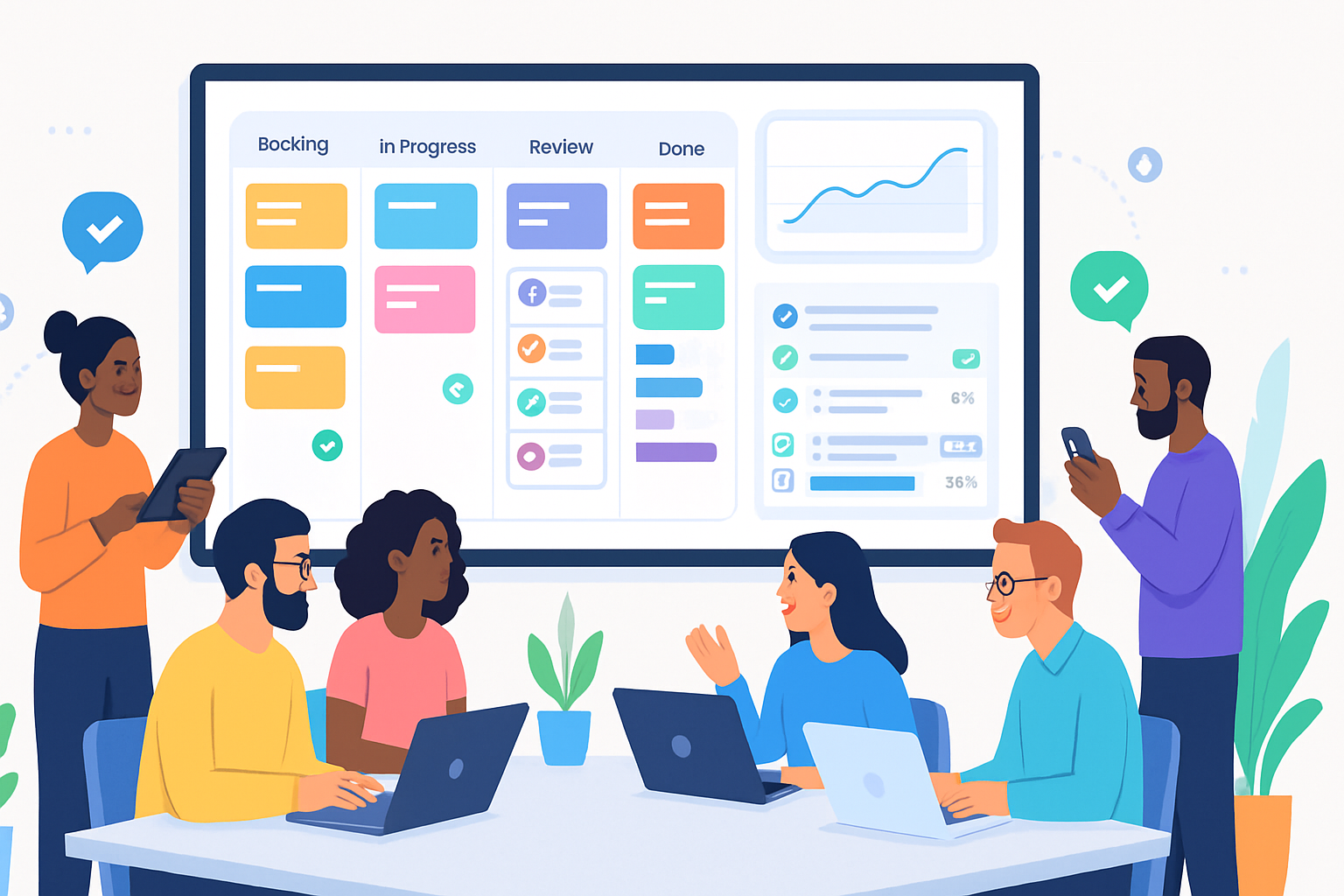
- Kanban Live App for work-in-progress.
- Chart Live App (or embedded spreadsheet chart) for KPIs.
Why this helps: everything is visible on one page. No toggling between tools. Update one place; the view everywhere changes.
Concrete setup:
- Insert a spreadsheet for your detailed roadmap with columns - Task, Owner, Start, Due, Status, Blocker.
- Convert that data into a Timeline Live App for leadership and a Kanban Live App for the team.
- Add a small chart that shows % complete or cycle time pulled from the sheet.
Result: one dataset, many views.
Step 3 - Assign tasks the Quip way (slash commands, @mentions, due dates)
Stop treating Quip docs like static pages. Turn bullets into living tasks.
- Use the checkbox list for micro-tasks. Assign them with @name and add a due date inline.
- Use the slash command /task or /assign (depending on your Quip version) to create tracked tasks that show up in people’s task lists.
- For bigger pieces of work, create a row in the spreadsheet and assign an owner + due date there.
Example:
- @Janelle - Draft homepage copy (due Apr 15)
When you @mention someone or create a task, they get notified. No more “did you see my email?”
Step 4 - Run meetings inside Quip - keep the agenda, notes, and actions together
A Quip meeting doc should include:
- Purpose and outcome (top of doc)
- Timebox (start / end time)
- Agenda with owners for each item
- Live notes (take them in the doc itself)
- Action list (converted to Quip tasks) with owners and due dates
After the meeting, link action items back to the project roadmap. If the action is a new task, create it with /task so it appears in the assignee’s list.
This reduces follow-ups. It also makes meeting notes actionable.
Step 5 - Status at a glance: dashboards and weekly rollups
Create a one-page status dashboard in the project folder. Include:
- Topline health (RAG - Red/Amber/Green)
- Top 3 risks
- % of milestones on track
- Tasks completed this week
Use an embedded spreadsheet to calculate rollups. Use charts for visual clarity. Schedule a short weekly update doc where each owner answers three questions:
- What I did last week
- What I will do this week
- Anything blocking me
Keep answers to one sentence. Keep cadence weekly. This eliminates long status emails.
Step 6 - Automate updates, reduce noise
Quip integrates with Slack, email, and Salesforce. Configure notifications thoughtfully:
- Turn on task notifications for owners only.
- Disable per-edit notifications for large docs; prefer comment notifications.
- Connect a Slack channel for milestone-driven alerts (optional).
If your team uses Salesforce, the Quip + Salesforce connection can push records into Quip documents so sales and delivery share the same context. See Quip overview for details: https://help.salesforce.com/s/articleView?id=sf.quip_overview.htm&type=5
Best practices and etiquette
- Single source of truth - link back to the project Brief for every major decision.
- Micro-updates in comments, not new docs.
- Use @mentions sparingly. Mention owners, not entire teams.
- Keep document structure shallow - headings, a few subheadings, then action lists.
- Leverage version history when you need to undo or audit decisions.
Reference: Quip tasks and Live Apps are documented at the Quip Help Center: https://help.quip.com
Sample templates and snippets (copy into a Quip doc)
Project Brief (top of doc):
- Objective - Increase signup conversion to 8% by July 1
- Key metric - Weekly converted leads / total visitors
- Primary constraint - Engineering bandwidth
First 7 days checklist:
- Create roadmap in this doc - @Product
- Confirm data source for KPI - @Analytics
- Draft user flows - @Design
Meeting agenda snippet:
- 0–5 min - Goals for meeting (@Facilitator)
- 5–20 min - Roadmap review (Owner)
- 20–30 min - Risks & blockers
Action item to task:
- /task Draft copy for hero section @Janelle due Apr 15
(Use the slash commands available in your Quip instance. If you don’t see a command, type ”+” or use the Insert menu.)
Metrics worth tracking (and why)
- Cycle time (start → done) - Tracks how long items take. Shorter is better.
- % Tasks completed on time - Shows reliability.
- Blocker count - If this grows, stop and unblock.
- Meeting time spent vs. outcome - Are meetings producing action items?
If metrics trend wrong, fix the process before hiring more people.
Common pitfalls and how to avoid them
- Pitfall - Creating dozens of docs and not connecting them. Fix: link documents from the Brief; keep related docs in the project folder.
- Pitfall - Over-automation and notification spam. Fix: tune notifications and use team-level channels for milestone announcements only.
- Pitfall - Using Quip only as a document repository. Fix: convert to tasks and Live Apps - make work actionable.
Quick 7-step checklist to get started (today)
- Create ProjectName - Brief and write the one-line objective.
- Add a Timeline Live App and a Kanban Live App.
- Create the first 10 tasks and assign owners and due dates.
- Save the doc as a template for future projects.
- Create a weekly status doc and invite stakeholders.
- Link your tasks to the dashboard (embedded sheet/chart).
- Turn on task notifications for assignees only.
Final word - make Quip the nervous system, not a filing cabinet
Quip isn’t magic. It’s a fast, flexible workspace. But when you build a shared scaffold - a project brief, a living roadmap, task lists that people actually use - you change how work flows.
The clearest transformation happens when teams stop creating work about work (emails, chase-ups, shadow updates) and instead invest five minutes up-front to put work into a shared Quip doc. That small investment pays back in fewer meetings, clearer handoffs, and faster delivery.
Start with a single project. Run it fully in Quip for two sprints. Watch chaos become clarity.