· business · 7 min read
Navigating the New Interface: QuickBooks Online Updates You Should Know
A practical, outcome-first guide to the latest QuickBooks Online interface updates (as of mid‑2024): how to find what changed, where to click, and how to use new dashboards, search, banking, receipts and reports to speed up everyday bookkeeping.
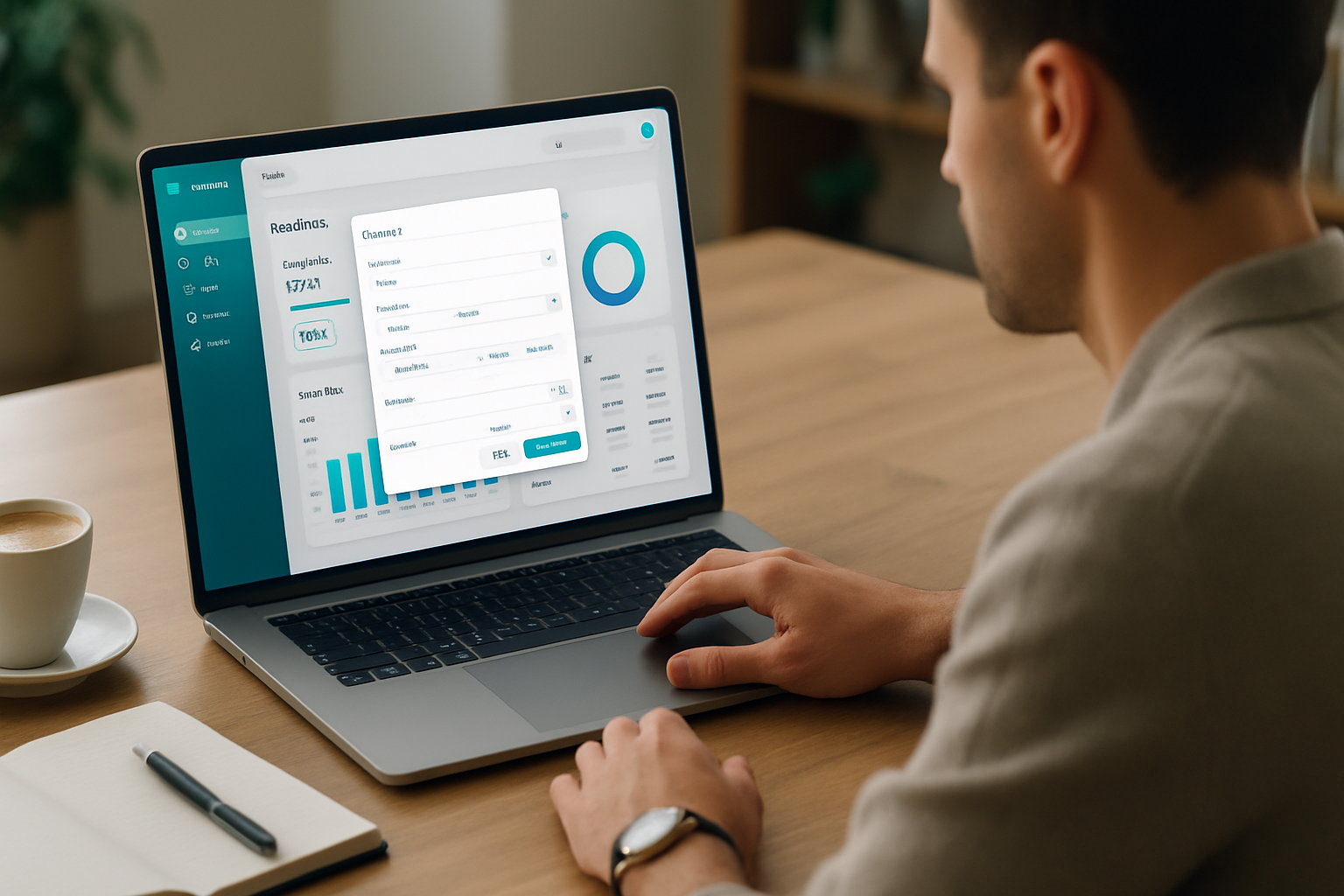
Get to work faster with the new QuickBooks Online interface
By the time you finish this guide you’ll be able to: find the features you use every day, customize the home/dashboard to fit your role, speed up banking and receipts processing, and run the reports you need - without feeling lost in a redesigned layout. Short. Practical. Actionable.
QuickBooks Online (QBO) has been rolling out user interface updates aimed at simplifying navigation and surfacing high‑value actions. Some changes are visual; some change where commands live. This guide walks through the key updates, shows exactly where to click, and offers practical tips to adapt quickly.
High‑level view: What’s changed (and why it matters)
- Left‑hand navigation and a condensed top bar - makes the workspace feel more consistent and gives more room for dashboards and lists.
- A smarter global search - find customers, invoices, transactions and help topics from one box.
- Refreshed Home / Business overview - more actionable widgets and quicker links to tasks that affect cash flow.
- Improved banking and receipts workflows - better matching, bulk actions, and improved mobile receipt capture with smarter extraction.
- Streamlined transaction forms - faster entry, clearer actions, and better on‑screen guidance.
- Enhanced reporting center and cash‑management tools - quicker access to common reports and cash flow insights.
Why this matters: the changes remove extra clicks, reduce hunting for commands, and surface the actions you use most. The end result is fewer errors and faster month‑end work.
Quick tour: Where to find the things you use every day
Use this as a mental map when you first open the updated QBO.
1) The left navigation
What it is: your main menu is now on the left. It groups core areas - Home (Business overview), Banking, Sales/Customers, Expenses/Suppliers, Payroll (if enabled), Projects, and Reports. How to use it: click a section once to open a focused workspace. Hover or expand to access submenus and common actions. Tip: pin frequently used pages to your browser bookmarks for even faster access.
2) Global search
What it is: a single search box that finds customers, invoices, bills, transactions, and often the help article you need. How to use it: type a name, invoice number, or even part of a memo. Use arrow keys to navigate results and press Enter to jump straight into the record.
3) The + New / Create button
What it is: a persistent action button for creating invoices, bills, expenses, journal entries and more. How to use it: click the button to open a condensed transaction form. Most fields are pre‑focused to speed entry.
4) Home / Business overview dashboard
What it is: redesigned widgets that show invoices awaiting payment, overdue bills, bank balances, and quick links to common tasks. How to use it: customize the layout by collapsing or expanding widgets and clicking into the item lists to act immediately.
5) Banking workflow
What it is: a unified view of connected bank accounts, with matching suggestions, rules, and bulk categorization tools. How to use it: review matches, accept or adjust categories in bulk, and create bank rules for recurring items. Tip: batch accept bank suggestions for low‑risk transactions to save time.
6) Receipts and mobile capture
What it is: improved OCR and field extraction when you upload receipts via the mobile app. How to use it: snap a photo, confirm extracted fields, and attach the receipt to an expense or bill.
7) Reports center and saved custom reports
What it is: faster access to commonly used reports and a clearer way to save and share customized report views. How to use it: pin the reports you use most and set default date ranges to match your workflow.
Step‑by‑step: Common tasks in the new layout
Follow these sequences the first few times you use the new interface. They’ll feel almost automatic after a week.
Create and send an invoice (fast)
- Click the + New / Create button.
- Select Invoice.
- Start typing the customer name into the customer field (global search works here).
- Add line items and match to your product/service catalog.
- Attach a file if needed, set payment options, then Save and Send.
Why it’s faster: forms open in a focused overlay so you never lose context of the underlying page.
Reconcile bank transactions with bulk actions
- Go to Banking on the left.
- Select the account and use the filter to show Unreviewed.
- Use checkboxes to select a group of similar transactions.
- Accept recommended matches or apply a category, then Accept Selected.
Why it’s faster: bulk processing reduces repetitive clicks and lets you clear large batches at once.
Capture and attach receipts from your phone
- Open the QuickBooks mobile app and tap the camera icon.
- Take a photo or upload a saved receipt.
- Confirm the vendor, date and amount extracted by OCR.
- Save to an Expense or attach to a Bill/Invoice.
Why it’s better: accurate extraction means less manual typing and fewer mistakes during reconciliation.
Run a monthly close report package
- Open Reports from the left navigation.
- Use your saved report set (Profit & Loss, Balance Sheet, A/R Aging, A/P Aging).
- Adjust date ranges and click Run - pin or export PDFs for stakeholders.
Why it helps: the updated reports center reduces the time to build the packet for managers or your accountant.
Hidden productivity boosters (use these to shave hours off routine work)
- Keyboard shortcuts - familiar QBO shortcuts still work. Learn the handful you’ll use daily (search, save, create).
- Pin reports and pages to the QuickBooks left nav for one‑click access.
- Use bank rules sparingly but consistently - they pay back in time saved.
- Set up recurring transactions for monthly invoices or bills - but review them every quarter.
- Use the bulk reclassify or batch actions (where available) to fix categories across multiple transactions.
Troubleshooting & control: if your screen looks different
- Not seeing the new layout? QuickBooks sometimes rolls updates out gradually. Check for a banner or a “Try the new navigation” toggle.
- Missing features after an update? Clear cache or try an incognito window to confirm it’s not a browser caching issue.
- Permissions differences - admin users may see more sections; check user roles (Settings → Manage users) if someone can’t access a page.
- If you hit a problem you can’t resolve, use the QBO Help menu to contact support or search the QuickBooks help site.
Official support and product update pages can help confirm changes: see QuickBooks Help & Support and the QuickBooks Blog for product announcements.
Quick checklist: 10 actions to get comfortable in 30 minutes
- Open QBO and scan the left nav - click each main section once.
- Type a customer name in the global search.
- Create a dummy invoice via + New to see the new form.
- Visit Banking, review three unmatched transactions and accept matches.
- Upload one receipt from your phone and confirm extracted fields.
- Run your top 3 reports and pin them.
- Create one bank rule for a recurring merchant.
- Reclassify a small batch of transactions (test on 5 items).
- Confirm user permissions for any colleague who needs broader access.
- Bookmark the Home page and your top report for one‑click returns.
Complete this checklist once and repeat weekly for two weeks. Confidence grows fast.
FAQs (short answers)
Q: Can I switch back to the old QuickBooks interface?
A: Historically QBO offered toggles during transition periods. If you don’t see an option now, it means the update is active for your account; check QuickBooks help or support for migration guidance.
Q: Will my existing integrations and apps still work?
A: Yes. UI updates rarely change API behavior. But test critical workflows (payment processors, payroll, or synced CRMs) after a significant UI change.
Q: Has reporting changed or moved?
A: Reports are easier to access from the left nav and the reports center is optimized for quick pins and saved customizations.
Final practical note
The new QuickBooks Online interface is designed to work for the way you actually run your business - not to make you relearn your bookkeeping. Start with small habits: use the global search, pin three pages, and run one batch bank accept. Do those things and the rest follows.
References & further reading
- QuickBooks Help & Support: https://quickbooks.intuit.com/learn-support/en-us/
- QuickBooks Blog (product news & tips): https://quickbooks.intuit.com/r/