· marketing · 9 min read
Integrating Klaviyo with Your E-commerce Platform: Secrets for Seamless Success
A practical, platform-by-platform guide to integrating Klaviyo with Shopify, WooCommerce, BigCommerce, Magento and custom stores - plus lesser-known technical and strategy hacks that lift deliverability, personalization and revenue.
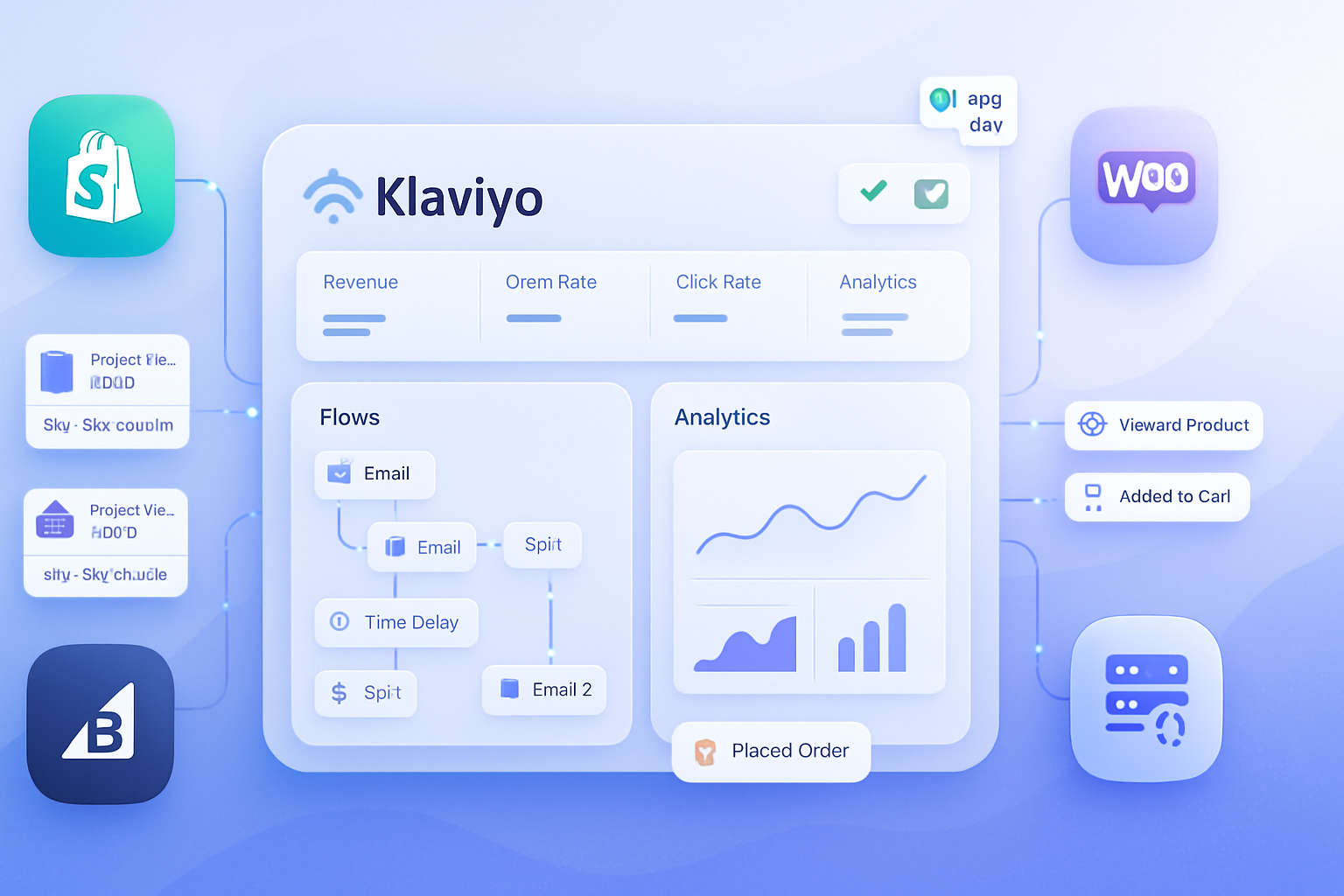
Outcome: After reading this you’ll be able to connect Klaviyo to your store, capture high-quality behavioural data, fix common breakpoints, backfill historic events and apply advanced hacks that materially improve open rates, click-throughs and revenue per recipient.
Why this matters: Klaviyo is only as powerful as the data you feed it. A clean, real-time integration unlocks robust flows, precise segments and product recommendations that convert. Poor wiring causes missing events, duplicate profiles, broken product blocks and wasted ad spend.
Start here and you’ll end with predictable, measurable email revenue. Fail here and you’ll send noise. The difference is integration quality.
Quick checklist before you begin
- Create a Klaviyo account and confirm you can access the Account Settings > API Keys.
- Verify you have admin-level access to your e-commerce platform and DNS provider (for sending domain setup).
- Export a sample of customers, orders and products (CSV) - you’ll need them for validation and backfills.
- Identify legal/regulatory constraints - consent requirements, GDPR/CAA preferences, and SMS consent if you use Klaviyo SMS.
Core concepts to understand (brief)
- Profiles = customers/contacts in Klaviyo. Identify them by email or a unique identifier you control.
- Events = actions (Placed Order, Viewed Product, Added to Cart). Real-time events drive flows.
- Catalog/Product Feed = structured product data used in product blocks and recommendations.
- Sending domain & deliverability = verified domain, DKIM and SPF are required for best inbox placement.
1) Shopify + Klaviyo - the fast path (recommended for most stores)
Why choose this path: Klaviyo’s Shopify integration is deep and plug-and-play. It automatically syncs profiles, events and product data.
Step-by-step
- Install the Klaviyo app from the Shopify App Store or connect from Klaviyo - Klaviyo > Integrations > Shopify > Add Integration.
- Authenticate with your Shopify store URL and allow permissions (read orders, customer lists, etc.).
- Confirm Klaviyo installs the Klaviyo JavaScript snippet (on newer installs Klaviyo uses the Shopify integration to inject tracking automatically).
- In Klaviyo, verify the integration summary - Web Tracking Enabled, Server-Side Events, and Catalog sync are toggled on.
- Configure your product feed - Klaviyo will pull Shopify product metadata automatically but check that SKUs, images and prices are present and match your catalog.
Validation and checks
- Place a test order with a real email and ensure you see a “Placed Order” event in Klaviyo (Profiles > Activity).
- Use Klaviyo’s Real-Time Web Tracking Debugger to confirm Viewed Product and Added to Cart events.
- Ensure the unsubscribe link sends users to a branded unsubscribe page (Klaviyo > Account > Settings > Email > Sending Domain).
Common fixes
- If product images or SKUs are missing, ensure Shopify product metafields or variants aren’t using unusual keys - sync uses Shopify’s standard fields.
- If you don’t see Add to Cart events, confirm the storefront theme contains the standard cart form or that the Klaviyo script is loading before the add-to-cart action.
Reference: Klaviyo Shopify integration docs: https://help.klaviyo.com/hc/en-us/articles/360034515971-Shopify-How-To-Install-and-Verify-Your-Shopify-Integration
2) WooCommerce + Klaviyo - the self-hosted approach
Why choose this path: WooCommerce is flexible. You get control, but plugins and caching layers can break event delivery.
Step-by-step
- Install the official Klaviyo plugin from WordPress.org or connect via Klaviyo > Integrations > WooCommerce.
- Add your Klaviyo Public API Key into the plugin settings. (Klaviyo > Account > Settings > API Keys > Public API key.)
- Enable tracking for events (Product Viewed, Added to Cart, Placed Order). The plugin also supports syncing customers and orders.
- If you use server-side caching (Varnish, WP Rocket, Cloudflare), whitelist Klaviyo tracking endpoints or use the server-side Track API as fallback.
Validation and checks
- Use the browser console to verify Klaviyo JS loaded (krypton object or check for klaviyo.js).
- Create a test profile and place a test order; check for Placed Order and identify events in Klaviyo.
Common fixes and hacks
- If caching blocks inline scripts, move Klaviyo’s script to load via Google Tag Manager (GTM) or implement server-side Track API calls from your order processing webhook.
- Backfill older orders via CSV import for profiles and via Track API for historical Placed Order events (see Track API below).
Reference: Klaviyo WooCommerce docs: https://help.klaviyo.com/hc/en-us/articles/360039571211-How-to-Integrate-Klaviyo-with-WooCommerce
3) BigCommerce + Klaviyo - enterprise-lite steps
Why choose this path: BigCommerce provides a native Klaviyo app and product feed support.
Step-by-step
- Install the Klaviyo app from the BigCommerce App Marketplace or connect through Klaviyo > Integrations > BigCommerce.
- Authorize data access and enable real-time event forwarding.
- Verify the product feed sync - product images, categories, SKUs and prices.
- If you use a headless front-end or custom checkout, add server-side Track API calls for events that the storefront doesn’t send.
Validation and checks
- Verify real-time events for Viewed Product, Added to Cart, and Placed Order.
- Test product recommendation blocks using a test campaign.
Reference: Klaviyo BigCommerce docs: https://help.klaviyo.com/hc/en-us/articles/360050514911-BigCommerce-Integration
4) Magento / Adobe Commerce + Klaviyo - heavier customization
Why choose this path: Large catalogs and custom workflows often require a hybrid client+server approach.
Step-by-step
- Install the Klaviyo Magento extension or implement the JavaScript snippet manually.
- Add Public API key (or use server-side API for heavy traffic).
- Enable catalog sync and make sure Magento’s product attributes map to Klaviyo properties (e.g., sku, categories, image URLs).
- For large catalogs, prefer incremental product feed syncs (not full daily imports) to reduce load.
Validation and checks
- After install, test event flows for add-to-cart, view, and order completion.
- Monitor Magento cron jobs that may affect feed generation.
Reference: Klaviyo Magento docs: https://help.klaviyo.com/hc/en-us/articles/360042731812-Magento-Integration
5) Custom platform or headless storefront - using Klaviyo’s APIs
When to use this path: You control a headless front end, microservices checkout, or a legacy platform that lacks a native integration.
Essential pieces
- Client-side web tracking (Klaviyo.js) for browsing events.
- Server-side event ingestion via Klaviyo’s Track API for important events (Placed Order, Fulfillment, Subscription changes).
- Product catalog feed (JSON endpoint) that Klaviyo can ingest for product blocks and recommendations.
Track API example (curl)
curl -X POST https://a.klaviyo.com/api/track \
  -H "Content-Type: application/json" \
  -d '{
    "token": "YOUR_PUBLIC_API_KEY",
    "event": "Placed Order",
    "customer_properties": {"$email":"jane@example.com"},
    "properties": {
      "order_id": "1001",
      "value": 129.99,
      "items": [
        {"product_id":"abc","name":"Blue T-Shirt","price": 49.99, "quantity":1}
      ]
    }
  }'
Backfilling historical events
- Use the Track API to send historical Placed Order, Fulfillment or other behavioral events. This is crucial if you want flows to act on past purchases (e.g., repeat purchase flows).
- For very large volumes, throttle requests and watch rate limits. Consider bundling logic in jobs that run nightly.
Product feed format (example essentials)
- Provide an endpoint that returns JSON with product_id, name, url, price, categories, image_url, availability. Klaviyo ingests catalogs for product blocks and recommendations.
Reference: Klaviyo APIs: https://developers.klaviyo.com/en/reference/track
Lesser-known hacks that drastically improve performance
- Server-side fallback for critical events
- Client-side JS can be blocked by ad blockers or heavy caching. Mirror critical events (Placed Order, Payment Failed, Subscription events) to Klaviyo via server-side Track API from backend webhooks.
- Result - more reliable flows and fewer missed revenue opportunities.
- Backfill purchase and browse data strategically
- Feed historical PURCHASE events into Klaviyo before turning on replenishment or lifecycle flows. These flows often rely on historical purchase cadence.
- Backfill browse data only if you have capacity - too much historic browse noise can bloat profiles.
- Use a product catalog with canonical SKUs (not variant IDs)
- Normalize SKUs between your store, ad platforms and Klaviyo. This enables accurate cross-channel recommendations and eliminates duplicate product blocks.
- Enrich profiles with one-off custom properties
- Add high-value properties like LTV band, acquisition source, first_purchase_date and subscription_tier. Use these in flow filters to prioritize messages to your most valuable customers.
- Instrument warm, cold and at-risk segments for sending cadence
- Warm profiles get early access promos. Cold profiles get reactivation flows with different subject lines. Use Klaviyo’s engagement-based segments to avoid sending the same content to both.
- Use dynamic recommendation blocks and creative testing
- Use Klaviyo’s Browse & Ranked product blocks but override when you have a high-performing deterministic recommendation (e.g., accessories for the purchased SKU). Test creative variations with A/B tests inside flows.
- Prevent duplicates with single unique identifiers
- Use email as the primary identifier for consumer-facing profiles. For logged-in users, sync a persistent customer_id too. If you send both email and customer_id, make sure to use the same customer_id format across all systems to avoid duplicate profiles.
- Improve deliverability with domain and sending hygiene
- Add and verify a sending domain in Klaviyo. Configure DKIM and SPF records for the subdomain you’ll send from (e.g., mail.yourdomain.com).
- Implement a DMARC policy that allows monitoring during ramp-up. Gradually tighten policy after warm-up.
- Use transactional and operational backups via server-side APIs
- For transactional emails like receipts, use Klaviyo’s API to send keyed transactional messages. That ensures receipts go out even if a third-party service is slower.
- Track consent and suppression intentionally
- Capture consent at checkout and store it on the profile (e.g., marketing_consent = true). Use Klaviyo flow filters to respect consent when sending.
Deliverability, warm-up and sending strategy
- Sending domain - set up a dedicated sending subdomain and verify DKIM/SPF.
- Warm-up - start with small, engaged segments (top 5–10% by LTV or engagement). Gradually increase volume over 2–6 weeks depending on history.
- Clean lists - suppress hard bounces and frequent non-openers. Use winback flows but avoid blasting a stale list.
- Monitor - inbox placement, spam complaints, and engagement metrics. Klaviyo has a Deliverability dashboard - check it weekly.
Reference: Klaviyo deliverability best practices: https://help.klaviyo.com/hc/en-us/articles/360043948612-Best-Practices-for-Deliverability
Flow and segmentation ideas to implement after integration (and why they work)
- Cart Abandonment - urgency + dynamic product block. Why - recovers high intent.
- Browse Abandonment - show viewed product + alternate recommendations. Why - nudges interest to purchase.
- Welcome Series - gather first purchase incentives and preference collection. Why - initial engagement sets long-term rates.
- Post-Purchase Cross-sell - tailored accessories 3–7 days after order. Why - increases AOV and builds habit.
- Winback & Replenishment - use purchase frequency to time replenishment reminders.
Troubleshooting common problems
- Missing events - check ad blockers, CSP policies, CDN/caching or order webhook failures. If the browser-based event is missing, add a server-side Track API call on order completion.
- Duplicate profiles - ensure the same identifiers are used (email and/or customer_id). Use Klaviyo profile merging logic if needed.
- Product images not showing - verify product feed URLs are absolute and publicly accessible.
- Slow catalog sync - large catalogs should use incremental feeds and pagination.
Measurement: KPIs to track after integration
- Revenue per recipient (RPR) for campaigns and flows.
- Conversion rate for Cart and Browse Abandonment flows.
- Deliverability metrics - bounce rate, spam complaints, and inbox placement.
- Profile growth and source attribution (which acquisition channels produce higher LTV).
Final checklist (go-live)
- Sending domain verified (DKIM/SPF configured).
- Critical events (Placed Order, Added to Cart, Viewed Product) appear in Klaviyo in real time.
- Product catalog synced with SKUs and images.
- Historical purchase events backfilled (if needed).
- Primary flows (Welcome, Abandonment, Post-Purchase) created and tested with test profiles.
- Warm-up schedule defined and initial send list is engaged.
A strong integration is invisible: it reliably captures the customer journey, triggers the right flows, and surfaces data that lets you personalize at scale. Do this once and you change email from a cost-center to your most scalable acquisition and retention channel.
References
- Klaviyo Developer & Integration docs: https://help.klaviyo.com/hc/en-us
- Track API reference: https://developers.klaviyo.com/en/reference/track
- Shopify + Klaviyo: https://help.klaviyo.com/hc/en-us/articles/360034515971-Shopify-How-To-Install-and-Verify-Your-Shopify-Integration
- WooCommerce + Klaviyo: https://help.klaviyo.com/hc/en-us/articles/360039571211-How-to-Integrate-Klaviyo-with-WooCommerce
- BigCommerce + Klaviyo: https://help.klaviyo.com/hc/en-us/articles/360050514911-BigCommerce-Integration
- Magento + Klaviyo: https://help.klaviyo.com/hc/en-us/articles/360042731812-Magento-Integration