· creativity · 6 min read
How to Master Figma Plugins: Top Picks for 2024
Discover the essential Figma plugins for 2024, how to integrate them into a fast, reliable workflow, and practical tips to save hours in every project.
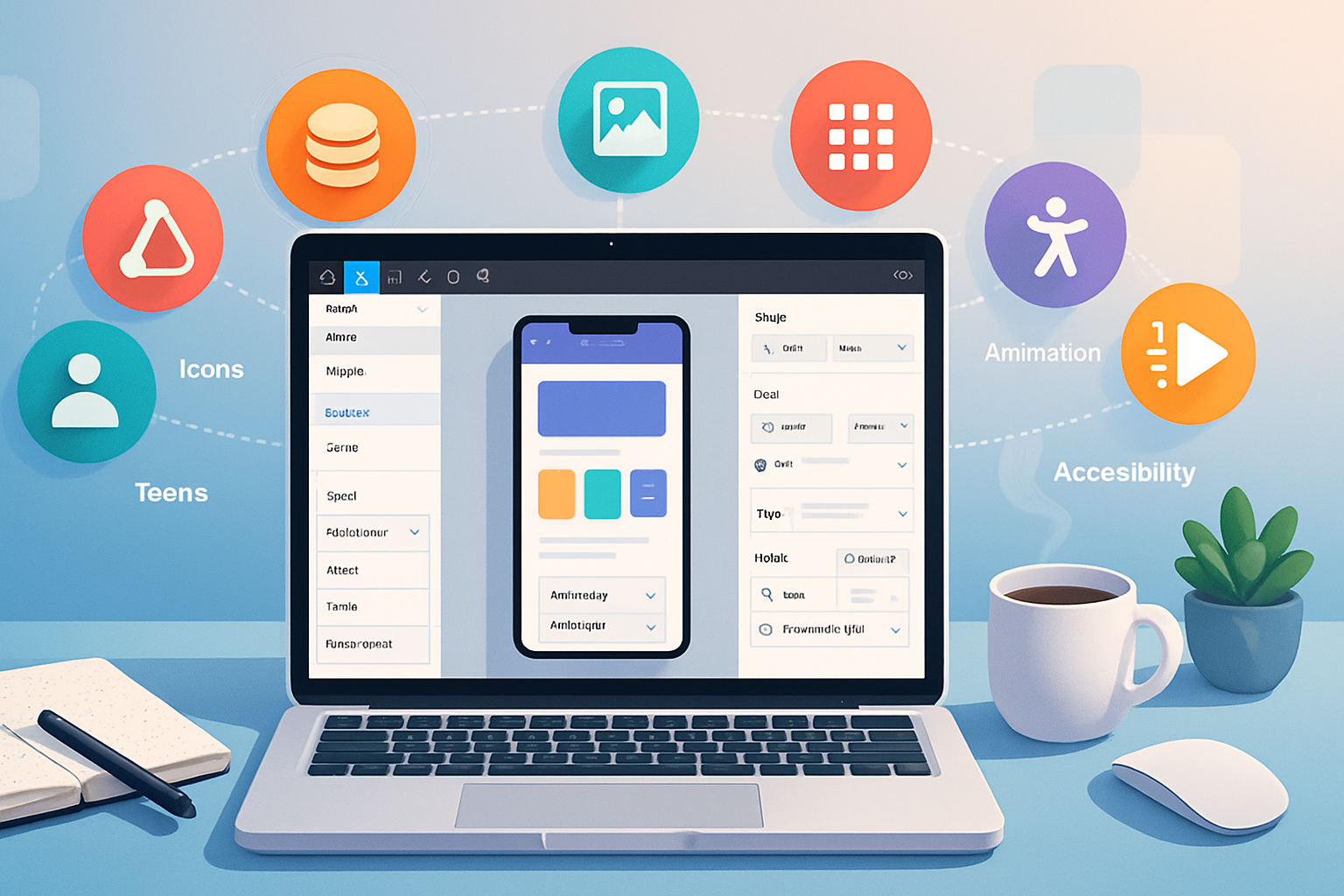
By the time you finish this guide you’ll know which Figma plugins will actually save you time, how to fold them into a reliable workflow, and specific habits that turn one-off boosts into daily velocity. Quick wins. Long-term reliability. That’s the goal.
Why plugins matter in 2024 - and how to treat them
Plugins are more than shortcuts. They let you automate repetitive work, enforce design-system discipline, and bridge gaps between design and code. Use them poorly and you’ll add friction: too many plugins, inconsistent outputs, and slow files. Use them well and you’ll shave hours from projects and reduce avoidable handoff bugs.
Start with outcomes: less manual editing, consistent outputs, faster handoffs. Then pick plugins that achieve those outcomes without mutating your master file structure.
My recommended starter set for 2024 (quick list)
- Design tokens - Figma Tokens
- Content - Content Reel
- Images - Unsplash (official plugin) + Remove Background
- Icons & illustrations - Iconify + Blush
- Accessibility - Stark
- Animation & micro-interactions - LottieFiles
- Prototyping & responsive - Anima
- Productivity - Autoflow, Rename It
- Mockups - Angle
Below I unpack why each is valuable and give practical tips so you can master them quickly.
Design systems & tokens - Figma Tokens
Why it matters
Design tokens are single sources of truth for color, spacing, typography and more. Figma Tokens lets you define tokens inside Figma and sync them to JSON - bridging design and code.
How to use it well
- Create a tokens file early in a project and make it a Team Library.
- Use semantic token names (brand.primary, ui.surface, spacing.8). Short names lead to fragile code.
- Export JSON for engineers and add automated checks to your CI when possible.
Pro tips
- Keep tokens granular but semantic - combine base scales (spacing, type scale) with semantic aliases used in components.
- Use the plugin to preview token changes across the file before publishing.
(See Figma plugin docs and the Figma Community for the latest Tokens plugin.)
Content & imagery - Content Reel + Unsplash + Remove Background
Why it matters
Good placeholder content makes designs readable and testable. Realistic content exposes layout issues early and impresses stakeholders.
How to use them
- Content Reel - create custom collections for product names, bios, emails and copy snippets you use often. Use keyboard search to drag-and-drop common strings.
- Unsplash (official plugin) - pull in high-quality photography with keywords. Use image focal point and crop quickly.
- Remove Background - remove backgrounds for avatars or product photos without Photoshop; great for marketing mockups.
Pro tips
- Keep a small curated library of brand-safe images and copies. Wildcards are fun - but consistency reduces visual churn.
- When using remove-bg, batch-export masks at high resolution before composing complex mockups.
Icons & illustrations - Iconify + Blush
Why it matters
Icons and illustrations are communication shortcuts. The right plugin reduces lookup time and ensures cohesive style.
How to use them
- Iconify - search thousands of icon sets inline, insert as vectors, and convert to components. Rename and scale icons before swapping in production components.
- Blush - create customizable illustrations that remain editable in Figma.
Pro tips
- Convert frequently used icons into a component set with variant states (filled/outline/small/large). It saves endless manual swaps.
- Use illustrations as components to keep art consistent and editable.
Accessibility - Stark
Why it matters
Designs that ignore accessibility create rework. Stark helps you test contrast, run color blindness simulators, and check text legibility.
How to use it
- Run contrast checks on key pages early - not just at the end.
- Use the colorblind simulator to test color-coded information and ensure patterns or labels communicate information.
Pro tips
- Bake accessibility checks into handoff - make a short checklist (contrast, focus state, heading hierarchy) and verify with Stark before exporting specs.
(See Stark’s site for deeper workflows and resources: https://www.getstark.co/.)
Animation & interactions - LottieFiles + Anima
Why it matters
Animations add polish and help engineers implement motion correctly. LottieFiles embeds lightweight animations; Anima helps with responsive prototypes and code exports.
How to use them
- LottieFiles - import JSON-based Lottie animations. Use vector-based Lotties for small file sizes and crisp performance.
- Anima - create responsive behaviors, auto-layout export previews, and share HTML/CSS snippets with engineers.
Pro tips
- Prefer Lottie JSON over GIFs for UI motion - smaller and crisper. Test performance on low-end devices.
- Use Anima for early feasibility tests, not as the final production code. It accelerates conversations with engineers.
(Plugin and integration resources: https://lottiefiles.com/plugins/figma, and Anima’s site.)
Prototyping helpers - Autoflow + Angle
Why it matters
Quick connections and realistic device mockups speed stakeholder reviews and usability testing.
How to use them
- Autoflow - create clean user-flow arrows between frames. Use it to map journeys before building high-fidelity prototypes.
- Angle - present screens in photographic or sleek device mockups for marketing or stakeholder previews.
Pro tips
- Use Autoflow early in discovery to validate flows with non-designers. It’s faster than building actual prototypes for structural validation.
- Use Angle as a presentation layer; keep the original artboards separate for handoff.
Housekeeping & productivity - Rename It, Batch Styler, and file health
Why it matters
Skipping small housekeeping tasks accumulates technical debt: poorly named layers, inconsistent components, and messy libraries.
How to use them
- Rename It - batch rename layers and frames to a predictable scheme (Component/State/Size). Example: Button/Primary/Default.
- Batch styler plugins - apply consistent typography or color styles across many nodes.
Pro tips
- Create a naming convention doc in your design system and automate common renames with the plugin.
- Periodically run a file-health sweep - remove unused styles/components and publish updated libraries.
Mastering plugins: processes and habits that stick
- Curate, don’t hoard
- Keep a short list of go-to plugins (6–12). Too many increases cognitive load and file issues.
- Vet plugins for security and performance
- Check who published the plugin and read reviews. Avoid giving write access to plugins you don’t trust.
- Test heavy plugins on a copy of your file first.
- Make plugins part of your project checklist
- Example checklist - tokens → content → icons → accessibility → prototype → handoff. Run specific plugins at each step.
- Automate and document
- Export tokens and naming conventions automatically. Store exported JSON in your repo.
- Document plugin-driven steps in your design-system README so engineers and new designers can reproduce outputs.
- Learn the plugin API if you build plugins
- If your team needs a bespoke solution, build it. Figma offers a Plugin API and docs to get started: https://www.figma.com/plugin-docs/.
- Version and test
- When plugins change or libraries are updated, test a copy of the file. Treat plugin updates like code releases.
Example project workflow (15–30 minute plugin-driven routine)
- Start - Open your project file and ensure the Team Library is enabled
- Tokens - Run Figma Tokens and sync design tokens (2–3 minutes)
- Content - Populate screens via Content Reel and add hero images from Unsplash (5–10 minutes)
- Icons & illustrations - Insert icons via Iconify and illustrations via Blush (3–5 minutes)
- Connect flows - Use Autoflow to map journeys for the prototype review (2 minutes)
- Accessibility - Run Stark contrast checks on the main screens (2–5 minutes)
- Export/animation - Add Lottie animations for micro-interactions or export frames for developer handoff (5–10 minutes)
This sequence keeps the file stable while applying reproducible, checkable changes.
Resources and links
- Figma Plugins: https://www.figma.com/community/plugins
- Figma plugin docs (how to install and manage): https://help.figma.com/hc/en-us/articles/360040450373-Install-and-manage-plugins
- Figma Plugin API docs: https://www.figma.com/plugin-docs/
- LottieFiles Figma plugin: https://lottiefiles.com/plugins/figma
- Stark (accessibility): https://www.getstark.co/
Closing: pick fewer, use better
The single fastest way to get better with plugins is not to install more - it’s to standardize and automate the ones you do use. Curate a set that maps to your team’s outcomes: consistent tokens, predictable content, reusable icons, verified accessibility, and lightweight animations. One stable toolchain beats a dozen half-used toys. That stability is what will actually save you hours in 2024.