· creativity · 5 min read
FigJam vs. Competitors: 5 Tips that Set FigJam Apart for Creative Teams
Five practical, actionable strategies that show how FigJam’s tight Figma integration, widgets, facilitation tools, and lightweight structure can accelerate creative-team collaboration compared to Miro or Lucidspark.
Introduction - what you’ll get out of this article
You’ll learn five concrete ways to make brainstorms turn into shipped work faster. Read this if your team runs workshops, builds design systems, or struggles to move ideas from whiteboard to product. Expect specific, repeatable techniques you can adopt today.
Why FigJam wins for creative teams (short version)
- Seamless designer-to-product flow because FigJam is built by Figma. That matters. Big time.
- Lightweight, facilitation-first features that reduce friction in workshops and async work.
- Extensible with Widgets and the Figma community so teams can customize collaboration without heavy admin.
For comparison context: Miro and Lucidspark are feature-rich whiteboards with deep integrations and an abundance of templates, and they excel at enterprise governance and third-party app ecosystems. FigJam’s advantage is the direct bridge into design files, components, and the Figma workflow - the place design teams already live. See the vendor pages: FigJam [https://www.figma.com/figjam/], Miro [https://miro.com/], Lucidspark [https://lucidspark.com/].
Tip 1 - Treat FigJam as the top of your design funnel: structure for fast handoff
Outcome: Ideas become design-ready artifacts in minutes instead of hours.
How to do it
- Start each session with clearly framed areas (use FigJam Frames) labeled - Problem, Ideas, Decisions, Action Items. Keep this visible throughout the session.
- Use color-coded sticky notes for intent - pink = insight, yellow = idea, green = decision, blue = action. Limit “idea” colors to two shades to avoid noise.
- When a cluster is ready for design, select the cluster and copy–paste directly into a Figma file. Elements paste as editable layers, preserving text and layout, so designers don’t re-create work from screenshots.
Why this beats a generic whiteboard
With FigJam you preserve the structure designers need. Other boards make you recreate or import images; FigJam lets you move content into Figma as editable objects, slashing rework.
Tip 2 - Build workshop widgets and micro-templates that enforce clarity
Outcome: Workshops run faster, with fewer explained rules and more output.
How to do it
- Reuse community widgets or create tiny custom Widgets for common activities - timers, dot-voting, priority matrices, and queuing lanes. Browse the FigJam Widgets in the Figma Community to start: [
- Convert recurring session formats into a single FigJam template (Intro, Warm-up, Ideation, Converge, Decide). Share this template in your team’s shared space.
- Use widgets to automate small facilitation tasks - have a vote-count widget that tallies dots, or a picker widget to call on participants in random order.
Why this beats competitors
Miro and Lucidspark have apps and integrations, but FigJam’s Widgets are lightweight and live in the same ecosystem as your design files. That means custom facilitation flows can reference design tokens, colors, or assets from Figma without context switching.
Tip 3 - Run design-first collaborative sessions: invite designers to lead the flow
Outcome: Higher-quality deliverables; fewer revisions after the brainstorm.
How to do it
- Make design thinking the default process - start by defining constraints (user need, metrics, platforms). Put that in a persistent header frame.
- Ask designers to drop a lightweight “UI sketch” in the IDEAL area early. These are 2–3 low-fidelity frames showing potential directions.
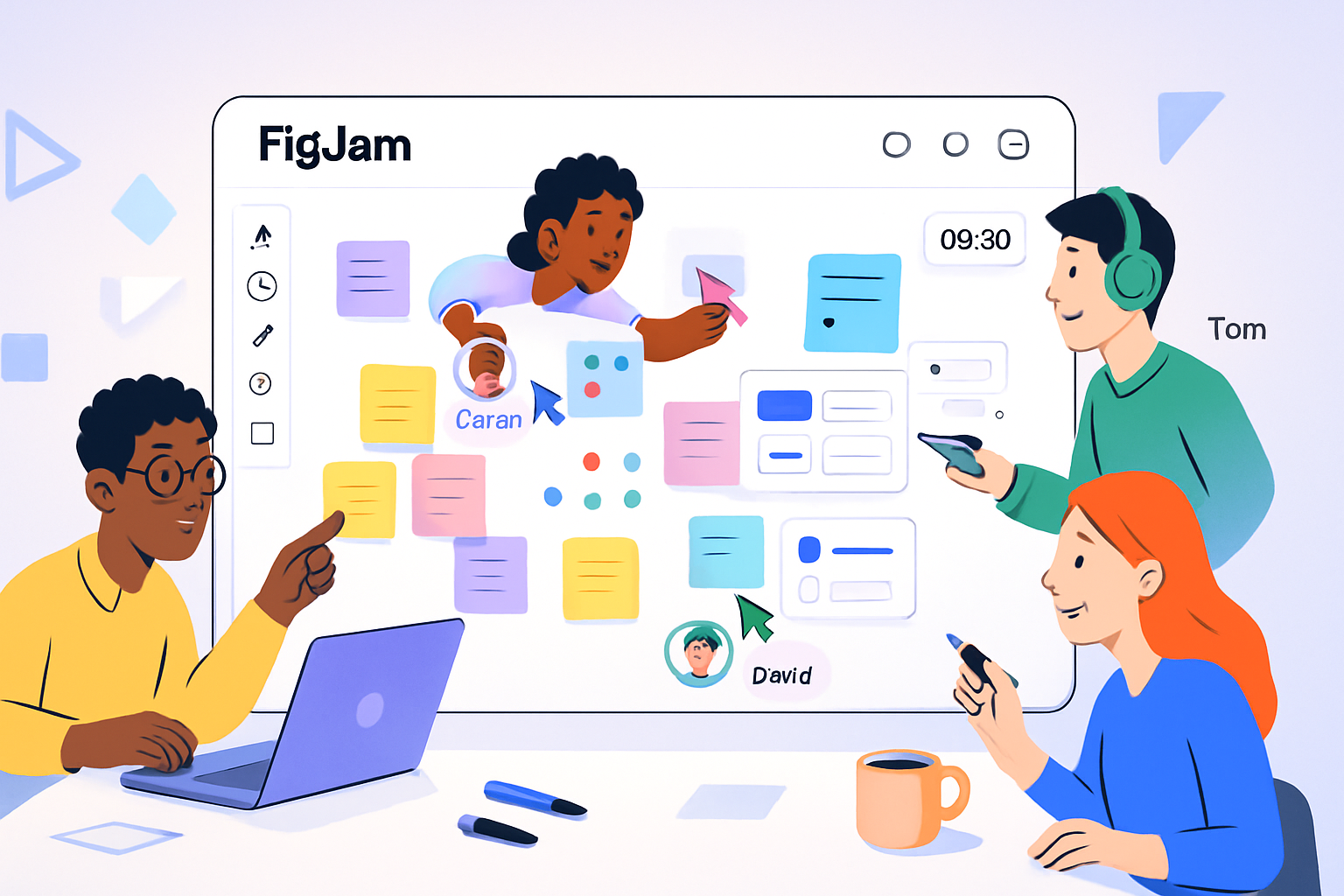
- Use live cursors to co-annotate sketches. Designers can convert pinned items to components in Figma after the session.
Why this beats a generic ideation-only board
Because FigJam sits next to your design tool, designers can immediately reuse UI sketches as components. Fewer translation errors. Faster prototypes.
Tip 4 - Use facilitation features to keep sessions inclusive and actionable
Outcome: Faster consensus, clearer decisions, smoother async follow-up.
How to do it
- Use built-in timers and dot voting to keep sessions moving and to quantify consensus. (Timers and voting are native FigJam features.)
- Encourage emotes and cursors for short, real-time feedback instead of long chat threads.
- After voting, create a Decision frame and add owners and due dates directly on sticky notes. Link those stickies to the Figma file or to your task tracker.
Why this beats other tools
FigJam’s facilitation features are designed for design workshops - not just generic brainstorming. The combination of structured voting plus direct links into the design workflow speeds decisions and handoffs.
Tip 5 - Make a shared FigJam “playbook” that maps design system artifacts to working decisions - and keep it live
Outcome: Your team stops reinventing UI choices and moves faster on implementation.
How to do it
- Create a living FigJam board that documents your UI patterns, decisions, and examples. Treat it like a lightweight source-of-truth for the team.
- Link patterns to their Figma components and variants. Visually show usage examples and dos/don’ts.
- Use this board during reviews - annotate spots that need updates and immediately copy issues into a dev story or Figma task.
Why this beats siloed documentation
Instead of a static Google Doc or a disconnected Confluence page, your playbook lives where people ideate - and links directly to the actual components in Figma. This collapses the distance between decision and implementation.
Practical workshop checklist (copy this into your next session)
- 5 minutes - Context + constraints (add into header frame).
- 10 minutes - Individual ideation (sticky notes, 1 idea per note).
- 15 minutes - Cluster and name themes; use color-coding.
- 5 minutes - Dot voting (use a voting widget or built-in voting).
- 10 minutes - Draft 2 quick UI sketches in FigJam or paste from Figma.
- 5 minutes - Assign owners + link to Figma/issue tracker.
Quick governance tips
- Keep a single “canonical” FigJam playbook per product. Duplicate it for experiments.
- Limit edit permissions to prevent accidental deletions during live workshops; let everyone add stickies.
- Version key decisions by duplicating frames instead of deleting them.
When to still consider Miro or Lucidspark
- You need enterprise-level prebuilt app integrations beyond the Figma ecosystem.
- Your org runs massive cross-functional workshops where non-design stakeholders use the board as a long-lived project artifact independent of a design workflow.
Wrapping up - the biggest differentiator
FigJam’s real power is not that it’s a great whiteboard. It’s the frictionless path from ideas to actual design artifacts. That bridge - the ability to brainstorm, align, and then paste or convert work straight into editable Figma layers and components - is what makes FigJam stand out for creative teams who ship products. Start structuring your sessions for handoff, and FigJam will shrink the time from concept to prototype.
References
- FigJam - Figma: https://www.figma.com/figjam/
- FigJam Widgets and Community: https://www.figma.com/community/widgets
- Miro - product overview: https://miro.com/
- Lucidspark - product overview: https://lucidspark.com/