· productivity · 7 min read
The Hidden Features of Notion: Unlocking Productivity Hacks You Didn’t Know About
Discover underused Notion features-advanced database tricks, relations & rollups, template buttons, synced blocks, and linked databases-that can transform your workflow into a faster, smarter system.
Outcome-first introduction
Use Notion to stop chasing information and start making decisions. Read this and you’ll be able to build dashboards that update themselves, recurring tasks that create automatically, and project pages that summarize progress without manual copying. Quick wins in a single session. Big gains over months.
Why these hidden features matter
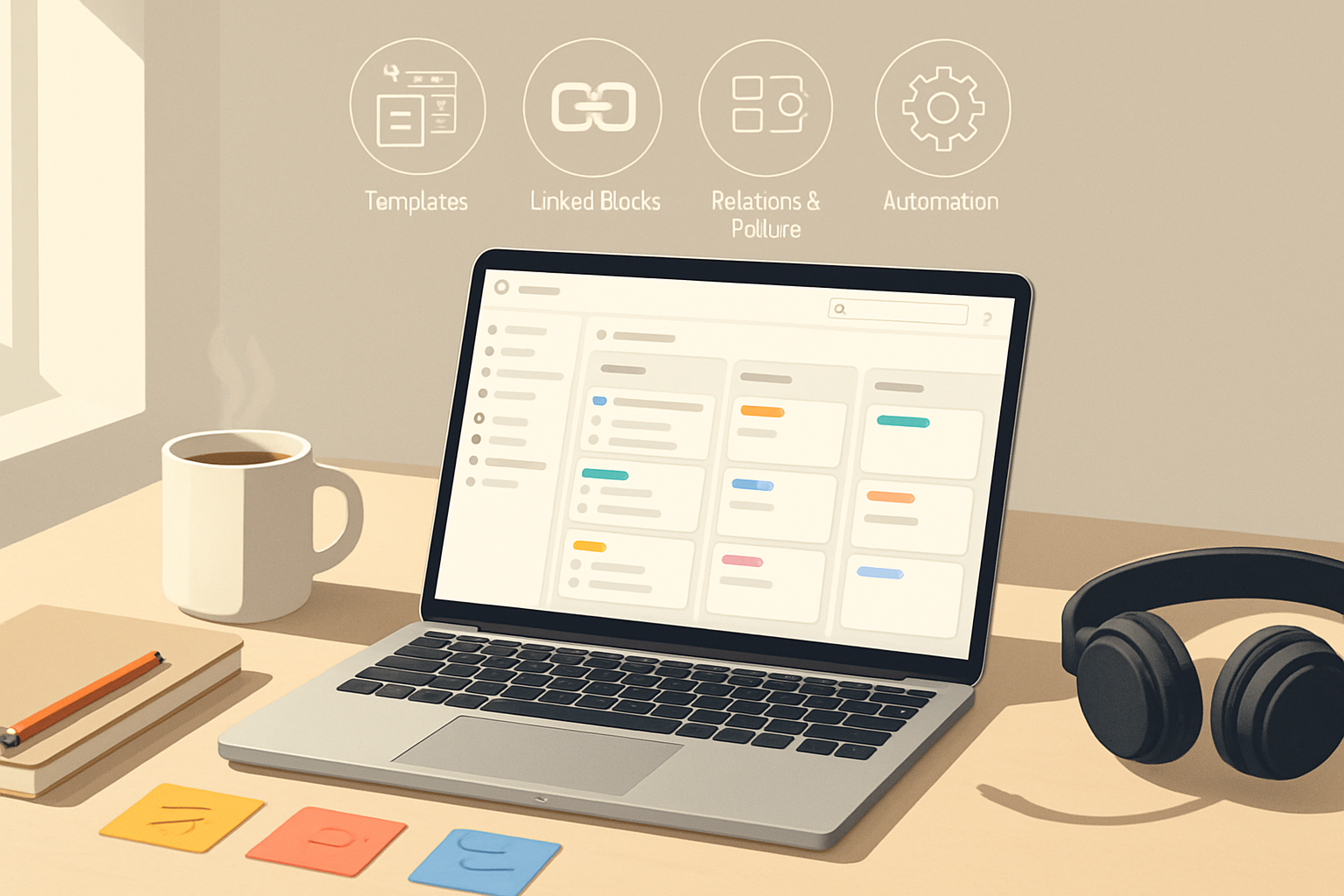
Notion’s raw power isn’t in creating pretty pages - it’s in connecting them. Many users treat Notion like a notebook. The productivity gains live in databases, links, and small automations. When you combine templates, relations & rollups, template buttons, and synced blocks, Notion becomes a living system that reduces repetitive work and surfaces what matters.
What you’ll learn
- How to use database templates and template buttons to automate recurring content.
- How relations and rollups let one database summarize another - for live dashboards and progress tracking.
- How linked databases and synced blocks let you reuse and reshape the same data across pages.
- Practical formulas and filter recipes you can copy and paste.
Underutilized Feature #1 - Database templates: automate structure and behavior
Why people miss them: Templates live inside databases and are easy to overlook.
What they do: Save pre-configured pages with properties, content, and checklists so new entries follow a standard.
When to use them: recurring meeting notes, task templates, client intake pages, weekly reviews.
How to set one up (quick):
- Create a database (Table, Board, or List).
- Click “New” > ”+ New template”.
- Add property defaults (assignees, due dates) and blocks (meeting agenda, checklist).
- Save. Now every new entry can instantiate that template.
Pro tip: Put an inline task checklist and a “Next Steps” template section inside the template so nothing is forgotten.
Underutilized Feature #2 - Template Button: one-click content generation
What it is: A block that creates copies of a set of blocks or creates database entries with one click.
Great use cases: generate a daily journal entry, create a meeting note + task, batch-create subtasks for a project.
How to use it:
- Type /template and insert the Template Button block.
- Configure the blocks it creates (text, headings, todo lists), or make it create a database item via a linked database.
- Click when you need a new instance.
Example: Make a button that inserts a “Daily Review” heading, three questions, and an empty task list. One click and it’s ready.
Underutilized Feature #3 - Relations & Rollups: make databases talk to each other
This is the single most impactful feature once you understand it.
Relations: link items across databases. Example: Tasks -> Projects.
Rollups: aggregate related-items properties. Example: show a project’s % complete by counting completed tasks.
Basic recipe: Project database + Task database
- In Tasks, add a Relation property to Projects.
- In Projects, add a Rollup property that looks at Tasks → Completed checkbox → Calculate percent or count.
Use-case: Project status card that shows:
- Number of open tasks
- Earliest due date across tasks
- Last edited task
Formula examples you can paste
- Days left until a project’s due date:
dateBetween(prop("Due"), now(), "days")- Simple percent complete from rollup
Completed(where rollup returns number of true):
if(prop("Total Tasks") == 0, 0, round(prop("Completed Tasks") / prop("Total Tasks") * 100))- Tag-based aggregation - count tasks with a specific tag via rollup filters (use the rollup to show
Pro tips for relations & rollups:
- Use rollups to pull a single value (earliest/any/last) and reduce clutter on dashboards.
- Create a dedicated “Data” workspace page to house master databases (Clients, Projects, Tasks) and expose filtered linked views elsewhere.
- Prefer rollups over manual calculations - they update automatically when related items change.
Underutilized Feature #4 - Linked databases: same data, many views
What it is: a database view that mirrors a source database but filters/sorts/visually presents it differently.
Why it matters: instead of copying data, create a Linked Database and set a view for that page’s purpose.
Common patterns:
- Personal dashboard - linked view of the team Tasks filtered to only items assigned to you.
- Project pages - linked view of Tasks filtered to that Project relation.
- Meeting page - linked view that shows only agenda items tagged for the meeting.
How to set up a linked DB:
- Type /linked and select “Create linked database”.
- Select the source database.
- Add filters/sorts for this page’s purpose.
Underutilized Feature #5 - Synced Blocks: share editable content across pages
Synced blocks copy the same content into multiple pages and keep them in sync.
Use them for:
- A weekly agenda block mirrored in each team member’s page.
- A company-wide announcement header that appears across relevant pages.
Quick setup:
- Select content > click ••• > Turn into synced block.
- Add it to other pages; edits in any copy change all copies.
Underutilized Feature #6 - Backlinks, mentions & bi-directional context
Notion automatically tracks where a page is linked. Use it to build context without copying content.
Tactics:
- Add a “References” section on resource pages. When you mention a page, Notion adds it to that page’s backlinks.
- Use @mentions of pages in meeting notes to auto-build a thread of related content.
Underutilized Feature #7 - Advanced filters, saved views & personal views
Filters are powerful when combined with templates and linked databases. Save views so your team has consistent entry points.
Examples:
- A “My Tasks” view that filters to Current User = @me and sorts by Priority then Due.
- A “Next 7 Days” view for sprint planning - filter Due is within next 7 days.
Keyboard shortcut cheat sheet (time-savers)
- Quick toggle to create a page - Ctrl/Cmd+N
- Open quick find - Ctrl/Cmd+P
- Create a new block - / then type the block name
Full list: Notion keyboard shortcuts.
Underutilized Feature #8 - Formulas: automate status and calculations
Formulas can feel intimidating. Start small.
Example formula: Status based on Due date and Completed checkbox
if(prop("Completed"), "Done",
  if(empty(prop("Due")), "No due",
    if(dateBetween(now(), prop("Due"), "days") <= 0, "Overdue",
      if(dateBetween(now(), prop("Due"), "days") <= 3, "Due soon", "On track"))))
Use formulas to:
- Translate date math into labels
- Convert numbers into percent bars
- Combine values for display (e.g., “{Client} - {Status}”)
Underutilized Feature #9 - Embeds, integrations, and the Notion API
Embed external tools to make Notion your single-pane-of-glass. Embed Google Calendar, Figma files, Typeform results, or a gist.
Automation ideas:
- Use the Notion API to sync CRM data, create tasks from forms, or update status from other apps. Developer docs: https://developers.notion.com/
- Zapier or Make can bridge apps without code.
Underutilized Feature #10 - Page templates for team onboarding and SOPs
Why: Standardization reduces friction.
How to use:
- Build an SOP template with “Purpose”, “When to use”, “Steps”, and a checklist.
- Make a template in a Team Wiki database. Every new SOP uses the same structure.
Practical workflows to implement in 30–60 minutes
- Build a Projects → Tasks relation with a progress rollup
- Create Projects and Tasks databases.
- In Tasks, add Relation to Projects.
- In Projects, add Rollup counting Completed tasks and another Rollup for earliest Due.
- Add a formula property that converts counts to percent.
- Make a Personal Dashboard
- Insert linked databases for Tasks (filtered to you), Projects (active projects), and a Notes view for quick capture.
- Add a template button that creates a Daily Note with the date and TODO list.
- Create a Synced Weekly Agenda
- Make a weekly agenda block and turn it into a synced block.
- Paste it in the team hub and each member’s page.
Common pitfalls and how to avoid them
- Over-normalizing - Don’t break every small item into its own database. Keep things that change together in the same database.
- Too many rollups - Rollups are powerful but can add cognitive load. Use only what answers a clear question.
- Not documenting structure - Maintain a data dictionary page listing databases and key properties so teammates know where to add content.
Resources and further reading
- Notion databases overview: https://www.notion.so/help/articles/what-are-databases
- Relations & Rollups guide: https://www.notion.so/help/articles/relations-and-rollups
- Synced blocks help page: https://www.notion.so/help/articles/synced-blocks
- Templates overview: https://www.notion.so/help/articles/templates
- Developer docs (API): https://developers.notion.com/
- Keyboard shortcuts: https://www.notion.so/help/articles/keyboard-shortcuts
Closing and next step
You don’t need to master everything at once. Pick one workflow-Projects & Tasks, a Daily Note, or a Team Wiki-and apply two features from this article: a template + either a relation/rollup or a synced block. Spend 30 minutes building it. The small automation you add today compounds into hours saved next month.