· creativity · 5 min read
The Future of Video Editing: How Kapwing is Changing the Game for Creators
Kapwing is redefining video editing for small creators with browser-based, AI-powered tools and social-first workflows. This article analyzes Kapwing's core features, compares them to traditional desktop editors, outlines practical workflows, and shows when a hybrid approach makes sense.

What you can do after reading this
Move from slow, clunky workflows to fast, social-ready videos that look polished - without needing a high-end workstation or months of training. Read on and you’ll know which Kapwing tools to use, when to stick with a traditional editor, and how to build a hybrid workflow that saves time while keeping quality high.
Why Kapwing matters right now
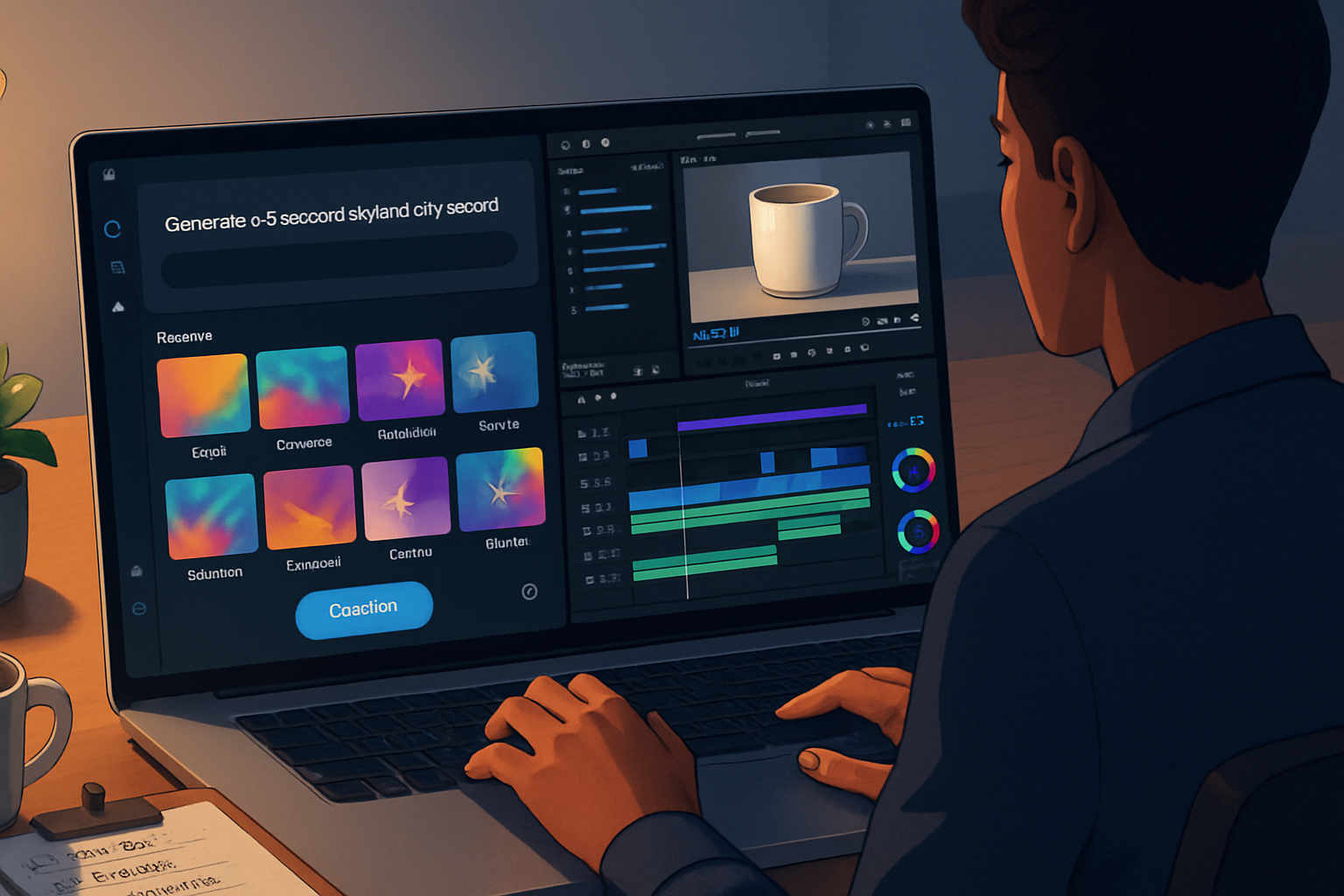
Video is short-form, mobile-first, and published everywhere. Creators need speed. They also need polish. They need captions, vertical crops, and a thumbnail - fast. Kapwing meets those needs with a browser-based editor and a growing set of AI features that automate repetitive tasks: auto-subtitles, background removal, template-driven social formats, and collaborative cloud editing. That combination reduces both technical barrier and turnaround time.
Kapwing’s product pages and resources show the emphasis on accessible, web-first editing and creator-friendly features: https://www.kapwing.com/features and https://www.kapwing.com/resources.
The core Kapwing features changing the game
1) Browser-first Studio
No installs. No powerful GPU required. Edit on a Chromebook, tablet, or a modest laptop. That matters because it shifts the bottleneck from hardware to creativity.
2) AI-powered subtitles and captioning
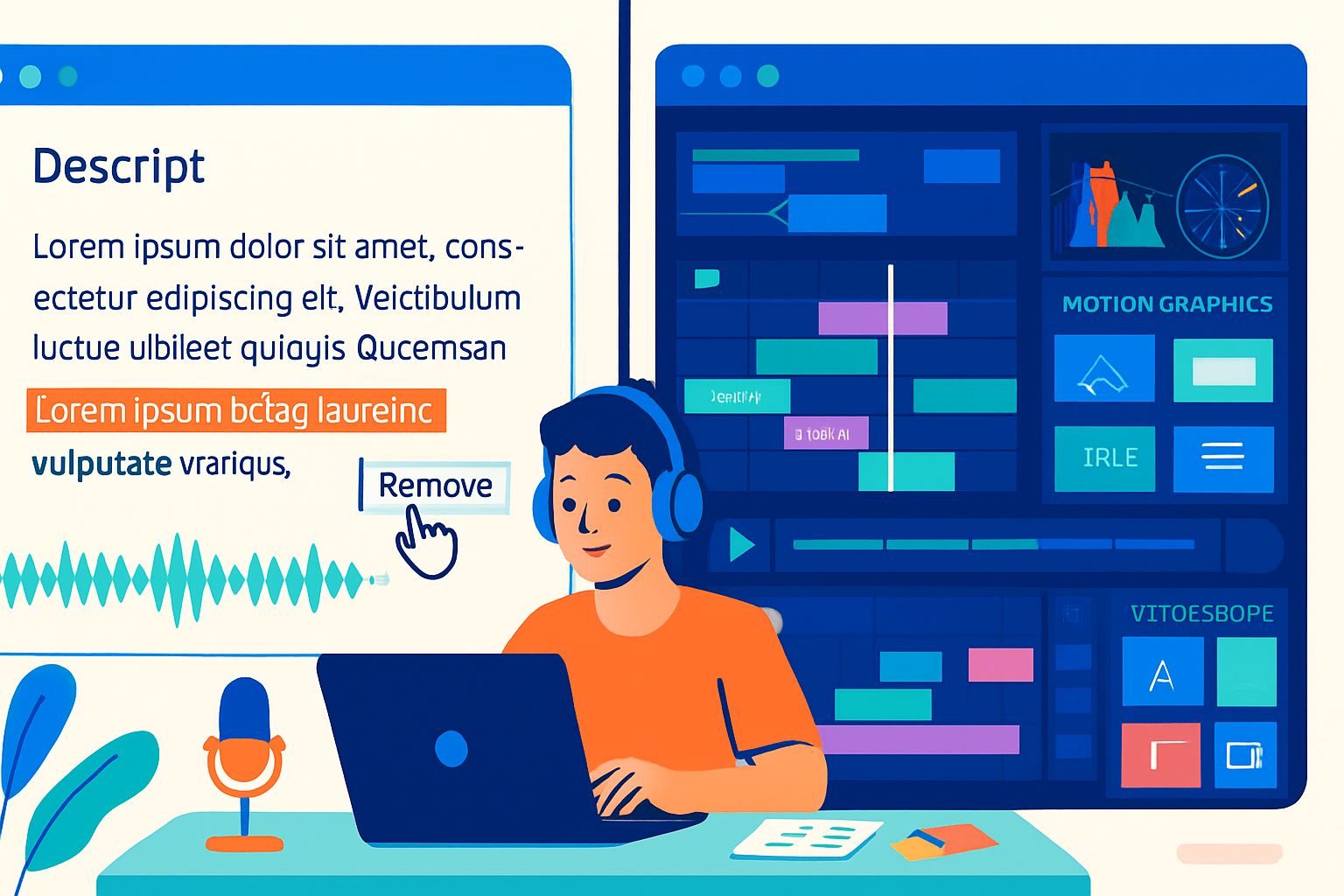
Kapwing auto-generates subtitles and lets you edit them inline. Captions significantly increase watch time and reach on social platforms - and Kapwing makes them quick to produce and style: https://www.kapwing.com/subtitles. Short videos go from raw clip to captioned, share-ready asset in a few minutes.
3) Background removal and quick masking
Remove video backgrounds or isolate subjects with AI rather than setting up green screens or spending hours rotoscoping. This lets creators produce green-screen-like effects on casual shoots.
4) Templates and format conversion
One source video, multiple outputs. Kapwing’s templates and automatic aspect-ratio tools make it easy to create square, vertical, and landscape versions for different platforms in minutes.
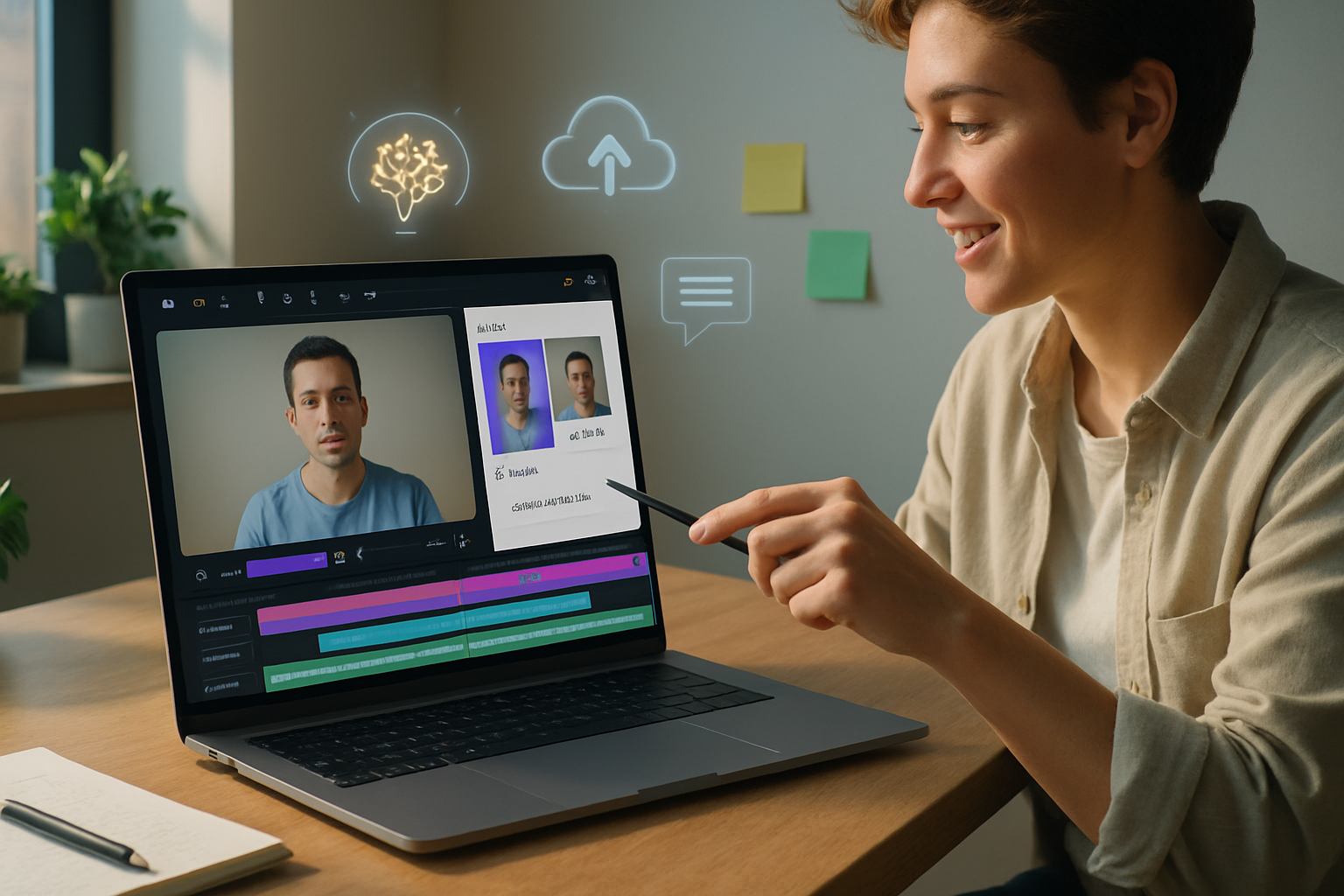
5) Collaboration and cloud exports
Share project links, invite collaborators, and export to social destinations without bouncing files back and forth. The cloud-native flow reduces friction when a teammate or client needs to review or make small edits.
6) Lightweight publishing & repurposing tools
Thumbnail generation, simple motion graphics, text-to-speech, and quick trimming tools minimize the time between finish and publish.
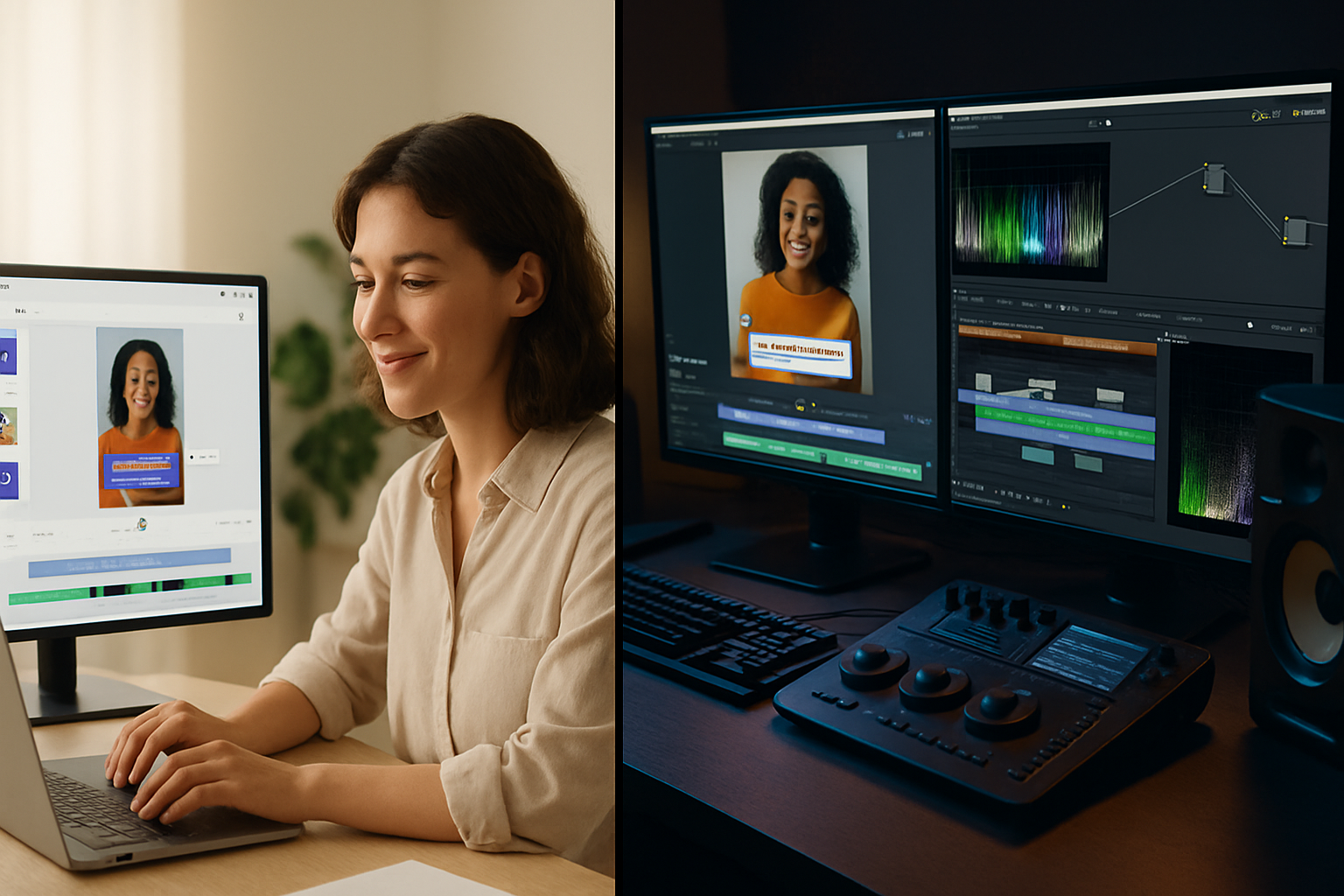
How Kapwing stacks up against traditional desktop editors
Compare Kapwing to heavy NLEs like Adobe Premiere Pro or DaVinci Resolve (both capable and industry-standard: https://www.adobe.com/products/premiere.html, https://www.blackmagicdesign.com/products/davinciresolve/).
- Learning curve - Kapwing is shallow. You can be productive within an hour. Desktop NLEs take weeks to master. Short sentence. Big impact.
- Cost and access - Kapwing is subscription- and freemium-based and runs in a browser. Premium NLEs often require a one-time purchase or expensive subscription plus hardware investment. Long sentence to accumulate force and make the cost case: for many small creators, the combination of lower monetary cost and immediate accessibility trumps the advanced capabilities of NLEs.
- Power and precision - Desktop NLEs still win for high-end color grading, complex effects, multi-cam timelines, and tight performance on very large projects. Kapwing does not replace them for feature films or high-end commercials.
- Speed to publish - Kapwing wins hands-down for fast social edits, captions, and format conversions.
Strong point: For everyday creators who need consistent, frequent output, speed and accessibility beat absolute power more often than not.
Practical workflows: Small creator vs. advanced project
Below are sample workflows that show where Kapwing shines - and where a hybrid approach works best.
Workflow A - Solo creator publishing daily social content (ideal for Kapwing)
- Shoot vertical or horizontal video on phone. Short sentence.
- Upload to Kapwing Studio. Use a template for the correct aspect ratio. Convert once to multiple formats. Add quick cuts and overlays.
- Auto-generate subtitles, review, and style captions for brand consistency.
- Add thumbnail and export to social. Publish. Fast.
Why it works: minimal tech, fast turnaround, consistent branding.
Workflow B - YouTuber or indie filmmaker (hybrid approach)
- Capture and perform heavy edits, color grading, and complex audio work in a desktop NLE.
- Export a master file.
- Upload to Kapwing for repurposing - create vertical cuts, captioned snippets, and thumbnails. Use Kapwing to churn many social assets from one master.
Why it works: preserves high-end creative control while leveraging Kapwing’s speed for distribution.
Limitations and considerations
- Internet dependency - Kapwing requires a stable connection. Large uploads can be slow.
- File limits and project size - Browser editors can struggle with very large, multi-hour projects. Local NLEs still outperform on massive timelines.
- Advanced features - Deep color grading, professional audio mixing, and frame-accurate VFX are better in desktop NLEs.
- Privacy and compliance - Cloud editing means assets pass through external servers. Teams with strict security or legal requirements should evaluate policies and export workflows carefully.
Being honest about these limitations helps you choose the right tool for the job.
Recommendations - when to choose Kapwing and when not to
Choose Kapwing if:
- You publish frequently and need social-ready formats fast.
- You want to add captions without manual transcription.
- You have limited hardware or want collaboration without file transfers.
Don’t choose Kapwing (as sole editor) if:
- Your project needs professional color grading, advanced VFX, or frame-accurate edits.
- You must comply with strict onsite-only data policies.
Best practice: Use Kapwing for distribution, repurposing, and rapid turnaround - and use a desktop NLE for flagship content that requires heavy lifting.
Practical tips to speed up your Kapwing workflow
- Start with templates for consistent intros, lower-thirds, and end screens.
- Batch process captions and then tweak; it’s faster than typing from scratch.
- Keep a brand kit (fonts, colors, logos) ready in Kapwing to export consistently.
- Compress and pre-trim footage on your device to reduce upload time.
The bigger picture: what Kapwing signals for the future of editing
The future is distributed. Tools will continue moving to the cloud, with AI automating repetitive tasks and making creative tooling accessible to more people. That doesn’t mean high-end NLEs disappear. They will remain essential for complex productions. But the day-to-day storytelling that powers social channels, indie businesses, and small studios will increasingly live in web-native tools designed for speed, collaboration, and scale.
Kapwing is not just a single product. It’s an example of a broader shift: democratization of video production. Quick edits. Fast captions. Universal access. Big results.
Further reading and references
- Kapwing features and resources: https://www.kapwing.com/features and https://www.kapwing.com/resources
- Kapwing subtitles: https://www.kapwing.com/subtitles
- Adobe Premiere Pro: https://www.adobe.com/products/premiere.html
- DaVinci Resolve: https://www.blackmagicdesign.com/products/davinciresolve/
- Why captions matter: https://wistia.com/learn/marketing/captions-and-subtitles