· business · 6 min read
From Novice to Pro: The Secret Canva Features That Will Transform Your Work
A practical, step-by-step guide to Canva’s advanced features-Brand Kit, Magic Resize, Bulk Create, AI tools, collaboration, and export settings-so small businesses can build consistent brands, speed up production, and create high-impact marketing and social media assets.
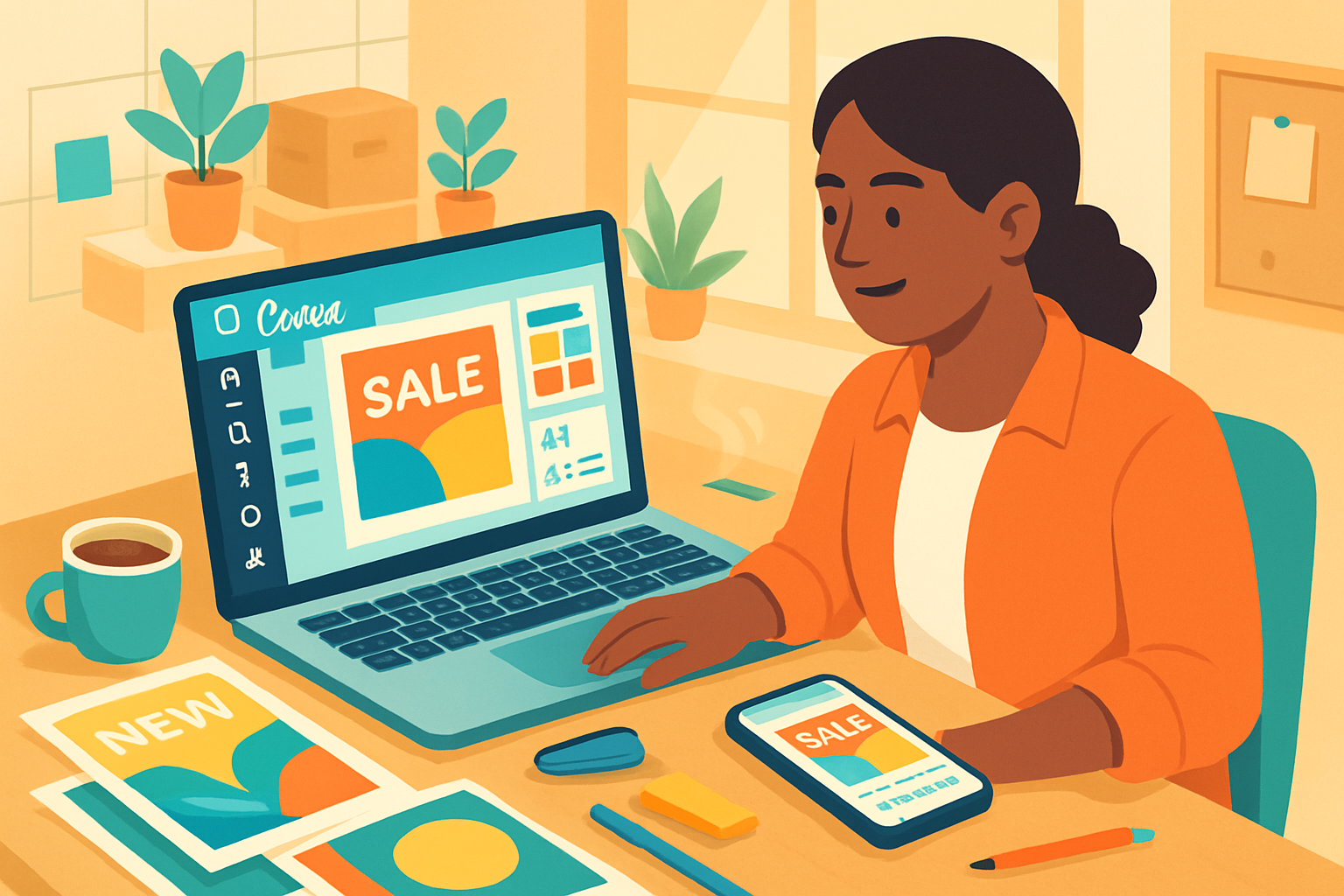
Outcome first: spend one hour building a brand system in Canva, then produce a week’s worth of social posts in 20 minutes. This guide shows you exactly how-step-by-step-using the Canva features that separate hobbyists from pros.
Why this matters
You can make a beautiful single design in minutes. But consistent branding, fast batch production, and pixel-perfect exports are what turn designs into business results: recognition, conversions, and time saved. This article walks through the Canva features that deliver those outcomes and gives real workflows for small businesses: brand creation, campaign design, and ongoing social content.
Quick checklist (get these ready before you start)
- Business name, logo files (SVG/PNG) and main tagline
- Brand colors (hex codes) and 1–2 primary fonts
- 5–10 photography/product images (high quality)
- A short content calendar (7–14 posts)
Key features we’ll cover
- Brand Kit & Brand Controls
- Templates & Locked Elements
- Magic Resize & Bulk Create
- AI tools - Magic Write, Text to Image, Background Remover
- Styles, Effects & Photo Tools
- Collaboration, Folders & Version History
- Export settings for web, social, and print
If you want the official how-to resources, Canva’s Design School and Help pages are great references: https://www.canva.com/learn/ and https://www.canva.com/help/.
- Build a system - Brand Kit + Brand Controls
Outcome: consistent look across every asset, without manual guesswork.
What to do
- Upload your logos and set up your Brand Kit (colors, fonts, logos). On Canva Pro you can add multiple Brand Kits for different brands or product lines: https://www.canva.com/brand/.
- Create a ‘Primary Template’-a master layout for ads, flyers, and posts-and save it as a team template.
- Use Brand Controls to lock logo placement, approved fonts, and colors so teammates can’t accidentally change them.
Why it works
Locking and centralizing brand elements prevents inconsistencies. You don’t hunt for hex codes. Designers and non-designers produce on-brand work every time.
- Speed production - Templates, Magic Resize, Bulk Create
Outcome: produce dozens of assets in minutes, not hours.
Templates
- Create one master template for each content type (Instagram post, Story, Facebook ad, email header).
- Use grids and frames to keep image placement consistent.
Magic Resize
- Design once, then use Magic Resize to instantly create versions for every channel - Instagram posts, stories, LinkedIn banners, Pinterest pins:
Bulk Create (CSV-driven)
- Use Bulk Create to import a CSV of headlines, images, and CTAs to create dozens of personalized graphics from one template (ideal for product catalogs or event promos).
- Example CSV for Bulk Create (header row names match the placeholders in your design):
headline,description,image,price
"Summer Sale","Up to 50% off","product1.jpg","$29"
"New Arrivals","Limited stock","product2.jpg","$45"
Tip: use consistent file names in the Uploads folder so the CSV can reference them easily.
- Use AI to accelerate copy and imagery
Outcome: faster concepting, better captions, and original images when stock isn’t right.
Magic Write
- Generate post captions, CTAs, and short descriptions inside Canva’s text editor. Prompt Magic Write with a tone and audience.
- Example prompt - “Write 6 Instagram captions promoting a limited-time 20% discount for eco-friendly tote bags. Tone: friendly, urgent.”
Text to Image & Background Remover
- Generate unique imagery with Text to Image for eye-catching hero images.
- Use Background Remover to isolate products and place them on brand-colored backdrops: https://www.canva.com/features/background-remover/ and https://www.canva.com/features/text-to-image/.
Why AI helps
It speeds iteration. You get multiple caption/visual options in seconds and avoid stock clichés.
- Polishing images - Styles, Filters, Effects
Outcome: a consistent photographic aesthetic that matches your brand.
- Use Styles to apply your brand color palette and pair fonts across layouts quickly.
- Use Adjust and Photo Effects (Duotone, Color Mix, Auto Enhance) to create a recognizable visual treatment across photos.
- Save common edits as a ‘preset’ or note the exact settings so you can reproduce them.
- Collaboration & organization
Outcome: fast review cycles; no lost assets.
Folders and Teams
- Organize folders by campaign and asset type (e.g., Campaign/LaunchX/Ads).
- Create a shared ‘Templates’ folder for everyone.
Comments and Version History
- Use in-line comments to collect feedback, then create a new version when major edits are approved. Version History lets you roll back if something goes wrong.
- Export like a pro (settings that matter)
Web/social
- PNG for images with transparency or when you want crisper text.
- JPG for photos where file size matters - use 70–85% quality to balance size and look.
Animation & video
- Export GIF for short looping animations; MP4 for higher quality with sound.
- Export PDF Print for brochures, flyers, and business cards. Use CMYK-safe files and add bleed if you’re printing to trim.
- For logos, export SVG (Pro) so your logo scales without losing quality.
Resolution and sizes
- For Instagram posts - 1080×1080 px or 2048×2048 for best quality.
- For Stories/Reels - 1080×1920 px.
- For LinkedIn banners - 1584×396 px.
Pro tip: Always export a master PDF (high-res) and a compressed web version for social use.
- Three practical workflows for small business
A. One-hour Brand System (Outcome: reusable brand kit + starter templates)
- Open a new Canva file and import your logo and 5 images.
- Create a Brand Kit (colors, fonts, logos).
- Build a primary template for a social post and a one-page flyer. Use grids and placeholders.
- Save both to a Templates folder and apply Brand Controls.
Result: consistent assets anyone can use.
B. Product Launch Campaign (Outcome: 30+ assets from one master in 60–90 minutes)
- Build a master campaign page with hero image, 3 product images, price spots, and CTA.
- Use Bulk Create to generate product-specific variations from a CSV.
- Magic Resize the best variations into Instagram posts, Stories, Facebook ads, and Pinterest pins.
- Use Smartmockups (or Canva’s mockup feature) to generate realistic product shots.
- Export one web-ready pack and a print-ready PDF for collateral.
C. Weekly Social Content Batch (Outcome: 7 posts in 20 minutes)
- Use Magic Write to generate 7 captions and a short CTA line.
- Drop the captions into a Bulk Create CSV or paste them into repeated text placeholders.
- Use one Instagram template and apply Magic Resize for Stories and other channels where needed.
- Schedule with Canva’s Content Planner or export and schedule via your social tool.
- Shortcuts, hidden tricks, and pro tips
- Keyboard shortcuts - Duplicate selection (Cmd/Ctrl + D), Group (Cmd/Ctrl + G), Ungroup (Shift + Cmd/Ctrl + G), Nudge (arrow keys). These save minutes every day.
- Lock elements (right-click > Lock) to prevent accidental moves.
- Use rulers and guides for precise alignment - View > Show rulers & guides.
- Transparent templates - build templates using transparent backgrounds so you can reuse them over images or colors.
- Use a color contrast checker when choosing text-on-image color to keep accessibility in mind.
- When working with photography, export a compressed social pack (JPG) and keep the high-res originals for print.
- Trouble-shooting common problems
- Colors look different in print vs. on-screen - check CMYK compatibility and add bleed. Print proofs are your friend.
- Fonts aren’t available - upload brand fonts (Pro) or choose the closest system font and lock it in the Brand Kit.
- Images pixelate on exports - always check original image resolution. For logos, use vector/SVG.
- Learning resources and next steps
- Canva Design School: https://www.canva.com/learn/
- Canva Help Center: https://www.canva.com/help/
- Experiment - create a small template and go through a full create-resize-export cycle.
Conclusion
Canva becomes powerful the moment you stop designing one-off pieces and start building systems. The Brand Kit and locked templates keep things consistent. Magic Resize, Bulk Create, and the AI tools turn hours of repetitive work into minutes. Use the workflows above and you’ll see measurable gains: faster production, on-brand assets, and more time to focus on strategy. Design less. Deliver more. Build a system that works for your business-and keep iterating until it runs on autopilot.