· productivity · 6 min read
The Evernote Clean-Up: How to Declutter Your Notes and Reclaim Your Focus
Turn your Evernote chaos into a streamlined, searchable knowledge base in a few hours. This step-by-step guide gives a practical, timeboxed plan, tag and notebook strategies, search recipes, and maintenance habits to keep your Evernote tidy and useful.
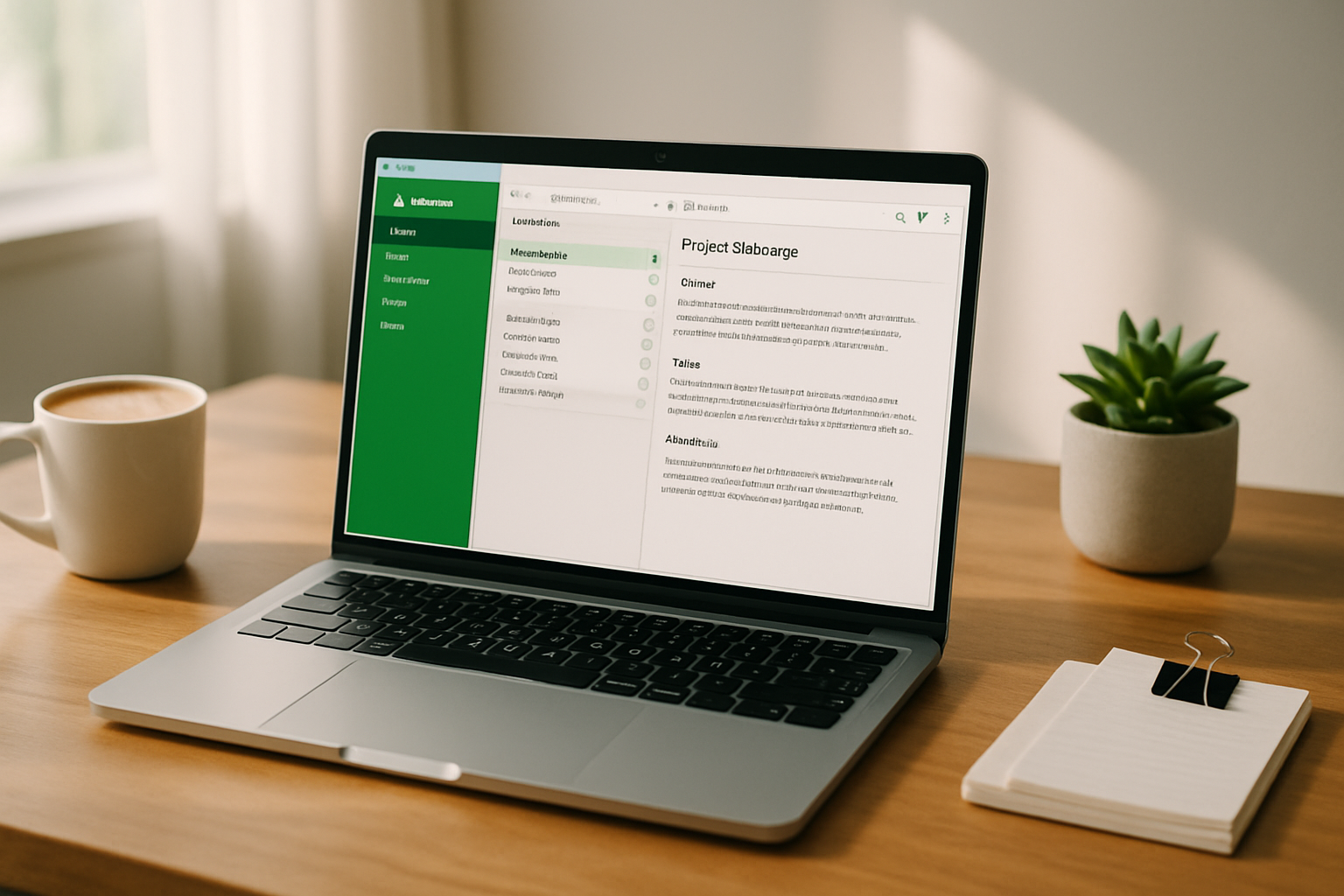
Outcome first: in three focused hours you can reduce noise, find what matters instantly, and restore Evernote as a tool that increases your focus instead of fragmenting it. Read this guide and, step by step, you’ll transform a messy archive into a reliable, fast-access workspace.
Start here. You don’t need an all-night marathon. You need a plan, the right searches, and a bit of ruthless triage.
Why a clean Evernote matters - fast
A bloated note library steals time. Searching becomes slow. Decisions get deferred. Your attention splinters. Decluttering does two things: it reduces friction to find critical notes, and it reduces the cognitive load of maintaining your knowledge. The result: more focus, less stress.
Quick overview - a 3-hour plan
- 0–15 minutes - Audit and backup. Know the problem. Protect your data.
- 15–45 minutes - Inbox sweep. Process the newest 50–200 notes.
- 45–120 minutes - Structural cleanup - notebooks, tags, merges, and archives.
- 120–165 minutes - Search hygiene, saved searches, and shortcuts.
- 165–180 minutes - Automations and a recurring maintenance plan.
Tweak the times to fit your library size. If you have thousands of notes, add another 1–2 hours for merging and manual tagging.
Step 1 - Audit and backup (0–15 minutes)
What you do: Get a quick read on volume and protect your data.
- Check total note count (Evernote shows this in the app).
- Export a full backup (ENEX export). This guards against accidental deletion while you experiment. See Evernote’s export help: https://help.evernote.com/hc/en-us/articles/209005287-Backing-up-and-exporting-notes
Why: Backups let you restore if a cleanup goes too far.
Step 2 - Inbox sweep (15–45 minutes)
Treat your default notebook (or Inbox) like your physical in-tray.
- Open the notebook that collects new items. Sort by created or updated date.
- Process the top 50–200 notes quickly with these decisions - Delete | Archive | Move to Notebook | Tag.
- Use this micro-decision rule - if a note won’t be useful in 6–12 months, delete it.
Tips:
- Delete duplicates, receipts already reimbursed, one-off lists you’ve completed.
- If you’re unsure about a note but don’t want it cluttering the inbox, archive it to a catch‑all notebook named
Archive.
Why: A clean inbox reduces mental friction and prevents new clutter from compounding.
Step 3 - Notebook and stack reorganization (45–80 minutes)
Notebooks are folders. Use them sparingly. Keep them broad and stable.
- Goal - 10–30 active notebooks for most users.
- Common useful notebooks:
Inbox,Archive,Projects,Reference,Personal,Receipts,Templates. - Combine obsolete or very small notebooks into
Archiveor a broader notebook.
How to decide:
- If a notebook has fewer than 10 notes and hasn’t been updated in 6+ months, consider merging it into
Archive. - Use stacks only to group related notebooks (e.g.,
Workstack withProjects,Meeting notes,Reference). Don’t create deep hierarchies.
Why: Simpler structure makes searching and scanning faster.
Step 4 - Tag strategy and cleanup (80–140 minutes)
Tags are your power tool. They let you cross-cut notes across notebooks. But tags proliferate fast. The goal: purposeful tags that are consistent.
Proven tag taxonomy (start simple):
- Action states:
todo,waiting,someday,reference - Topics:
finance,marketing,design(limit to 20–40 topical tags) - Time-based:
2026-Q1,2025(use sparingly)
Tag cleanup workflow:
- Export your tag list (or view tags in the sidebar). Identify variations and duplicates (e.g.,
todovsto-do). - Merge similar tags by retagging notes or using the desktop client’s tag merge feature.
- Delete unused tags.
Tagging best practice: tag for action or retrieval, not for ephemera. Ask: “Will I search by this tag in the next 12 months?” If no, don’t create it.
Step 5 - Merge, split, and reduce duplicate notes (90–140 minutes, parallel)
Duplicates quietly accumulate.
- Find duplicates with search (try searching by title or shared unique phrases).
- Merge notes when two notes are the same idea (select them and use the Merge Notes command in desktop clients).
- For long notes that contain multiple unrelated ideas, split them into separate notes so each note has a single purpose.
Why: One idea per note improves search precision and tag relevance.
Step 6 - Use search like a scalpel (140–165 minutes)
Evernote’s search grammar is powerful. Use it to find trash, duplicates, and action items quickly. See search grammar documentation: https://help.evernote.com/hc/en-us/articles/209005357-Search-grammar
Handy search recipes:
- Unreviewed Inbox notes - notebook:Inbox -tag:reviewed
- Notes with attachments (images, PDFs) - resource:image OR resource:application/pdf
- Large notes (space hogs) - resource:image OR resource:application/pdf AND resource:size:>10MB
- Old personal notes - notebook:Personal created:<20230101
Save searches you run often as Saved Searches or add them to Shortcuts: https://help.evernote.com/hc/en-us/articles/209005557-Shortcuts
Why: Reusable searches reduce recurring effort.
Step 7 - Templates, shortcuts, and workflows (165–175 minutes)
Make repeatable work trivial.
- Create templates for meeting notes, project briefs, expense entries. Evernote templates save time and keep format consistent: https://help.evernote.com/hc/en-us/articles/360052683033-Create-and-use-note-templates
- Use Shortcuts for 5–10 items you access daily (current projects, weekly review search, reference docs).
Why: Consistency prevents future mess.
Step 8 - Automate and archive old content (175–180 minutes)
- Use Zapier or IFTTT for automatic captures (email to Evernote, starred Gmail to Evernote) but keep rules tight to avoid duplicate captures.
- Archive - Move notes older than 2 years and rarely accessed into a single
Automation resources: connectors like Zapier/IFTTT or your preferred automation service. Be conservative. Automations amplify mistakes if misconfigured.
Maintenance rhythm - keep it small and regular
- Weekly (10–15 minutes) - Inbox triage and tag quick-fixes.
- Monthly (20–40 minutes) - Notebook/tag cleanup and merge any small notebooks.
- Quarterly (30–60 minutes) - Archive older notes and run a duplicate sweep.
Add these tasks to your calendar or habit tracker so they actually happen.
Useful checklists
Quick 30-minute sweep checklist:
- Backup Evernote (ENEX export)
- Empty inbox or process 50–100 newest notes
- Merge or archive 3 small notebooks
- Remove 10–20 unused tags
- Create/refresh 1 template
- Add 2 saved searches to Shortcuts
90-minute deep-clean checklist:
- Full backup
- Sweep inbox fully
- Consolidate notebooks to target count
- Implement core tag taxonomy
- Merge duplicates and split big notes
- Set automation rules (reviewed)
Common pitfalls (and how to avoid them)
- Pitfall - Creating too many tags. Solution: limit to 40 topical tags and rely on notebooks + search for the rest.
- Pitfall - Over-automation. Solution: test automations on a small subset or a test notebook first.
- Pitfall - Letting the inbox grow. Solution: treat it like an in‑tray and process at least once a week.
When to start fresh
Sometimes old noise is so bad that a fresh start is fastest. Consider this if:
- Your tags number in the hundreds and most are unused.
- You have many small one-note notebooks.
Fresh-start approach:
- Export everything as ENEX.
- Import only the notes you want into a clean account or a clean notebook structure.
- Keep the old export as an archive.
Final note - about focus
Cleaning Evernote is not a one-time cosmetic act. It’s an investment in the space where your future attention will live. Spend a few focused hours now. Get rid of the low-value noise. Then protect your tidy system with small regular habits. The result is simple: fewer interruptions, faster retrieval, and more uninterrupted focus on the work that matters.
References
- Evernote - Backing up and exporting notes -
- Evernote - Search grammar -
- Evernote - Notebooks and stacks -
- Evernote - Merge/Combine notes -
- Evernote - Templates -
- Evernote - Shortcuts -