· productivity · 7 min read
5 Creative Ways to Use Monday.com Beyond Project Management
Learn five practical, creative ways to repurpose Monday.com beyond traditional project management - from personal productivity and content creation to events, sales, and hiring - with board blueprints, automation recipes, and pro tips you can implement today.
Outcome: By the time you finish this post you’ll have five ready-to-build blueprints for using Monday.com outside of strict project management - and concrete automations and integrations you can copy/paste to get them running fast. Read on, pick one, and build your first board in under an hour.
Why use Monday.com for non-traditional workflows?
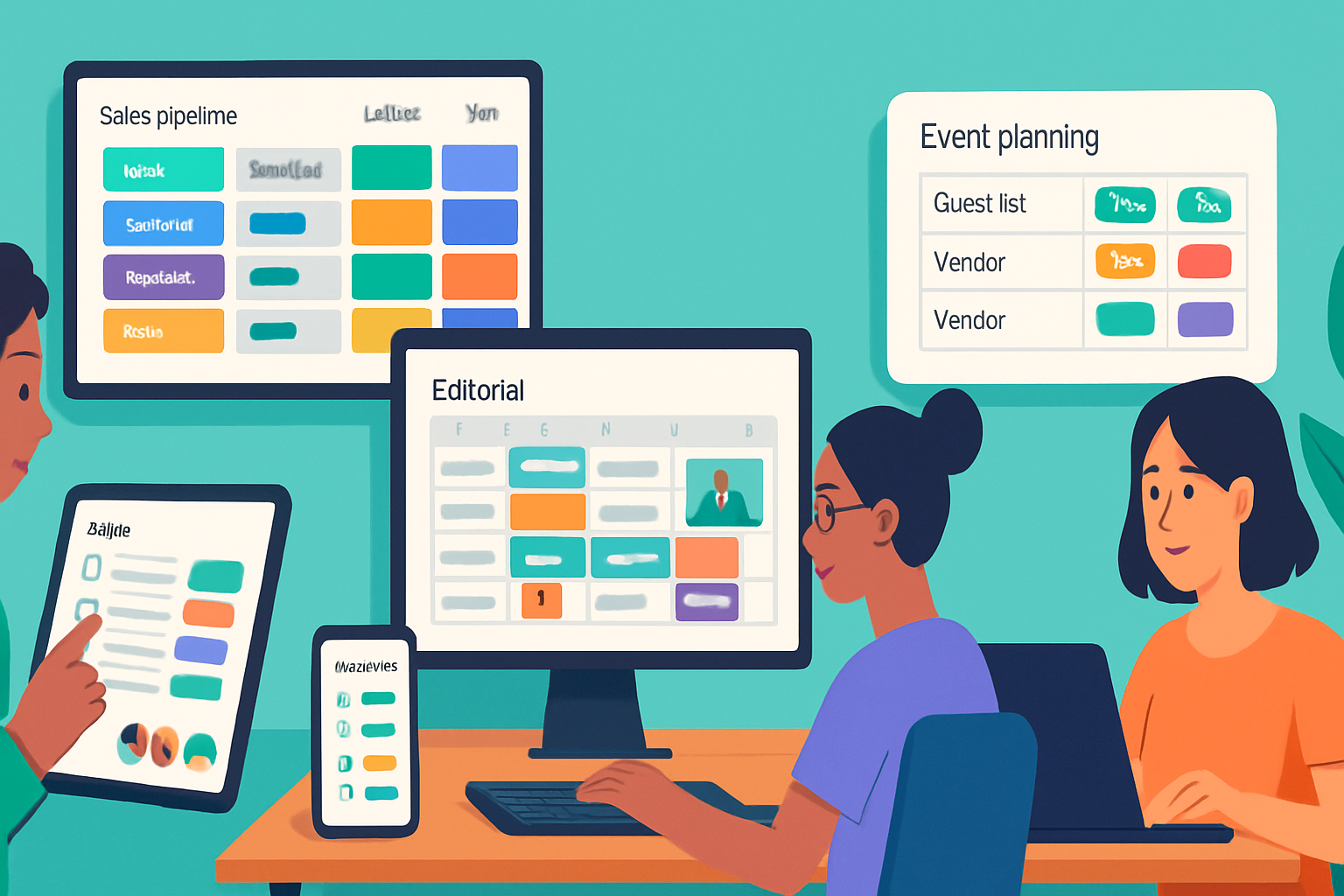
Because it’s a flexible, visual workspace that adapts. Not every task needs a Gantt chart. Sometimes you need a habit tracker, an editorial calendar, or a single place to manage event vendors and RSVPs. Monday.com gives you columns, views, automations, integrations and dashboards - all of which you can combine to solve dozens of real-life problems.
Short setup. Big payoff. Clear visibility. Repeatable processes. That’s the outcome.
1) Personal productivity & goal tracker
Why it works
You get a system that replaces sticky notes, spreadsheets and scattered apps with a single source of truth. Use boards for goals, tasks, routines and check-ins.
What to build (blueprint)
- Board groups - Quarterly Goals, Weekly Tasks, Habits, Backlog
- Item per goal/task/habit
Columns to add
- Status (Not started / In progress / Done)
- Date (Due date or target date)
- Priority (Low / Medium / High)
- Numbers (Progress % or points)
- People (accountability partner)
- Checkbox (Daily habit tick)
- Formula (to calculate weekly completion rate)
Views and dashboards
- Calendar view for deadlines
- Kanban for daily task triage
- Dashboard with widgets for goal completion, weekly velocity and a habits heatmap
Automation & integration ideas
- When status changes to Done, move item to Completed group.
- When Date arrives, notify me at 8 AM.
- Integrate with Google Calendar to sync deadlines.
Example automation rules
- “When status becomes Done, move item to group Completed.”
- “When Date arrives and status is not Done, notify [Me] and post to Slack.”
Pro tips
- Use a weekly review item to force reflection. Make it a recurring item using automations.
- Keep habits as lightweight checkboxes - tracking consistency matters more than perfection.
Start template
- Use Monday’s Personal Productivity templates as a starting point: https://monday.com/templates
2) Content creation & editorial calendar
Why it works
Content needs rhythm: ideation, drafting, reviews, publishing. Monday.com maps each stage visually and moves pieces forward without email chains.
What to build (blueprint)
- Board groups - Ideas, In Progress, In Review, Scheduled, Published
- Item per content piece (article, video, post)
Columns to add
- Status (Idea → Draft → Review → Scheduled → Published)
- Date (Publish date)
- People (Author, Editor)
- Text (Short brief or content link)
- Files (assets)
- Tags (channel, campaign)
- Numbers (estimated reading time or budget)
Views and dashboards
- Calendar view to see publishing cadence
- Timeline view for multi-piece series
- Kanban for editorial pipeline
- Workdocs to collaborate on drafts inline and convert to board items: https://monday.com/features/workdocs
Automation & integration ideas
- When status changes to Scheduled, create an item in a “Distribution” board (social posts, newsletter) via integration.
- Automatically publish a task to Slack or schedule a Tweet using Zapier or native integrations.
- When item becomes Published, change status and copy to Archives group.
Example automation rules
- “When status changes to Published, notify [Channel] and move item to Published group.”
- “When Publish date arrives, assign [Editor] and set status to Review.”
Pro tips
- Use a single source-of-truth item for each asset and create mirrored items (or use connected boards) for repurposing across channels.
- Keep a content brief column that includes SEO target and CTA so publishers never miss the essentials.
Start template
- Begin with Monday’s Content Calendar or Editorial Calendar templates: https://monday.com/templates
3) Event planning & attendee management
Why it works
Events are coordination puzzles with vendors, deadlines, budgets and guests. Monday.com’s visual boards and automations turn chaos into a checklist-driven machine.
What to build (blueprint)
- Boards - Event Master (overview), Vendor Management, Guest List, Budget Tracker
- Item per task, vendor, or guest
Columns to add (Event Master)
- Status (Not started → In progress → Confirmed → Done)
- Date (milestones)
- People (owners)
- Numbers (budgeted cost, actual cost)
- Files (contracts)
- Link (venue info)
Guest List columns
- Name, Email, RSVP status, Ticket type, Dietary restrictions, Check-in (checkbox)
Views and dashboards
- Calendar for deadlines and rehearsal timelines
- Map view for venue locations (via integration)
- Dashboard combining budget spend, open tasks, and RSVP rate
Automation & integration ideas
- When RSVP status changes to Confirmed, send an automated confirmation email (via Gmail integration or Zapier).
- When a vendor’s due date approaches, automatically remind the owner and attach the contract.
- Use forms (Monday Forms or Typeform) to capture registrations and push response items to your Guest List board.
Example automation rules
- “When Date arrives and status is not Done, notify owner and set priority to High.”
- “When an item is created in Guest List (via Form), notify [Events Coordinator].”
Pro tips
- Use a separate day-of-event group for real-time tasks. Move items to it 48–72 hours before.
- Keep a single place for vendor contact info with files and renewal reminders for repeat events.
Start template
- Check event templates and guest list templates: https://monday.com/templates
4) Lightweight CRM & sales pipeline for freelancers
Why it works
You don’t need a heavyweight CRM when you’re a one-person shop. A Monday board tracks leads, proposals, contracts and follow-ups - and keeps everything client-facing in one place.
What to build (blueprint)
- Board groups - Leads, Contacted, Proposal Sent, Negotiation, Won, Lost
- Item per client or opportunity
Columns to add
- Status (Lead → Contacted → Proposal → Won/Lost)
- Date (Last contact / Next follow-up)
- People (Owner / Sales rep)
- Numbers (Deal value)
- File (proposal / contract)
- Automation-generated activities log (updates)
Views and dashboards
- Kanban for pipeline view
- Table for filtered lists (high-value deals)
- Dashboard for monthly revenue forecast
Automation & integration ideas
- When status becomes Proposal Sent, create a recurring follow-up task in three days.
- When Deal Value changes and status is Won, add revenue row to a monthly finances board (connected board).
- Integrate with Gmail to log emails or with Stripe to mark invoices paid.
Example automation rules
- “When status changes to Won, notify finance and move item to Won group.”
- “When Next follow-up date arrives, notify owner and create a reminder subitem.”
Pro tips
- Keep one column for the current step and another for next action - this prevents stalled deals.
- Use the Activity log and item updates to keep chronological client communication without searching through your inbox.
Start template
- Start from a Sales CRM or Sales Pipeline template and simplify fields to match your workflow: https://monday.com/templates
5) Recruiting, hiring & onboarding
Why it works
Hiring is process-heavy: sourcing, interviewing, offers, paperwork, onboarding. Monday.com gives you structure and a single onboarding timeline so new hires ramp faster.
What to build (blueprint)
- Boards - Candidate Pipeline, Interview Schedule, Onboarding Tasks
- Item per candidate or hire
Columns to add (Candidate Pipeline)
- Status (Applied → Phone Screen → Onsite → Offer → Hired → Rejected)
- Date (apply date / interview date)
- People (recruiter / interviewer)
- File (resume)
- Rating (interview score)
- Link (portfolio)
Onboarding board
- Item per task (IT setup, paperwork, first-week goals)
- Use subitems for step-by-step checklists
Views and dashboards
- Timeline for onboarding milestones
- Calendar for interview slots
- Dashboard showing funnel conversion rates and time-to-fill metrics
Automation & integration ideas
- When status changes to Offer, notify HR and trigger onboarding template creation.
- When candidate is Hired, automatically create onboarding items and set up a buddy assignment.
- Integrate with Greenhouse or other ATS via Zapier or CSV import for data sync.
Example automation rules
- “When status becomes Hired, create items from Onboarding template and assign to IT and HR.”
- “When Interview date is set, notify interviewer and add it to their Google Calendar.”
Pro tips
- Use private updates for confidential notes and public updates for shared scheduling.
- Track time-to-hire as a formula column to identify bottlenecks.
Start template
- Use Monday’s Recruiting and Onboarding templates to accelerate setup: https://monday.com/templates
Wrapping up - pick one and build
You can treat Monday.com like a Swiss Army knife rather than a single-use tool. The five blueprints above-personal productivity, content calendar, events, lightweight CRM, and hiring-are intentionally practical. They solve common needs quickly.
Start small. Build the simplest board that solves your biggest pain point. Add one automation. Watch time and mental overhead drop.
Most important: a tool only delivers value when you use it consistently. Design for habit, not perfection. Transform one workflow today, and you’ll unlock dozens more.
References
- Monday.com Templates: https://monday.com/templates
- Monday.com Workdocs: https://monday.com/features/workdocs
- Monday.com Integrations: https://monday.com/integrations