· productivity · 5 min read
10 Hidden Todoist Features You Didn't Know You Needed
Unlock lesser-known Todoist capabilities - from advanced filters and board views to multi-select bulk edits and automations - and learn practical examples you can apply today to cut friction and get more done.
Introduction
You want less friction and more flow. Keep tasks from falling through the cracks. Finish the week with momentum, not a chaotic backlog.
Read this, try three features, and you’ll already shave minutes off every task you touch. Try them together, and Todoist begins to work like a personal ops engine.
Below are 10 powerful (and often overlooked) Todoist features, how to use them, and real-world examples so you can start winning time today.
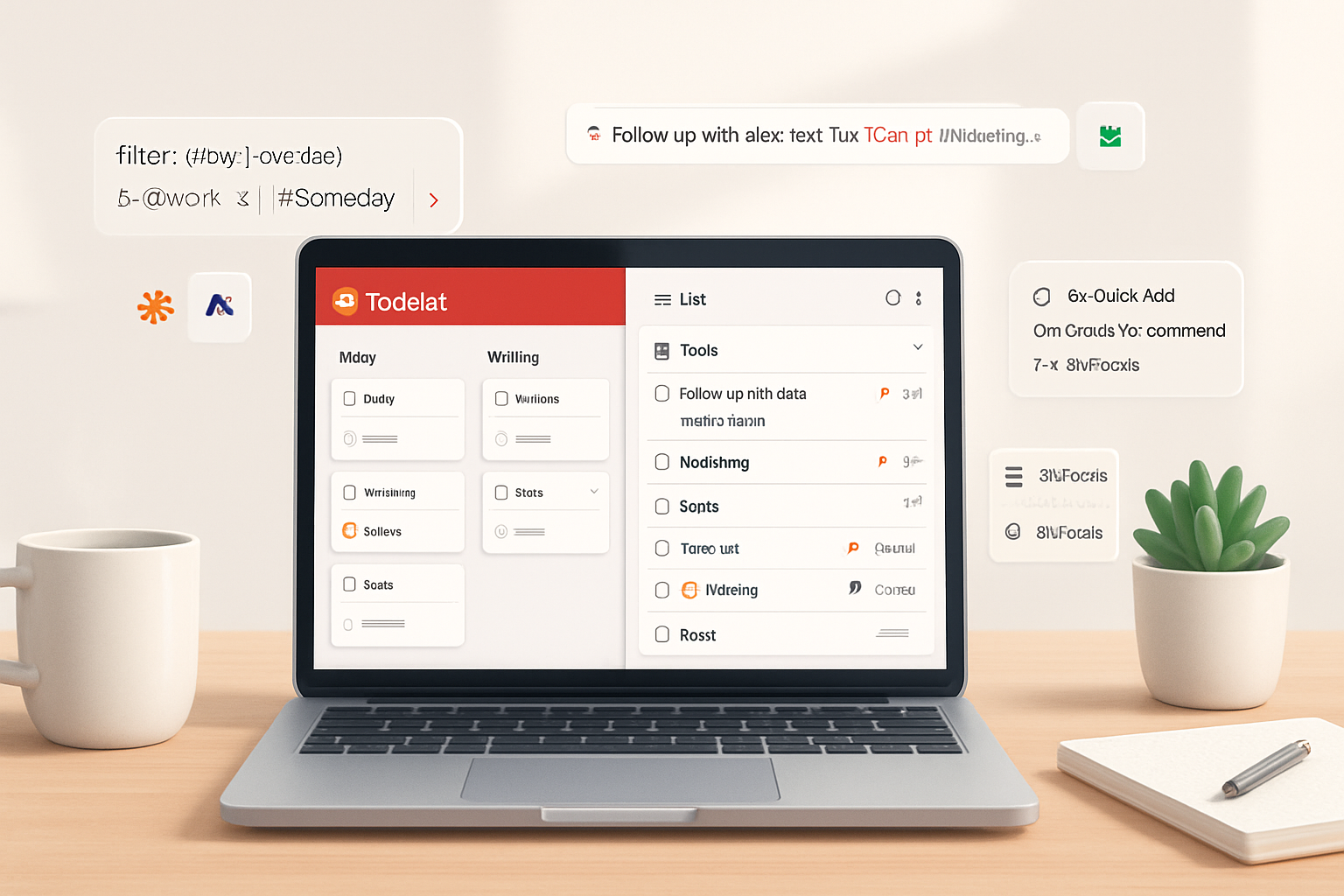
1) Advanced Filters - your custom inbox for exactly what matters
Filters turn Todoist into a query-driven task manager. Want “high-priority tasks due this week that aren’t in Meetings”? Done. Want to surface only tasks assigned to you in shared projects? Easy.
Why this matters: filters remove noise and create focused lanes of work.
Examples to copy:
- All high priorities due this week:
p1 & (today | next 7 days)- Tasks assigned to you in shared projects (using an @mention label or assignee when collaborating):
@me & !#Personal- Tasks that are overdue or due today:
overdue | todayTip: Save filters you use daily and add them to Favorites for one-click access.
Learn more: Todoist Filters (official help) - https://help.todoist.com/hc/en-us/articles/205248842-Advanced-filters
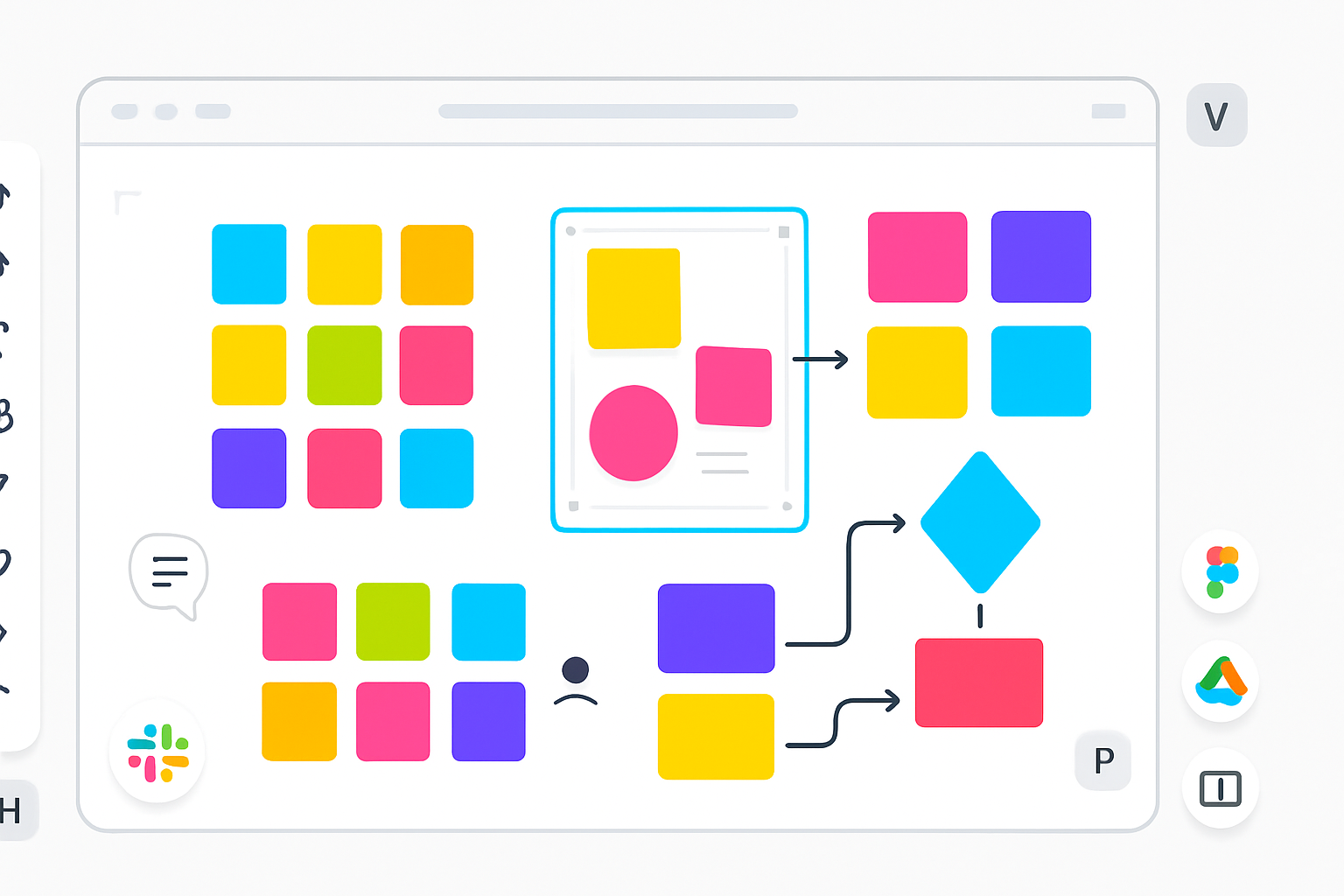
2) Boards (Kanban) - visualize progress at a glance
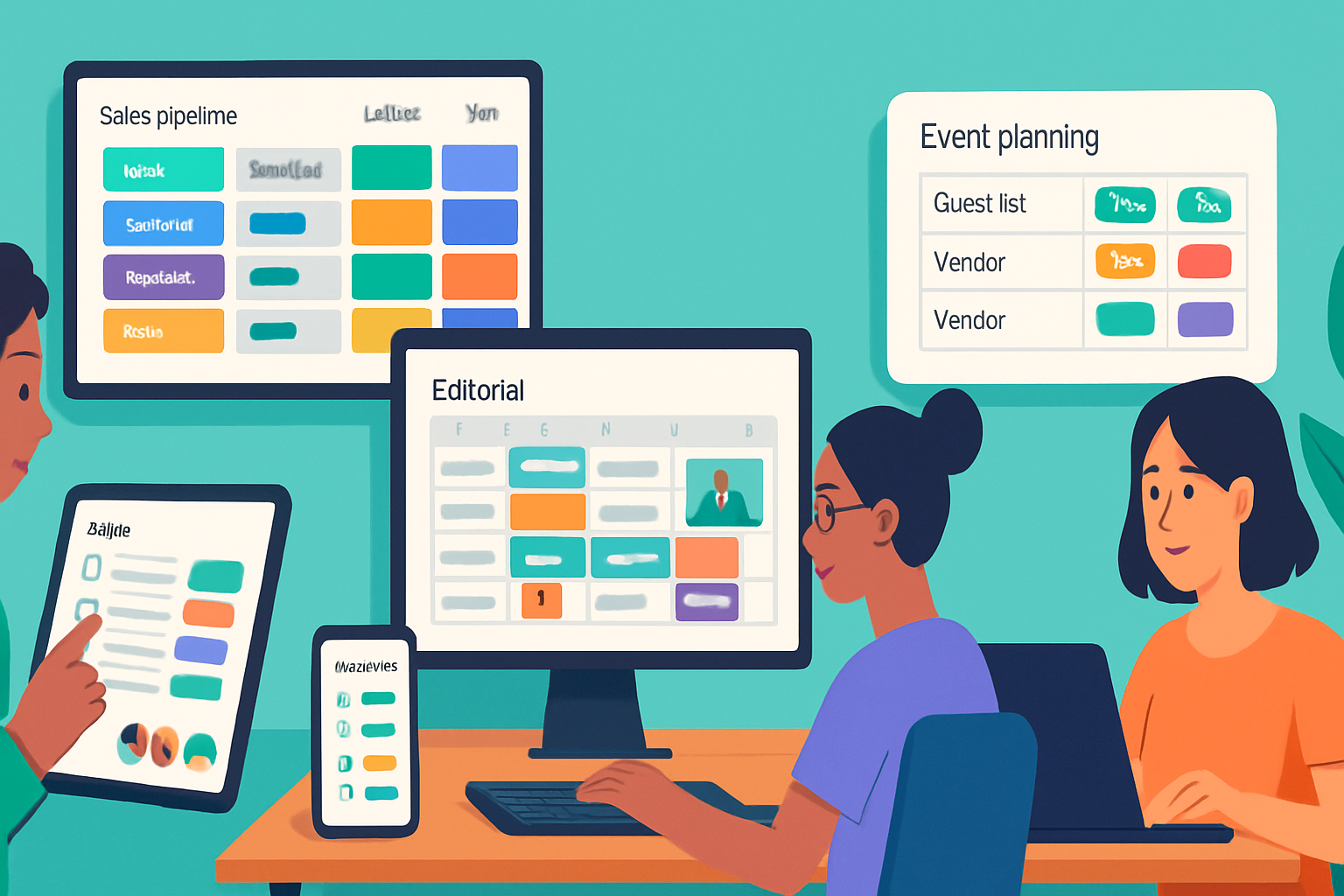
Every Todoist project can switch between List and Board views. Boards let you drag cards between sections, group by workflow stage, and spot bottlenecks visually.
When to use: product roadmaps, content pipelines, hiring processes, and any workflow with clear columns.
Pro tip: Use sections as pipeline states (Backlog → In Progress → Review → Done) and combine with filters like #Marketing & (today | next 7 days) to focus on what’s immediate.
Learn more: Todoist Boards - https://todoist.com/features/boards
3) Quick Add + Natural Language - speed entry, keep structure
Quick Add is more than a fast way to type a task. It understands natural language for due dates, recurring schedules, and priorities. Try:
- “Submit report tomorrow at 9am p1 #Work”
- “Pay rent on the 1st every month”
It’ll parse the date, set the project (#Work), and apply priority (p1) in one sentence.
Why this matters: low friction input increases capture rate - the single biggest productivity win.
Quick tip: set a default project in Quick Add so everything lands where you expect when you’re on the go.
Learn more: Quick Add - https://todoist.com/help/articles/205248852-Quick-add
4) Sections and Subtasks - structure without complexity
Sections let you split a project into meaningful chunks. Subtasks let you break a task into actionable steps. Combine them: a section for a milestone and subtasks for the steps inside that milestone.
Small trick: collapse sections you’re not working on to reduce noise. Indent subtasks to create mini-checklists inside a task.
Use case: Plan a launch with sections for Planning, Execution, and Post-launch; subtasks for each checklist item under the main task.
5) Multi-select & Bulk Edit - fix multiple tasks in one go
Select numerous tasks and change their due date, project, label, or priority all at once. It’s fast for weekly planning: move a batch of ideas into next week, or mark multiple low-priority items for deferment.
How to use it quickly: shift-click or use the UI multi-select, then apply the edit. Bulk rescheduling alone can save you 10–20 minutes weekly.
6) Keyboard shortcuts & Quick Switch - keep your hands on the keys
There’s a compact keyboard for almost every action. Want to add a task, jump to Today, or open a project without touching the mouse? There’s a shortcut.
Press ? inside Todoist to see the full list of available shortcuts. Two to remember:
- Quick Add shortcut (to capture instantly)
- Quick Switch (search + jump to any project or filter)
Why this matters: every second saved on navigation compounds.
Learn more: Keyboard Shortcuts - https://help.todoist.com/hc/en-us/articles/205248872-Keyboard-shortcuts
7) Templates - clone complex projects in seconds
Have a project you repeat (onboarding, event planning, sprint retro)? Save it as a template and import it whenever you need the whole structure back - sections, tasks, and subtasks included.
Example: Create a new client onboarding project from a template so nothing gets missed during fast hires or new customers.
Learn more: Templates - https://todoist.com/features/templates
8) Calendar Sync & Two-way updates - reduce double-entry
Connect Todoist to Google Calendar (or other supported calendars) for real-time, two-way sync. Tasks with due times appear as events; moving them in your calendar updates Todoist and vice versa.
Why this matters: you get a unified schedule. Meetings and tasks stop colliding.
Setup tip: sync only the projects you want to avoid calendar noise.
Integrations hub: https://todoist.com/integrations
9) Automations & Integrations - make Todoist a workflow engine
Connect Todoist to Slack, Gmail, Google Drive, Notion, Zapier, or Make (Integromat) to automate repetitive steps.
Examples:
- Create a task from a starred email.
- When a GitHub issue is labeled “urgent,” auto-create a task in your Engineering project.
- When a Trello card moves to Done, mark the related Todoist task complete.
Start small: new email → create inbox task. Then iterate. Automations are force multipliers - they scale your attention.
Integration docs: https://todoist.com/integrations
10) Comments, Files & Activity - context that travels with the task
Attach files, paste screenshots, and leave comments on tasks to keep discussion and context inside the task itself. No more hunting for the right thread in chat.
When collaborating: use comments for decisions and file attachments for deliverables, so every task has its history. The Activity view shows changes and keeps stakeholders aligned.
Why this matters: clarity reduces rework. Fewer follow-up questions. Faster handoffs.
Putting it together: a quick workflow to try tonight
- Create a Board project for this week’s work.
- Use Quick Add to capture everything in 60 seconds. Add projects and labels inline.
- Create a filter like
p1 & (today | next 7 days)and save it to Favorites. - Bulk move lower-priority items out of this week.
- Set up one simple automation (email → task) to stop inbox leakage.
Master filters and automate recurrent busywork, and Todoist stops being only a list - it becomes your personal operations layer that protects your time.
Further reading & official help
- Advanced filters: https://help.todoist.com/hc/en-us/articles/205248842-Advanced-filters
- Quick Add: https://todoist.com/help/articles/205248852-Quick-add
- Keyboard shortcuts: https://help.todoist.com/hc/en-us/articles/205248872-Keyboard-shortcuts
- Integrations: https://todoist.com/integrations
Try three of these today. Small changes like these compound. In a week, you’ll notice the difference.