· productivity · 6 min read
Collaboration Crisis: Why Google Workspace Might Be Hurting Your Team's Efficiency
A practical, outcome-first guide that explains how common Google Workspace pitfalls stall team collaboration - and which concrete steps to take to repair and optimize your workspace.
What you’ll get from this article
Clear, practical steps to stop Google Workspace from fragmenting collaboration and to restore speed, clarity, and safety to how your team works together. Read on and you’ll be able to diagnose the most common failure modes, implement fixes that matter, and roll out governance without killing speed.
The problem - and the outcome you can expect
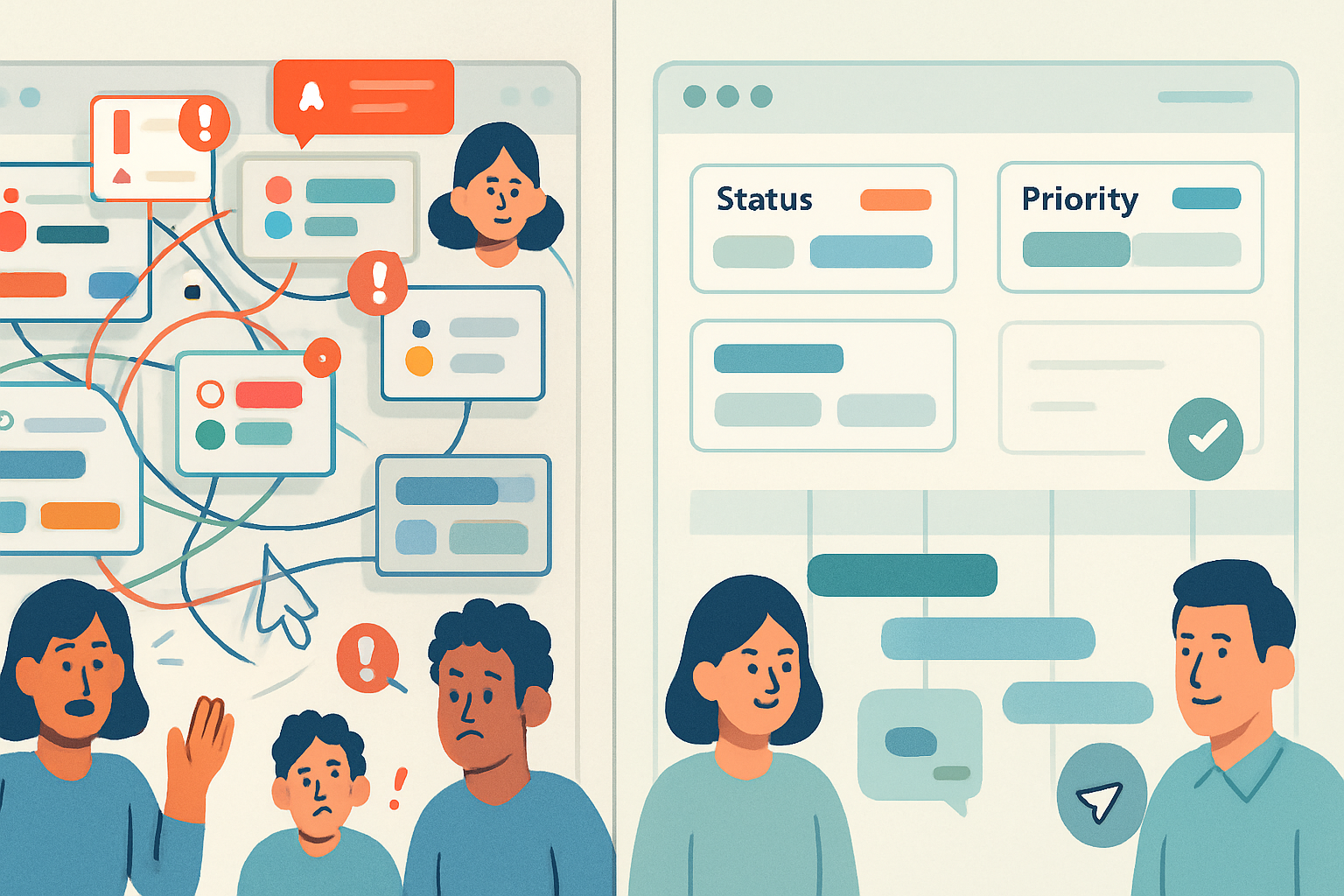
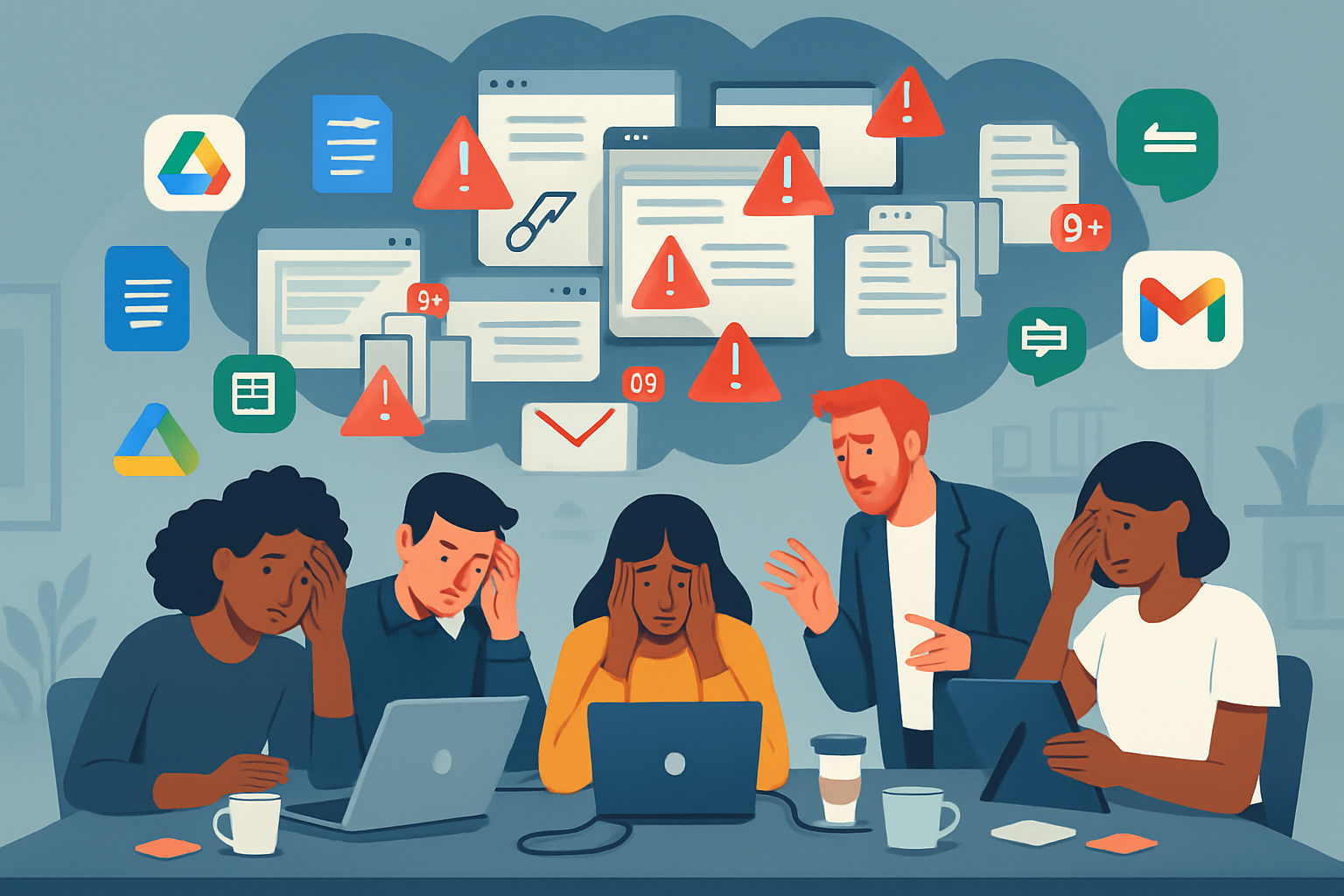
Teams adopt Google Workspace because it promises real-time collaboration. But daily reality often looks different: duplicated docs, broken links, uncontrolled sharing, endless notification noise, chaotic version history, and meetings that generate more drafts than decisions.
Fix those things and you’ll get fewer interruptions, faster handoffs, fewer security incidents, and higher trust in shared content. Faster work. Better decisions. Calm inboxes.
How to spot the symptoms
If you see one or more of these, Workspace is working against you, not for you:
- Multiple copies of the same document across personal Drives.
- Requests for access because files are “somewhere” but no one knows where.
- People emailing attachments instead of sharing links.
- Endless comment threads in Docs with no resolution.
- Frequent “Who owns this file?” disputes.
- Notifications and chat pings that bury signals.
Those symptoms point to root causes we can fix.
The common root causes (and why they matter)
1) No clear file ownership or storage rules
Without rules, personal Drives become black holes and shared content splinters. Ownership ambiguity kills accountability and slows onboarding.
2) Loose or inconsistent sharing settings
Open links everywhere may feel fast, but they invite link-rot, accidental leaks, and rework when access changes. Tight security later often breaks workflows.
3) No predictable folder structure or naming conventions
People create their own folders. Versions proliferate. You waste time searching. Context is lost.
4) Mixed communication channels and unclear norms
Chat, Spaces, Docs comments, email-each has a place, but without rules they compete and messages are missed.
5) Poor admin controls and lack of monitoring
Admins aren’t alerted to risky sharing, and there’s no metric to know whether collaboration is improving or deteriorating.
6) Tool overload and ungoverned integrations
Third‑party apps and automations multiply complexity and can introduce security and sync conflicts.
Real examples of how these failures show up
- A product spec exists as a Slides file in three versions - one in a personal Drive, one in a shared Drive, and one attached to an email. People comment on different versions-decisions never converge.
- A marketing campaign calendar is edited by multiple people in separate Sheets copies. Deadlines slip because edits weren’t synced.
- An external partner loses access mid-project because the document had been owned by a former employee’s personal account.
All of those are avoidable.
Practical strategies to fix the crisis (step-by-step)
Below are policies and tactical fixes you can implement today. Start with governance, then make structural changes, then train the team.
1) Governance: Define the rules up front
- Create a simple, two-page collaboration policy that covers - where to store team files (shared drives vs My Drive), who owns what, naming conventions, and sharing rules.
- Make ownership explicit for every major deliverable (owner + backup).
- Publish a one-page “How we use Workspace” quick reference for new hires.
Why it matters: rules reduce ad hoc decisions, which reduces fragmentation.
2) Structure: Use Shared drives for team content
- Put team and project assets in Shared drives instead of employees’ My Drive. Shared drives retain access even when people leave.
- Organize shared drives by long-lived functions (e.g., Product, Marketing, Finance) and projects as folders inside them.
Google support: see Shared drives guidance: https://support.google.com/a/answer/7212025
3) Permissions: Be intentional and minimal
- Set default link sharing to the least permissive that still allows work (start with domain-restricted links).
- Turn off “Editors can change permissions and share” on sensitive shared drives.
- Use viewer/commenter roles for broad distribution; limit editors to a small set.
Admin reference: manage sharing options: https://support.google.com/a/answer/60781
4) Naming and versioning: Make things findable
Adopt a short, consistent naming convention. Examples:
[Project]-[DocType]-[YYYYMMDD]-[ShortTitle]-v01
Acme-QAPlan-20260301-LoginFlow-v01- Use date stamps for drafts, and a clear finalization process that renames the file (e.g., remove draft suffix and increment version).
- Avoid creating new copies to start a new draft. Prefer Make a copy only when you intentionally fork a document.
Why it matters: findability reduces duplicate work and confusion.
5) Communication protocols: Choose channels and rules
- Email for external, formal communications.
- Docs comments for in-document discussion tied to content changes.
- Spaces (or Chat) for team coordination and short-lived threads.
- Establish response SLAs for each channel (e.g., 24 hours for comments; same business day for Spaces pings).
Put meeting notes in a designated Meeting Notes folder with a template that includes decisions, owners, and next steps.
6) Templates and lightweight workflows
- Create templates for common deliverables so everyone starts from the same place.
- Use checklists in Docs or Tasks integrated with your project management tool to avoid decisions stuck in comments.
7) Admin controls and monitoring
- Enable Drive audit logs and set up alerts for large-scale external sharing or mass downloads.
- Use Work Insights to measure adoption and collaboration patterns (who collaborates with whom, high-traffic docs).
Admin audit guide: https://support.google.com/a/answer/4579571
8) Train and onboard with scenarios, not slides
- Run short, scenario-driven workshops - “How to share this brief with an external vendor” or “How to hand off a project when you’re leaving.”
- Add micro-learning snippets to onboarding (2–5 minute videos). Frequent, tiny nudges beat a single long training session.
Why it matters: culture changes only when people know the desired behavior and see it modeled.
9) Manage integrations and apps carefully
- Only allow vetted third-party apps through your Marketplace whitelist.
- Periodically review API app access and OAuth permissions.
Security doc: app access control overview: https://support.google.com/a/answer/7281227
Quick, practical admin settings checklist
- Default link sharing = Domain-only or Restricted
- Editors cannot change permissions on sensitive shared drives
- Shared drives enabled and used for team content
- Drive audit logs and alerts configured
- Template gallery populated for common docs
- Third-party app whitelist enforced
A playbook to roll changes out in 30 days
Week 1: Audit
- Inventory top 20 most-shared documents and where they live.
- Identify top 5 high-risk shared links (external, broad access).
Week 2: Fix structure
- Move high-value content into appropriate Shared drives and assign owners.
- Apply new sharing and editor settings for those drives.
Week 3: Rules & templates
- Publish the two-page collaboration policy and sample naming conventions.
- Add three essential templates to Drive and pin them.
Week 4: Teach & monitor
- Run two 30-minute workshops (managers + power users).
- Configure alerts and begin weekly monitoring for 4‑8 weeks.
Metrics that show progress
Track these to prove the fixes work:
- Number of duplicate files found per project (should decline).
- Average time to grant access (should fall).
- Number of external links with broad access (should fall).
- Number of access requests per week (should fall).
- Rate of Docs with unresolved comments older than 7 days (should fall).
Short examples you can copy today
Naming convention examples you can paste into policy:
- Final deliverable - [Team]-[Deliverable]-[YYYYMMDD]-[Title]
- Draft - [Team]-[Deliverable]-[YYYYMMDD]-[Title]-DRAFT
- Meeting note - [Team]-Notes-[YYYYMMDD]-[MeetingTitle]
Sharing policy snippet:
- Project files live in Shared Drive - /Shared drives/TeamName/ProjectName
- External sharing - Allowed only via domain-approved groups and only by Owners
Common objections and how to overcome them
- “This will slow us down.” - Short-term friction is real. But standardized storage and naming saves time on every future search and handoff. Invest 1–2 weeks up front to get months of speed.
- “Users won’t follow rules.” - Combine simple rules, templates, and quick training. Socialize success (call out teams that improved cycle time).
Final thought
Google Workspace is powerful. But power without guardrails becomes chaos. Define simple rules, move team assets into shared drives, control sharing, standardize names and templates, and measure outcomes. Do this and you’ll stop fixing document problems and start delivering real work-consistently, quickly, and securely.
References
- Google Shared drives: https://support.google.com/a/answer/7212025
- Manage sharing options: https://support.google.com/a/answer/60781
- Drive audit logs: https://support.google.com/a/answer/4579571
- App access control: https://support.google.com/a/answer/7281227