· creativity · 6 min read
Collaborate Like a Pro: How to Utilize BandLab's Real-Time Collaboration Feature for Better Music Creation
A practical, step-by-step guide to using BandLab’s real-time collaboration tools so you and your collaborators can create, record, edit, and finish tracks together - smoothly and professionally - from anywhere in the world.
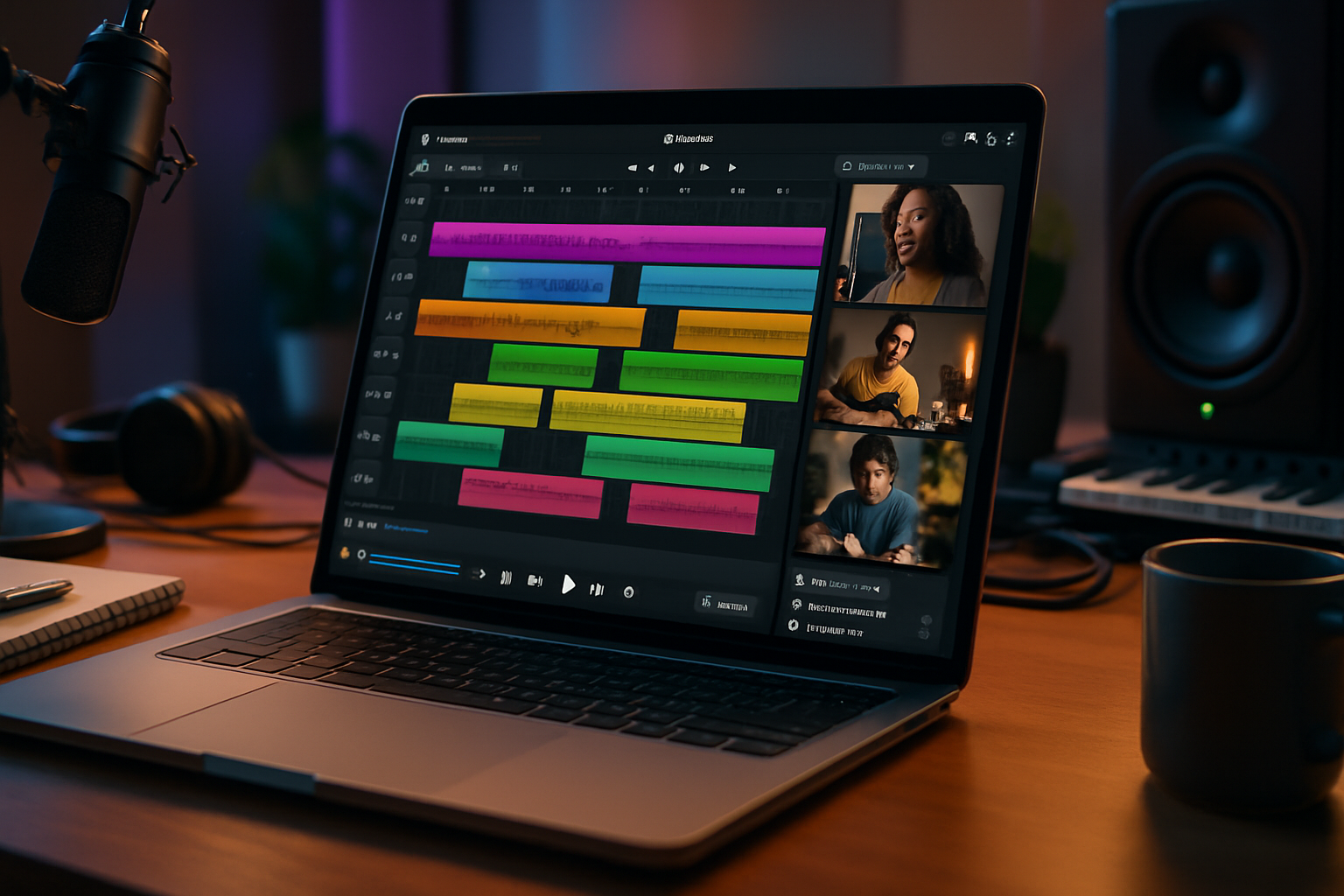
Outcome first: by the end of this article you’ll be able to run focused, low-friction BandLab real-time sessions that produce usable takes, tidy stems, and mixes you can actually finish. You’ll stop wasting time on file wrangling and start finishing songs with collaborators - even when everyone’s miles apart.
Why this matters: remote collaboration is different from sitting in the same room. Latency, communication, file management and expectations can ruin a session unless you plan. BandLab’s real-time collaboration feature gives you the tools to overcome those obstacles - if you use them the right way.
Quick primer: what real-time collaboration in BandLab does
BandLab enables multiple people to connect to the same project and record, edit, and arrange together in real time in the cloud. That means:
- Simultaneous recording/monitoring in one project.
- Cloud-based files (no chasing emailed stems).
- Integrated chat and comments inside the project for notes and feedback.
Read BandLab’s official notes on this feature here: https://help.bandlab.com/hc/en-us/articles/360060542491-Real-Time-Collaboration and learn basic collaboration workflows: https://help.bandlab.com/hc/en-us/articles/360058200132-Collaborate-on-a-Song
Before the session: setup and prep (don’t skip this)
Good sessions start before people join. Do these steps:
Create a session template
- Make a new project with commonly used tracks (drums, bass, guitar DI, vocal comp, guide).
- Label tracks clearly - “Lead Vocal - Guide”, “Guitar - DI”, “Guitar - Amp”.
- Set colors and markers for sections (Intro, Verse, Chorus) so everyone follows the same structure.
Lock tempo and key
- Pick a tempo and key and write it in the project description. BandLab locks tempo info so editing lines up.
Upload a strong reference
- Add a loud, mixed reference track to the project so collaborators hear the target vibe and loudness.
Invite and assign roles
- Invite collaborators with explicit roles - “Alice - lead vocal comping; Bob - edit and tune; Sam - final mix.”
Do a quick tech check
- Test inputs, headphones, sample rate and buffer with each participant before the session.
Share a short session plan
- A simple checklist works - [Click to record] > 2 test clicks > 2 takes > rough comp > move to next section.
Hardware & connectivity tips for reliability
- Use wired Ethernet when possible.
- If on Wi‑Fi, be close to the router and avoid other heavy network use.
- Use closed-back headphones for tracking to prevent bleed.
- Keep buffer/latency settings balanced - too low causes glitches, too high makes monitoring awkward. Aim for the lowest stable buffer for each participant.
Running a real-time session: step-by-step
Start on time and set expectations
- Begin with a 5-minute sync - confirm tempo, click preference, reference, and who’s recording first.
Use count-ins and markers
- Always use click/measure count-ins. Put markers for the take start and end so editing is easy.
Record in passes
- Pass 1 - performance pass (get emotion). Keep takes short and focused.
- Pass 2 - technical pass (tightness, timing, less noise).
- Pass 3 - comping/optional overdubs.
Use chat and comments, not only talk
- While playing, use BandLab’s chat/comments to leave time-stamped notes - “Comp take 2 is best at 0:48”. Keeps the audio clean.
Isolate noisy tracks
- If a mic is noisy or someone has background noise, record alternate takes or ask them to mute when not performing.
Freeze or export takes you like
- When you have a good take, mark it or export the take as a stem immediately so it’s backed up.
Editing and comping in BandLab
- Use regions and naming conventions - keep “Takes” organized (e.g., “LeadVox_Take03_comped”).
- Make light edits in real-time sessions; heavy comping and pitch correction are easier after the session offline.
- If you need deep tuning or advanced comping, export stems and work in a DAW that supports your preferred plugins, then reimport.
Mixing, stem management, and version control
- Export stems after major changes and store them in a shared cloud folder (Google Drive, Dropbox) in case you need to revert.
- Label stems with BPM, key, sample rate, and date - “SongName_Vox_120BPM_Amin_44100_2025-11-29.wav”.
- Use Branching - before big mix decisions, duplicate the project to preserve earlier versions.
Collaboration etiquette and communication
- Keep meetings time-boxed - start with a 10–15 minute goal for each segment.
- Be explicit with feedback - say time stamps, describe what you want changed, and suggest alternatives.
- Celebrate wins - “Love the take at 1:12 - keep that vibe.” Positive reinforcement keeps sessions productive.
Common pitfalls and how to avoid them
- Too many cooks - limit active decision-makers to 2–3. Others can watch and give notes.
- File chaos - export labeled stems immediately after each significant pass.
- Latency frustration - set expectations that perfect low-latency monitoring isn’t always possible - use guide tracks.
- Scope creep - create a session agenda and close the meeting when the agenda is done.
Pro tips and advanced techniques
- Run a rehearsal session - a short 30-minute run to check levels and workflow before the real session.
- Use temporary guide tracks (spoken notes or a scratch vocal) to indicate phrasing.
- Print ambient mic mixes - if someone likes a room sound, print that ambient mic to a stem for later use.
- Stagger contributions - have rhythm section lay down a tight bed first, then overdub textures and lead parts.
- Keep a single master project for the song and use duplicates for experiments.
Legalities, credits and monetization
- Agree on songwriting and ownership early. Put credits in the project description.
- Use BandLab’s tools and/or external agreements to document splits and contributors.
- Keep a changelog in the project description or a shared doc to track who did what and when.
Example remote session workflow (60–90 minutes)
- 00:00–05:00 – Tech check, tempo/key confirmation, reference play.
- 05:00–20:00 – Rhythm bed recording (drums/bass/guitar DI).
- 20:00–40:00 – Vocal scratch pass + guidance notes.
- 40:00–60:00 – Focused 2–3 lead vocal takes, quick comp.
- 60:00–75:00 – Tidy exports: label and upload stems, quick rough mix.
- 75:00–90:00 – Review, assign post-session tasks (editing, comping, mixing).
Post-session checklist (what to do after you log off)
- Export and store stems with clear naming.
- Save a project duplicate and mark it as “Post-Session - DATE”.
- Leave clear notes in the project - what to comp, what needs tuning, and who’s responsible.
- Schedule next meeting or deadline.
When to move to an offline DAW
BandLab is powerful and fast for collaboration, but certain jobs are better offline:
- Deep pitch correction and tempo mapping.
- Heavy VST/plugin processing or high-end mixing using specific plugin chains.
- Complex automation or advanced mastering chains.
Export stems and continue in your preferred DAW when you need those tools.
Wrapping up: the mindset that wins sessions
Be deliberately organized. Communicate precisely. Protect takes by exporting stems. Respect time. Treat each session like a short, concentrated studio day with a purpose.
Do that, and the distance between collaborators becomes irrelevant. The music - and the progress - becomes the loudest thing in the room.