· productivity · 6 min read
Automating Your Workflow: How to Integrate TickTick with Other Apps for Maximum Efficiency
Save hours every week by connecting TickTick to your calendar, email, chat, and project tools. This guide shows practical automations, step‑by‑step recipes, best practices, and troubleshooting so you can stop repeating work and start focusing on what matters.
What you’ll achieve
In the next 10–15 minutes you’ll see how to wire TickTick into the tools you already use so tasks arrive where you need them, calendars stay synchronized, and repetitive work happens without you. Less context‑switching. Fewer missed deadlines. More headspace.
Read on for concrete automations, step‑by‑step recipes (including Zapier/Make examples), and pragmatic rules to keep everything reliable and secure.
Why integrate TickTick? The outcome-first case
TickTick is a great task manager. But a task manager that sits in isolation still leaves you doing work twice: creating tasks from email, copying meeting action items into your list, or hunting for the task that lives in another app.
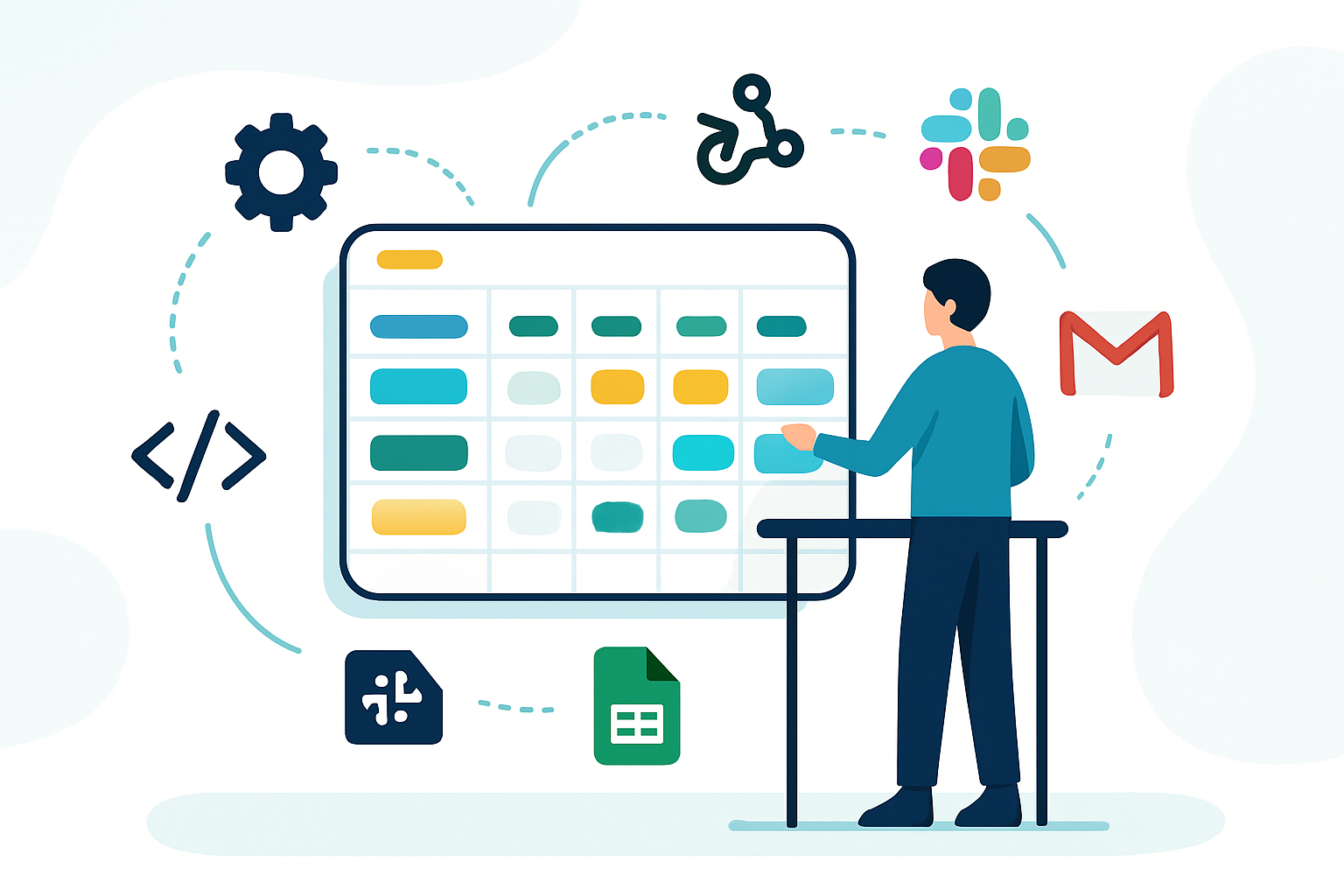
When you integrate TickTick with calendars, email, chat, and project tools, you turn manual repetition into predictable flows: meeting → task, email → task, Slack ping → task. The result is hours saved, fewer dropped balls, and a single place for action.
Core types of integrations and when to use them
- Calendar sync (Google Calendar, Outlook, iCloud) - time‑blocking + deadlines in one timeline.
- Email → Task - convert action emails into tasks without opening TickTick.
- Chat → Task (Slack, Teams) - turn a message into an assignable task.
- Project tool sync (Trello, Asana, Notion) - bring cross‑team work into your personal execution queue.
- Automation platforms (Zapier, Make) - glue everything together and add logic (filters, formatting, multi‑step flows).
- Mobile share / shortcuts and browser extension - quick capture from anywhere.
Quick wins: three automations you can set up today
Choose one and have it working in minutes.
1) Calendar sync (Google Calendar → TickTick)
Why: See tasks and events in one timeline so you can realistically schedule work.
Steps (general):
- Open TickTick settings and go to Calendar / Sync settings.
- Connect your Google account (authorize permissions when prompted).
- Choose which Google Calendars to show in TickTick (work, personal, project calendars).
- Pick sync direction - show calendar events in TickTick’s Calendar view; optionally enable two‑way sync if you want TickTick tasks with times to appear in Google Calendar (note: check your account level and settings).
- Adjust time zone and default event colors so tasks and events are visually distinct.
Tips:
- Use TickTick tags (e.g., #focus, #meeting) and create Smart Lists for daily planning.
- For time blocking, create calendar events for focused work and attach the TickTick task ID in the description so you can track completion.
(See TickTick help for calendar sync details: https://support.ticktick.com)
2) Email → TickTick using Zapier
Why: Stop copying and pasting email content into your task list.
Zap blueprint (Gmail → TickTick):
- Trigger - New Labeled Email in Gmail (label = “TickTick”)
- Action - Create Task in TickTick
- Title - Use email subject
- Notes - Use the email body and include a link back to the original message
- Due date / Reminder - Parse using Zapier Formatter or map manually
- Tags - add label name or sender domain
Steps:
- Create label in Gmail (e.g., “TickTick”).
- In Zapier, create a Zap with the Gmail trigger above.
- Map the fields into TickTick’s Create Task action.
- Test, then enable the Zap.
Pro tips:
- Use a consistent subject prefix like “Action:” so Filter steps can ignore newsletters.
- If you want attachments saved, add a step to push the file to Google Drive and paste the Drive link into the TickTick note.
(See Zapier TickTick integrations: https://zapier.com/apps/ticktick/integrations)
3) Slack message → TickTick task
Why: Convert decisions and action requests from chat into tracked tasks.
Two simple approaches:
- Use a Slack Workflow or a Zapier “Create Task” action triggered by a shortcut or reaction (for example, reacting with :white_check_mark: creates a task).
- Use Slack’s message actions to send a message to a Zapier webhook that then creates the TickTick task.
Recipe (Reaction → Task using Zapier):
- In Zapier, set trigger - New Reaction Added in Slack (filter for the emoji you want).
- Action - Create Task in TickTick. Map message text → task title and message permalink → notes.
- Optional - Post a confirmation back to Slack via Zapier.
Tip: Add an assignee tag (e.g., @amy) in the task notes so your team knows who owns it.
(See Slack Workflow Builder: https://slack.com/help/articles/360052355674-Create-workflows-with-Workflow-Builder)
Advanced scenarios
These patterns are for when you want two‑way syncs, conditional flows, or aggregated dashboards.
Two‑way sync between TickTick and a project board (Trello/Asana) using Make (Integromat):
- Trigger on card moved to “In Progress” → create TickTick task.
- When TickTick task completed → update Trello card checklist or mark card done.
- Use webhooks and the TickTick module in Make for reliable state mapping.
Auto‑scheduling - email + calendar + TickTick
- Zapier reads an email requesting a meeting, creates a tentative event in Google Calendar, creates a TickTick task with the meeting link, and assigns a reminder 15 minutes before.
Batch capture from Notion/Evernote into TickTick
- Periodically run a Make scenario that pulls unprocessed notes and converts headings flagged with TODO into TickTick tasks with the note as context.
Personal CRM / Follow‑up automation
- Label an email “Follow-up,” trigger a Zap that creates a TickTick task with a due date calculated by an internal SLA (e.g., +3 business days).
Best practices for dependable automations
- Keep a single source of truth for execution - use TickTick as your personal action list, not a mirror of everything.
- Naming conventions - prefix automated tasks with tags or emojis (e.g., ”📩 Email-Follow up: Subject”) so you can filter them visually.
- Use tags and Smart Lists - automation should add tags that feed Smart Lists (e.g., #urgent, #waiting) so tasks appear in the right views.
- Rate‑limit awareness - automation platforms have call limits-batch where possible.
- Test with a sandbox label or folder before turning a Zap/Scenario on globally.
Troubleshooting common problems
- Duplicate tasks - add a deduplication step in Zapier/Make (compare subject + timestamp) or store the message IDs in a Google Sheet to check for existing entries.
- Time zone mismatches - ensure all services use the same time zone, and check daylight‑savings behavior.
- Missing fields - map the correct raw fields (use the test step to inspect payloads).
- Permissions errors - reconnect accounts and ensure the integration has rights to view/create calendar events or tasks.
Security and privacy considerations
- Use OAuth/official connectors where possible; avoid screen‑scraping or unofficial APIs.
- Grant least privilege - if a connector asks for full account access, prefer creating a limited account or restricting scopes.
- Audit your Zaps/Scenarios monthly and revoke access you no longer use.
- Log important automation results to a spreadsheet or a simple internal log channel to catch silent failures.
Workflow examples and templates you can copy
- Email triage - Label “TickTick” in Gmail → Zapier creates task with subject + link. Add a Filter to ignore newsletters (if subject contains “unsubscribe” then stop).
- Meeting follow‑ups - After a calendar event ends, trigger a Zap to create a TickTick task titled “Follow up: [Event title]” and add attendees as tags.
- Slack triage - Add :task: reaction to any Slack message → Zapier creates a TickTick task and posts a confirmation in the thread.
When not to automate
- Don’t automate cognitive decisions - only actions and routing.
- Avoid automating low‑value clicks that are faster to do manually (e.g., creating a single one‑off task without context).
Final checklist before you switch on automations
- Connect accounts and test authorization.
- Create a sandbox label/folder and run 10–20 live tests.
- Add error handling (email or Slack alerts for Zap failures).
- Add dedupe logic and consistent naming conventions.
- Document flows in a short internal page so teammates know what runs where.
Wrap up - your next step
Pick one fast win (email → task, calendar sync, or Slack reaction) and set it up now. Two hours of setup can translate to several hours saved every week. Automations cut the friction between intent and action - and that single shortcut multiplies your focus. Start simple, measure the time saved, iterate, and then automate the rest.
References and further reading
- TickTick Help Center: https://support.ticktick.com
- Zapier TickTick integrations: https://zapier.com/apps/ticktick/integrations
- Make (Integromat) TickTick integration: https://www.make.com/en/integrations/ticktick
- Slack Workflow Builder: https://slack.com/help/articles/360052355674-Create-workflows-with-Workflow-Builder