· productivity · 6 min read
Asana Custom Fields: A Game-Changer for Project Tracking
Advanced strategies for using Asana custom fields to make project tracking precise, visual, and actionable - with templates, automations, reporting tips, and governance practices.
What you’ll be able to do after reading this
By the end of this article you’ll be able to design, implement, and scale a custom-field strategy in Asana that turns scattered task data into predictable, reportable outcomes. You’ll build fields that are meaningful, automate them where possible, and surface them in reports and portfolios so your team can act faster.
Start tracking what matters. Stop guessing.
Why custom fields are a game-changer (fast answer)
Custom fields turn tasks from free-form notes into structured data. That small change unlocks filtering, sorting, automation, portfolio rollups, and reliable cross-project reports. In short: you get control and clarity - and the ability to measure impact.
Quick primer: what custom fields can be in Asana
- Dropdown (best for status, priority, stage)
- Text (notes, IDs, short descriptors)
- Number (estimates, effort hours, story points)
(Asana also lets you display fields across views and use them in search, rules, and portfolio columns.) See Asana’s help pages for details: https://asana.com/guide/help/premium/custom-fields
The outcome-first approach to designing fields (do this before creating any field)
- Define the business question you need to answer. Example - “Which features deliver the highest ROI this quarter?”
- Choose the metrics that answer it. Example - “Estimated effort (hrs)” and “Expected value ($)“.
- Decide how data will be entered and by whom (owner, triage lead, PM). Make it part of the workflow (not ad-hoc).
- Create a small, consistent set of fields. Less is better. One clear source of truth beats many duplicates.
If you skip the question you’ll get a mess. Plan first. Then build.
Proven field design patterns (with examples you can copy)
Here are practical, reusable custom-field sets for common needs.
1) Prioritization (for delivery teams)
- Priority - Dropdown - Critical / High / Medium / Low
- Effort (hours) - Number
- Impact score - Number (1–10)
- Rationale - Text
Use-case: Run a simple cost/benefit scan by exporting effort and impact.
2) Release / Roadmap (for product teams)
- Stage - Dropdown - Idea / Backlog / In Progress / Review / Done
- Release - Dropdown - 2025-Q1 / 2025-Q2 / Next Sprint
- Estimated Story Points - Number
- Customer Request ID - Text
Use-case: Filter roadmap by Release and Stage to build sprint plans.
3) Campaign Tracking (for marketing)
- Channel - Dropdown - Email / Paid / Organic / Events
- Status - Dropdown - Draft / Scheduled / Running / Completed
- Budget ($) - Number
- Conversion KPI - Text (or number if consistent)
Use-case: Portfolio-level ROI tracking across campaigns.
4) Bug Triage (for engineering)
- Severity - Dropdown - Sev 1 / Sev 2 / Sev 3
- Reproducible - Dropdown - Always / Sometimes / No
- Root Cause - Text
- Effort (hrs) - Number
Use-case: Prioritize fixes and feed into release planning.
How to use custom fields across Asana features
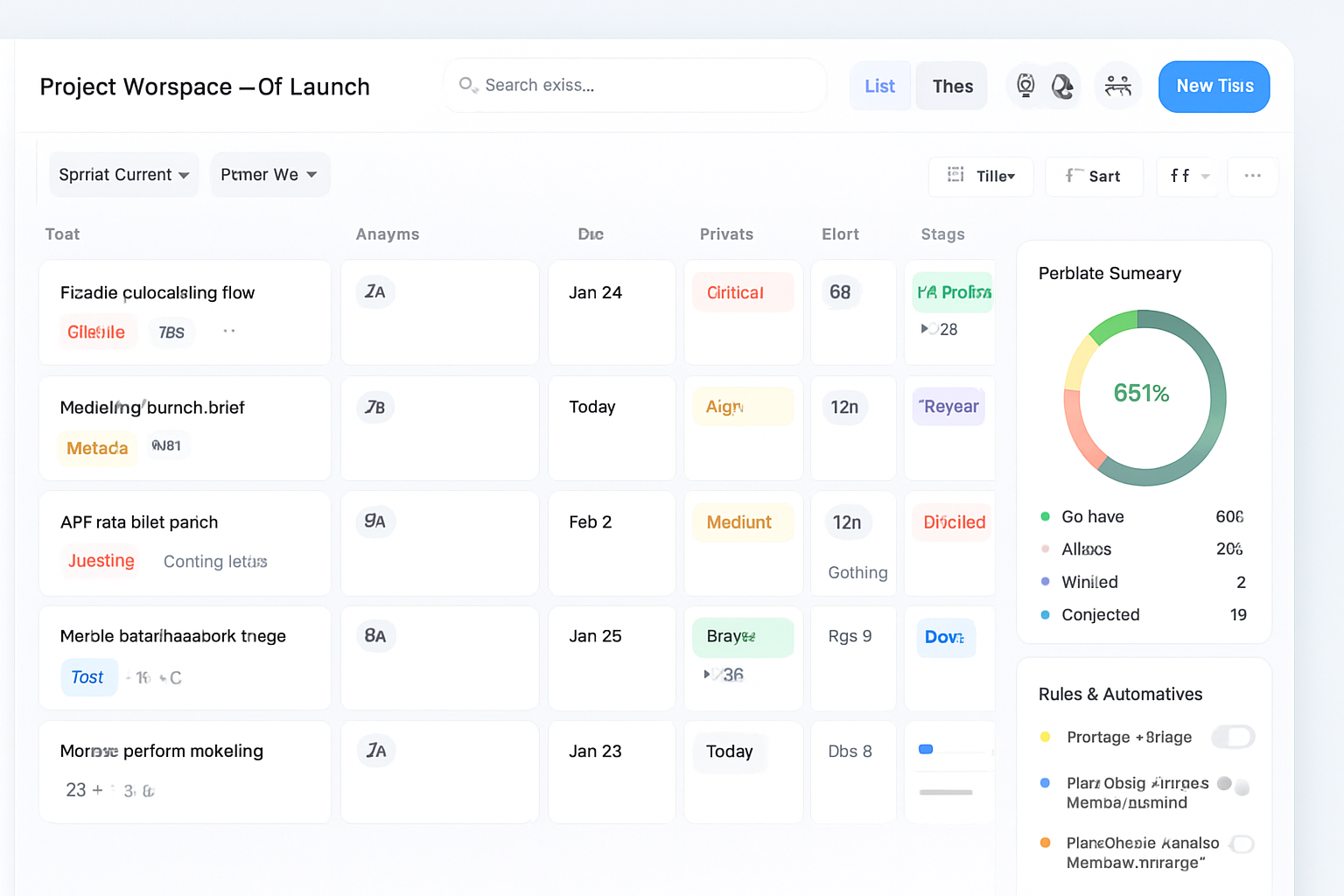
- Views - Show or hide fields in List, Board, and Timeline. Board columns + Priority dropdown create powerful Kanban filters.
- Search & Saved Reports - Build advanced search queries that filter by custom-field values and save them for quick access.
- Portfolios - Add custom-field columns to portfolio views to monitor progress and metrics across many projects.
- Dashboards - Use custom fields as data points in charts to track distribution and trends.
Automate reliably: rules and integrations
Automation is where custom fields start to pay back.
In Asana Rules (no code)
Use rules to keep fields consistent and reduce manual work. Examples:
- Trigger - When Stage changes to “In Progress” → Action: Set Priority to “High”.
- Trigger - When task is marked Complete → Action: Set Stage to “Done”.
Asana Rules can set dropdown fields and copy values. See rules docs: https://asana.com/guide/help/premium/rules
With integrations (Zapier / Make / API)
- Auto-populate fields from form submissions (Typeform → Asana custom fields).
- Push estimated effort into time-tracking tools.
- Sync Asana custom fields to a BI dataset (Google Sheets, BigQuery, Tableau) for calculations not supported natively.
If you need programmatic updates, use the Asana API. Example curl to update a task’s custom field:
curl -X PUT "https://app.asana.com/api/1.0/tasks/{TASK_GID}" \
  -H "Authorization: Bearer <PERSONAL_ACCESS_TOKEN>" \
  -H "Content-Type: application/json" \
  -d '{ "data": { "custom_fields": { "<CUSTOM_FIELD_GID>": "<VALUE>" } } }'
API docs: https://developers.asana.com/docs
Reporting patterns you should use
- Distribution chart by Priority - shows where work is concentrated.
- Cumulative effort by Release - sum of Effort (hours) per release over time.
- Throughput by Stage - tasks moving through Stage custom field per week.
For deeper analysis, export custom fields into a spreadsheet/BI tool and compute derived metrics (ROI, cost per story point, burn efficiency).
Governance: keep fields tidy as you scale
- Naming conventions - Use clear prefixes for discipline-specific fields (e.g., PM*: PM_Effort, ENG*: Severity).
- Ownership - Assign a field steward (someone who approves new fields and deprecates duplicates).
- Documentation - Keep a living table in a project or wiki listing each field’s purpose, type, and allowed values.
- Templates - Lock fields into project templates so new projects start with the correct structure.
- Periodic cleanup - Quarterly review to remove unused fields.
Governance prevents shadow fields and conflicting definitions.
Adoption tactics (so your team actually uses them)
- Start small - Pilot with 2–3 fields that directly help the team’s daily decisions.
- Make entry easy - Use dropdowns or automation instead of free text where possible.
- Visible ROI - Show a short report that uses the fields (e.g., a one-page portfolio dashboard). People adopt what they see improving results.
- Training - 20–30 minute walkthrough and a one-page cheat sheet.
Common pitfalls and how to avoid them
- Too many fields - Only track what you’ll use. If you can’t point to a decision each field informs, remove it.
- Inconsistent values - Use dropdowns and rules to standardize inputs.
- No ownership - Without a steward, fields proliferate. Pick an owner.
- Hidden fields - Make sure important fields are visible in the default views your team uses.
Advanced example: ROI prioritization workflow (end-to-end)
- Fields to create:
- Expected Value ($) - Number
- Effort (hrs) - Number
- Priority - Dropdown (Critical / High / Medium / Low)
- Process:
- PM enters Expected Value and Effort during backlog grooming.
- A Rule sets Priority to High for tasks where Expected Value / Effort > threshold (via integration). Asana Rules don’t compute ratios, so use a tiny automation via Zapier/Make or a nightly sync to a sheet that calculates ROI and writes back Priority using the API.
- Reporting:
- Portfolio view shows total expected value and total effort per release.
- BI dashboard shows ROI distribution and recommended items for the next sprint.
This workflow blends Asana structure, automation, and lightweight BI for decisions.
Checklist to launch your custom-field program
- Define the 3–5 questions you need answers to.
- Draft field list and types; map owners for each field.
- Create fields in a template project and add to active projects.
- Build 1–2 Rules to automate common changes.
- Create saved searches and a portfolio/dashboard that uses fields.
- Train the team and publish a short field guide.
- Schedule quarterly field review.
Final thoughts
Custom fields are small artifacts with outsized impact. When designed intentionally they give you clarity, predictable workflows, and reliable reporting. Start with the business question. Keep fields simple. Automate where possible. Then measure.
References
- Asana custom fields guide: https://asana.com/guide/help/premium/custom-fields
- Asana rules and automation: https://asana.com/guide/help/premium/rules
- Asana API docs: https://developers.asana.com/docs