· productivity · 7 min read
5 Game-Changing Google Workspace Add-ons that Will Change Your Workflow Forever
Discover five Google Workspace add-ons that automate repetitive work, tighten collaboration, and free up hours each week. From batch document generation to error-free writing and seamless e-signatures - actionable setups and workflows included.
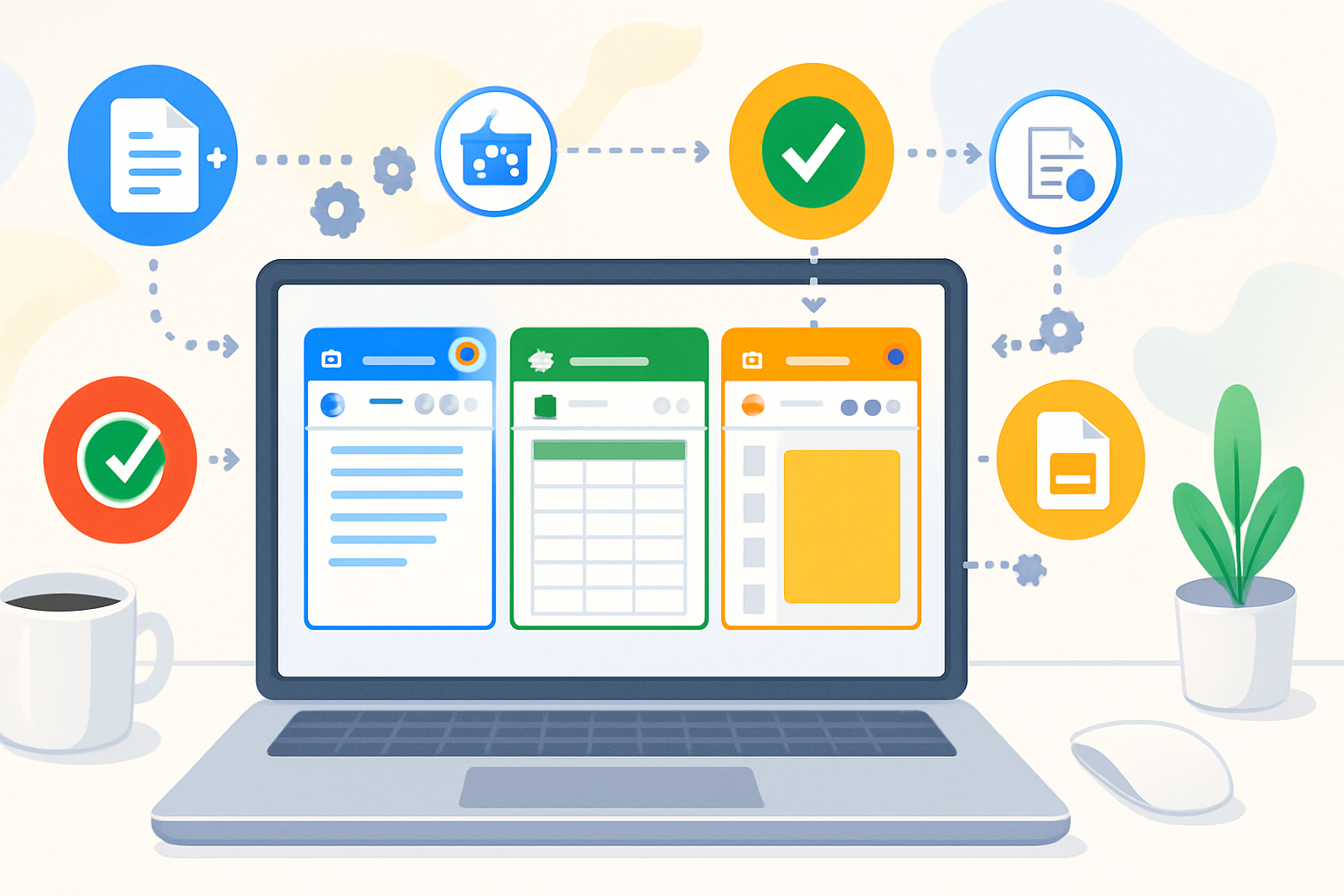
Outcome first: implement any of the five add-ons below and reclaim hours from repetitive work within days. Automate document generation. Clean and transform messy spreadsheets in a click. Improve writing quality and speed. Embed diagrams and get legally signed PDFs without leaving Drive. This post shows what to install, why it matters, and exactly how to use each add-on to create fast, reliable workflows.
Quick preview - what you’ll be able to do
- Generate hundreds of personalized PDFs from a single Sheet in minutes.
- Clean, merge and transform data in Sheets without writing a formula.
- Catch tone, clarity and grammar issues directly inside Google Docs.
- Add flowcharts and diagrams to Docs/Slides and collaborate in real time.
- Send documents for legally binding signatures without downloads or uploads.
Below: five add-ons that deliver those outcomes - each with a practical quick-start, real-world recipes, and security/pricing notes.
1) AutoCrat - automated doc merging & distribution (Docs + Sheets)
Why it’s game-changing
AutoCrat turns a Google Sheets roster into hundreds of customized Docs or PDFs automatically. Think certificates, invoices, progress reports, or personalized letters - created and shared on a schedule or triggered by new rows.
Why it matters: it replaces copy-and-paste labor with a repeatable, auditable process.
Quick start (5 minutes)
Create a Google Doc as your template. Put placeholders where variables go, e.g.,
<<Full Name>>,<<Date>>,<<Amount>>.In Google Sheets, populate columns matching those placeholder names (Full Name, Date, Amount).
Install AutoCrat from the Google Workspace Marketplace and open it from Add-ons → AutoCrat → Launch.
Create a new merge job, map your Sheet columns to the Doc placeholders, choose output format (PDF or Doc), and set sharing options (email, Drive folder, or both).
Example placeholder template (in your Doc):
Certificate of Completion

This certifies that <<Full Name>> completed the <<Course Name>> on <<Date>>.

Instructor: <<Instructor>>
Automation tips & best practices
- Use a dedicated output Drive folder and enable folder-level sharing for tracking.
- Add a status column in Sheets (e.g., “Sent”) and have AutoCrat mark rows after processing.
- Schedule runs (daily/weekly) if your Sheet is batch-updated, or set it to run on form submissions.
Security & pricing
AutoCrat needs permission to read your Sheets and write files to Drive. It’s commonly free for basic use; advanced scheduling and features can require paid tiers depending on usage. See the AutoCrat help page: https://sites.google.com/site/autocrataddon/.
2) Power Tools - the Swiss Army knife for Google Sheets
Why it’s game-changing
Power Tools consolidates dozens of frequently used operations (split, combine, dedupe, remove blanks, find & replace across sheets, convert formulas to values) into a simple UI. It saves hours that you’d otherwise spend writing formulas or doing manual edits.
Why it matters: it lets non-technical team members perform complex data transformations quickly and safely.
Quick start (2 minutes)
Install Power Tools from the Google Workspace Marketplace.
Open a spreadsheet, go to Add-ons → Power Tools → Start.
Use modules like ‘Remove duplicates’, ‘Split names’, ‘Merge sheets’, or ‘Trim spaces’ with guided dialogs.
Practical recipes
- Clean import - Run “Trim Spaces” → “Remove Duplicates” → “Convert Text to Numbers” to turn messy exports into analysis-ready data.
- Combine monthly reports - Use “Merge Sheets” to stack sheets with identical columns into a single master tab.
Tips & best practices
- Work on a copy first. Power Tools can change many cells at once - always keep a backup.
- Use the Undo stack immediately after a bulk action if something’s off.
Security & pricing
Power Tools requires access to the Sheet you’re working on. There is a free tier; advanced features and continued use after trial typically require a subscription. See the Marketplace for current pricing and details: https://workspace.google.com/marketplace.
3) Grammarly for Google Docs - write faster and with confidence (Docs)
Why it’s game-changing
Grammarly catches grammar, clarity, tone and concision issues as you write in Google Docs. It suggests rephrasing, flags inconsistent tone, and helps non-native speakers ship polished copy faster.
Why it matters: fewer revision cycles, fewer embarrassing typos, and clearer communications.
Quick start (1 minute)
Install Grammarly for Chrome/Edge and enable it in Google Docs (or use the dedicated Grammarly add-on where applicable).
Open a Doc and accept Grammarly’s suggestions in-line or through the sidebar.
Practical tips
- Use the “Goals” feature to set audience, tone and intent before reviewing suggestions.
- Treat Grammarly as a second pair of eyes, not an infallible editor - accept suggestions that fit your voice.
Security & pricing
Grammarly processes text to provide suggestions; organizations should review data residency and privacy options for sensitive documents. Grammarly offers free basic checks; premium for advanced clarity, tone, and plagiarism detection. More: https://support.grammarly.com/hc/en-us/articles/360047450793-Using-Grammarly-with-Google-Docs.
4) Lucidchart Diagrams - visualize processes and embed them in Docs & Slides
Why it’s game-changing
Complex ideas become obvious with a diagram. Lucidchart integrates flowcharts, org charts, network diagrams and wireframes into Docs and Slides - and multiple collaborators can edit a diagram simultaneously.
Why it matters: reduces misunderstanding, shortens meetings, and creates reusable visual assets for proposals and training.
Quick start (3 minutes)
Install Lucidchart from the Marketplace or sign up at Lucidchart and connect your Google account.
In Docs or Slides - Insert → Add-ons → Lucidchart Diagrams → Insert Diagram, or use the Lucidchart sidebar to create and embed.
Template ideas
- Onboarding flow - map new-hire steps and embed into the welcome Doc.
- Decision tree - add a troubleshooting flowchart to a support Doc.
Security & pricing
Lucidchart requires permission to access Drive to embed diagrams. It offers free and paid plans; collaborative and enterprise features are in paid tiers. Learn more: https://www.lucidchart.com/pages/integrations/google-workspace.
5) DocuSign (eSignature) - fast, secure signatures from Drive/Docs
Why it’s game-changing
DocuSign lets you request and collect legally binding signatures without leaving Google Drive or Gmail. Send contracts, NDAs, or approvals and track status right from your Docs or Drive files.
Why it matters: cuts days off contract turnaround and removes tedious printing/scanning steps.
Quick start (3 minutes)
Install DocuSign for Google Workspace from the Marketplace or go via the DocuSign integration page.
Open a Doc or PDF in Drive, choose the DocuSign add-on, set signing order and fields, and send.
Workflow tip
- Combine with AutoCrat - generate a PDF for each recipient, then trigger DocuSign to send personalized docs for signature automatically.
Security & compliance
DocuSign adheres to major e-signature laws (ESIGN, eIDAS). Enterprise agreements can include advanced authentication. There are free trials; ongoing use typically requires a paid DocuSign plan. More: https://www.docusign.com/solutions/integrations/google.
3 quick automation recipes that tie these add-ons together
- Batch invoices with verification & signature
- Use Sheets cleaned by Power Tools.
- Run AutoCrat to generate invoice PDFs from a template.
- Send generated PDFs via DocuSign for client signature.
- New-hire bundle (HR onboarding)
- Form responses populate a Sheet.
- AutoCrat generates offer letters and NDAs from templates.
- DocuSign collects signatures.
- Lucidchart embeds an onboarding flow into a welcome Doc sent to the new hire.
- Report pipeline for weekly leadership briefings
- Raw data into Sheets → Power Tools cleans it.
- Use Sheets charts embedded into Slides.
- Add Lucidchart diagrams to explain causal chains.
- Run a final copy through Grammarly in the Doc speaker notes.
How to choose the right add-ons for your team
- Start with the bottleneck - where are people spending the most time? Automate that first.
- Prefer add-ons with clear permission scopes and enterprise controls if you handle sensitive data.
- Pilot with one team before rolling org-wide. Keep a single source of truth for templates and an owner for each automation.
- Train colleagues on simple troubleshooting and rollback (keep backups).
Final note
Install one of these add-ons today, and you’ll immediately shave off the small, frequent tasks that steal hours from your week. Automations compound: the time you free now buys you the space to focus on strategy, not busywork. That’s the change these tools deliver - faster processes, fewer errors, and more time for the work that matters.