· productivity · 7 min read
10 Hidden Features in Microsoft Teams That Will Change the Way You Collaborate
Discover 10 lesser-known Microsoft Teams features - from the command bar power-user tricks to per-person notification rules, tags, message translation, Immersive Reader, meeting recaps, and more - that will make your team collaboration faster and less noisy.
Why you should care
Microsoft Teams is dense. Day-to-day users know chat, meetings and files - but Teams hides dozens of productivity features that can save minutes (and frustration) every day. Below are 10 lesser-known features that can change how you collaborate - with clear steps and pro tips so you can start using them today.
1) Command bar: your fast lane through Teams
The command bar (the search box at the top) is far more than a search field - it’s a mini command palette. Use it to jump to chats, call people, open files, set status, run slash commands and perform quick actions without leaving the keyboard.
How to use it:
- Press Ctrl+E (Windows) or ⌘+E (Mac) to focus the command bar.
- Type
/to see the list of available commands (for example:/call,/goto,/files,/unread,/mentions).
Examples:
/goto Marketing- jump directly to the Marketing team or channel./files- open recent files./call Sarah- start a call.
Pro tip: Memorize 4–5 commands you use daily; popping into the command bar will save you time navigating the UI.
Reference: Microsoft support on the command box: https://support.microsoft.com/en-us/office/use-the-command-box-at-the-top-of-teams-e9b11f05-4b47-46b6-ab84-2b7d3b9f7a46
2) Personalized notification rules (per person and per channel)
Instead of turning off every notification, Teams lets you configure fine-grained rules so you only get notified about what matters.
How to set them:
- Channel - click the ellipsis (…) next to a channel >
- Person (priority access) - open a chat with someone > click their name at the top >
Personalized keyword notifications:
- Go to Settings > Notifications > Edit under Notifications > Keywords and add phrases. Whenever those keywords appear, you’ll get notified.
Pro tip: Add project names, your manager’s name, or client names as keywords to catch important messages without being overwhelmed by noise.
Reference: Change notification settings: https://support.microsoft.com/en-us/office/change-your-notification-settings-in-microsoft-teams-7aaf8eef-3c63-4d49-bf09-86d1d58fa6cd
3) Tags: mention groups without creating new channels
Tags let you group people (for example, @OnCall, @Design) so you can mention a role or team subset without adding everyone to a channel or chat.
How to use tags:
- Team owners (or members if allowed) can create tags - Team > More options (…) next to the team >
- When composing a message, type
@and your tag name to notify everyone with that tag.
Pro tip: Use tags for cross-functional roles (e.g., @QA, @OnCall) to avoid mass mentions of full teams.
Reference: Use tags in Teams: https://support.microsoft.com/en-us/office/use-tags-in-teams-7b05fd66-640b-4a8f-9b24-4f8a213b8e0a
4) Priority/urgent messages and message delivery options
When something really needs attention, set message delivery options to make it stand out.
Options include:
- Important/urgent markers on messages (three-minute repeating notifications for urgent).
- Priority access - allow certain people to contact you during Do Not Disturb.
How:
- In a chat message, click the exclamation mark (!) or choose Set delivery options (three dots) to mark it as Important or Urgent.
- Settings > Privacy > Priority access to add people who can break through DND.
Pro tip: Use urgent sparingly - overuse trains people to ignore it.
Reference: Urgent messages: https://support.microsoft.com/en-us/office/send-an-urgent-message-in-teams-2f3a6c78-b1b1-4d4b-a1e8-2e0f9c7c8b1a
5) Built-in message translation and meeting live captions/transcripts
Teams can translate chat messages on the fly and add live captions (and transcripts) to meetings - huge for distributed, multilingual teams.
Message translation:
- Click More options (…) on a message > Translate. That message will be translated into your display language.
Live captions & transcripts:
- In a meeting, click More actions (…) > Turn on live captions. If recording is enabled, Teams can provide a transcript after the meeting.
Pro tip: Turn on transcripts for client or stakeholder calls to capture decisions and action items automatically.
Reference: Translate messages in Teams: https://support.microsoft.com/en-us/office/translate-a-message-in-teams-5e2d5f71-4a83-4f5b-8f5b-8d7b2b9e1aef
6) Immersive Reader: read messages out loud, focus mode and dyslexia-friendly view
The Immersive Reader is built into chats and channels. It improves readability, reads text aloud and supports line focus and font spacing.
How to open it:
- Click More options (…) on a message > Immersive Reader.
Why it matters:
- Great for proofreading long posts, for accessibility, or when you want to listen instead of read.
Reference: Immersive Reader in Teams: https://support.microsoft.com/en-us/office/immersive-reader-in-microsoft-teams-6b4f9c8a-9f06-4f3d-9f7c-1b2f8c3a4d5e
7) Message and compose extensions: embed polls, approvals, and rich content in chat
Message extensions (compose extensions) let you add interactive content - Forms polls, Planner tasks, Approvals, GIFs, and third-party apps - directly into a conversation.
How to use:
- In the message box, click the ellipsis below (Show messaging extensions) or the + to add an app.
- Choose an app (e.g., Forms) and configure the item to insert (like a poll or task).
Pro tip: Quick polls are perfect for fast decisions: insert a Forms poll from the compose box and collect responses instantly without leaving Teams.
Reference: Use apps and message extensions in Teams: https://support.microsoft.com/en-us/office/use-message-extensions-in-teams-2e123456-0000-0000-0000-000000000000
8) Meeting recap and automatic recordings - capture decisions and next steps
After meetings, Teams often creates a meeting recap that includes the recording, transcript, chat, shared files and notes - making follow-up easier.
How to get the recap:
- Record the meeting (if your org allows). After the meeting, the recording, transcript and files are available in the Meeting chat and in OneDrive/SharePoint.
Pro tip: Add a short agenda and outcome sections to the meeting chat during the call; they’ll be preserved in the recap for quick post-meeting review.
Reference: Meeting recordings and transcripts in Teams: https://support.microsoft.com/en-us/office/meeting-recaps-in-teams-abc12345-0000-0000-0000-000000000000
9) Breakout rooms advanced controls & Together mode scenes
Breakout rooms are more powerful than “just split the group.” Hosts can reassign participants, pre-create rooms, move people automatically, and send announcements to all rooms.
How to use advanced breakout controls:
- In a meeting, choose Breakout rooms > Create rooms. Use settings to auto-assign or manually assign, reopen rooms, and post announcements.
Together mode and scenes:
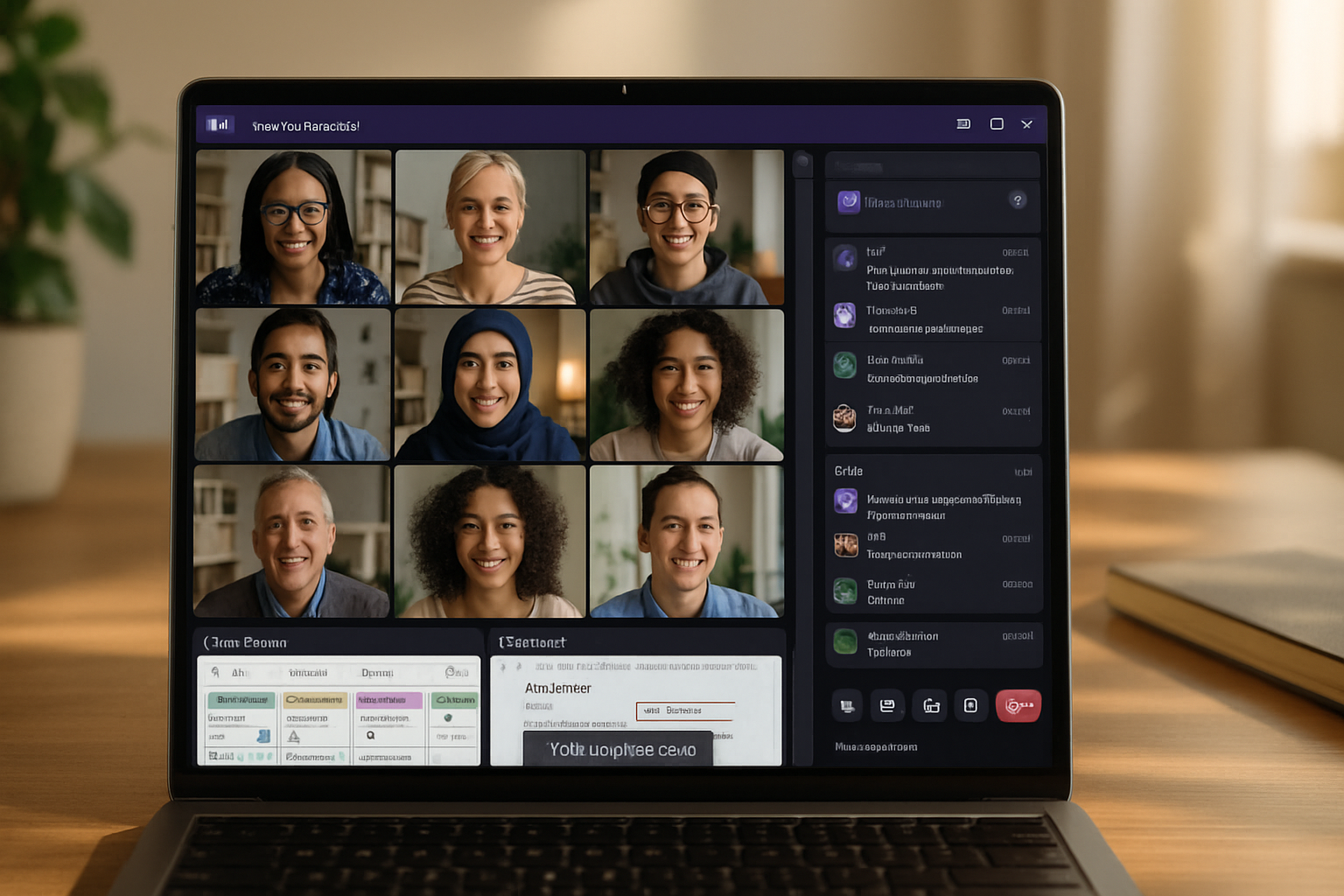
- Together mode places participants in a shared virtual environment that can improve focus and reduce fatigue. Choose Together mode from the view options in a meeting.
Pro tip: Use a quick announcement to bring everyone back from rooms, and consider preassigning rooms for classes or training sessions.
Reference: Breakout rooms and Together mode: https://support.microsoft.com/en-us/office/breakout-rooms-in-teams-6f9d0c58-0000-0000-0000-000000000000
10) Save, Pin, and the little-known /saved command
When you bookmark a message (Save this message), pin chats, or use the /saved command, you create a personal quick-reference list so you can find action items and important info instantly.
How to save and find saved messages:
- Save - Hover over a message > click the bookmark icon (Save this message).
- View saved - Click your profile picture >
- Pin a chat - Right-click a chat >
Pro tip: Use saved messages as a lightweight personal to-do list for items you must follow up on.
Reference: Save messages and use /saved: https://support.microsoft.com/en-us/office/save-and-keep-messages-in-teams-0000-0000-0000-000000000000
Quick setup checklist: start using two features today
- Master the command bar - press Ctrl/⌘+E, type
- Tame notifications - open Settings > Notifications and add 2–3 keywords, then set Priority access for your manager or a critical client.
These two small changes will immediately cut time spent switching contexts and reduce notification noise.
Final tips for adoption
- Share a short “Teams tips” post in your team channel highlighting one of the features above each week.
- Encourage use of tags and saved messages rather than mass emails.
- Regularly review channel notification settings - they tend to get noisy over time.
Start with the command bar and personalized notifications; once those are routine, add tags, Immersive Reader and message extensions. Combining a few of these features will make Teams feel less like a busy inbox and more like a productive workspace.
References
- Microsoft - Use the command box at the top of Teams:
- Microsoft - Change your notification settings in Microsoft Teams:
- Microsoft - Use tags in Teams:
- Microsoft - Translate a message in Teams: