· productivity · 7 min read
Mastering Microsoft Teams: Expert Tips from Top Remote Work Leaders
Practical, leader-tested strategies to get the most from Microsoft Teams - better meetings, clearer communication, secure collaboration, and measurable adoption for remote-first teams.
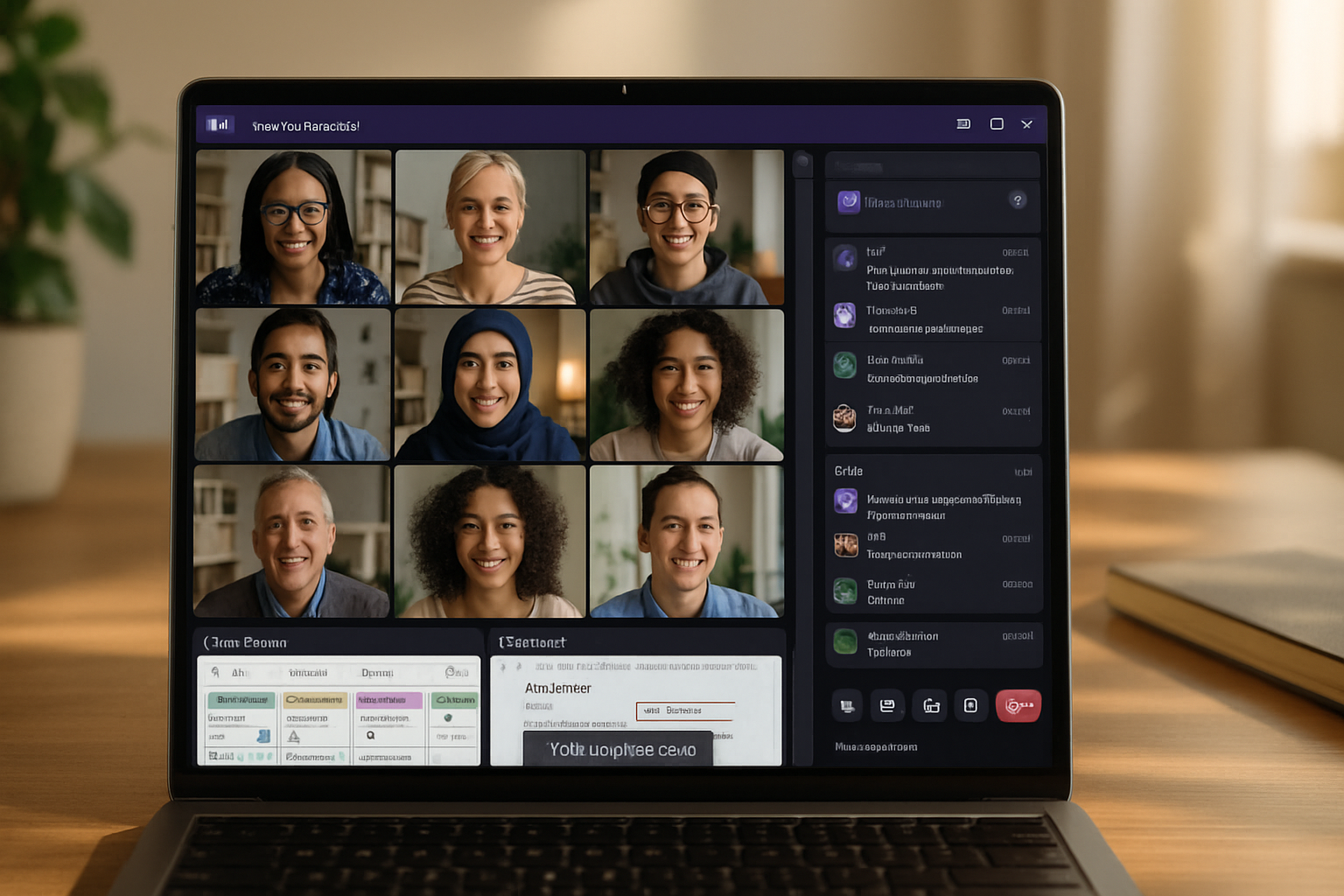
Outcome: run clearer meetings, reduce message overload, secure collaboration, and get measurable ROI from Microsoft Teams - starting this week.
This guide pulls together practical, leader-tested tactics from remote work veterans who run distributed teams at scale. Read it and you’ll walk away with a prioritized playbook you can apply immediately: quick wins you can deploy in hours, policies and governance to protect your org, and ongoing practices that sustain healthy collaboration.
What top remote leaders focus on (fast)
- Reduce meeting time and increase clarity.
- Make collaboration discoverable and version-safe.
- Standardize channel structure and naming so people find what they need.
- Protect data without blocking productivity.
- Measure adoption and course-correct quickly.
Keep these outcomes in mind as you read the tactical sections below.
Quick wins you can deploy in a day
Standardize meeting defaults
- Set 30-minute default meetings. Shorter meetings force focus and free time for deep work.
- Turn on “Join before host” selectively and prefer lobby settings for external participants.
- Enable meeting recording and transcripts for recurring team meetings so absentees can catch up asynchronously.
Create a channel template for recurring projects
- Standard channels - #announcements, #work-stream, #resources, #offtopic.
- Pin the team’s Planner/Tasks app and a shared OneNote to the channel’s tabs to centralize status and notes.
Set chat norms (publish them in the General channel)
- Use channel posts for team-visible work; use 1:1 or small-group chat for quick coordination.
- Use @mentions sparingly - @team for critical updates only.
- Add short status messages - “Heads-down until 3pm” or “Available for quick sync”.
Turn on live captions and background blur as default recommendations for accessibility and focus.
Meeting mastery: structure, roles, and rituals
Meetings are the single biggest time sink for remote teams. Leaders fix meetings - not people.
- Before the meeting - publish a 3-item agenda and desired outcome. If you can, include a SHAREABLE doc with key context. Attach action owners and timeboxes.
- During the meeting - assign a facilitator and a notetaker. Use the “record + transcript” feature for distributed attendees. Start with a one-minute check-in to align context.
- After the meeting - publish decisions, actions, and owners in the meeting chat and the related channel. Assign tasks in Tasks by Planner to track completion.
Tactical settings:
- Use Breakout Rooms for focused working sessions.
- Use Together Mode for teamwork-centric gatherings; it improves perceived closeness.
- Encourage camera-on during collaborative segments, and camera-off during focused listening.
Reference: Microsoft guidance on Teams meetings and policies is helpful for admin-level defaults (Microsoft Teams meetings docs).
Channel and team structure that scales
Good architecture wins. Bad structure creates noise and shadow teams.
- Start with team templates - define 5–7 core channels per team type (product, marketing, support). Document the purpose of each channel in the channel description.
- Use private channels sparingly - only when true confidentiality is required. Private channels create discoverability gaps.
- Create a cross-functional “Ops” or “Platform” team for tools, templates, and common integrations so individual teams don’t invent conflicting patterns.
Naming rules (examples):
- Team - Org.Function - TeamName (e.g., Sales.NA - Prospecting)
- Channel - #purpose (e.g., #announcements, #roadmap, #sprint-11)
Chat etiquette and message management
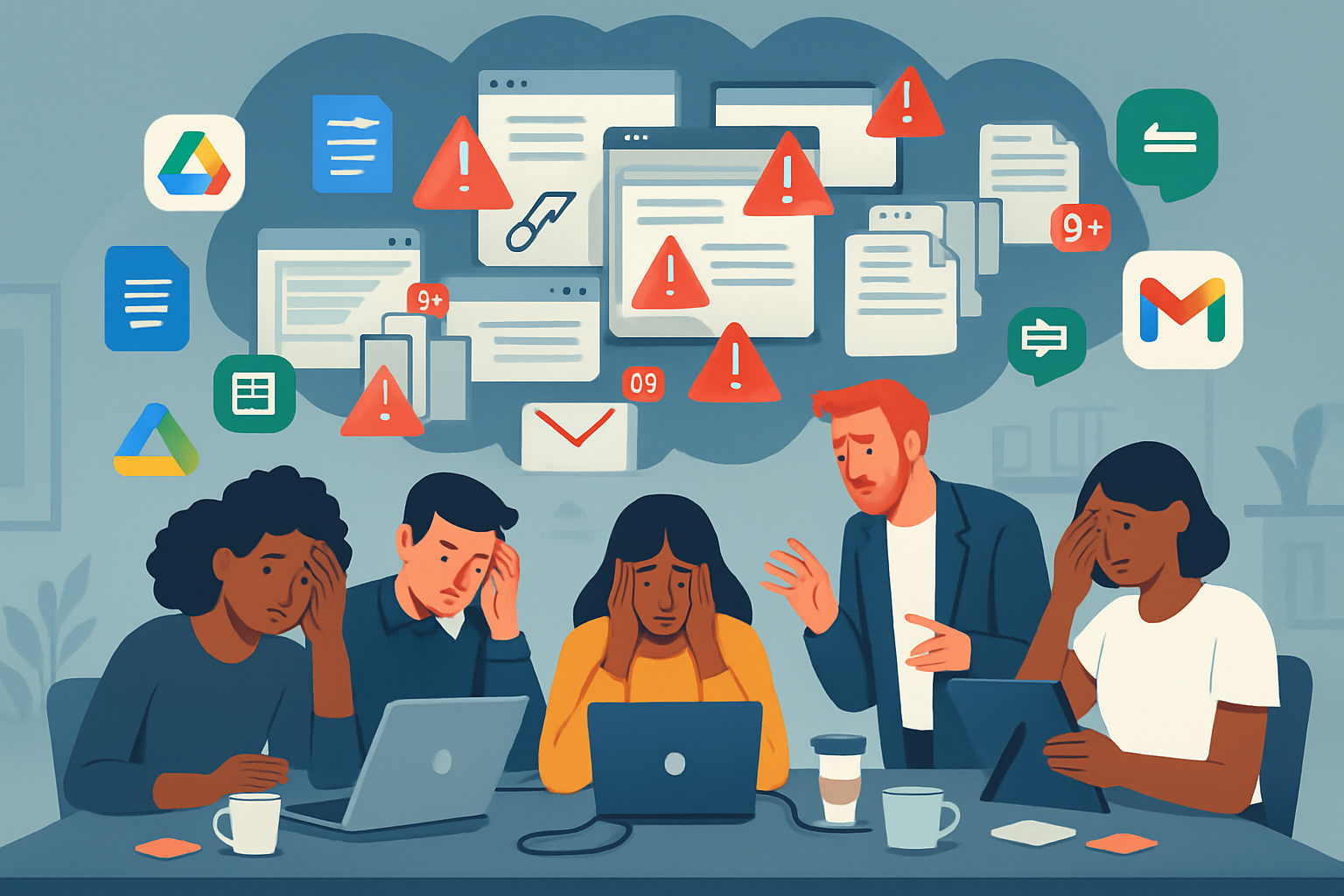
Unstructured chat is the main cause of stress in distributed teams.
- Short, actionable messages. Lead with the intended action or question. Example - “Decision needed: approve budget increase to $X by EOD?” instead of a thread of context.
- Use threads in channels to keep conversations contextual. If a side conversation emerges, move it to chat or a new channel and link back.
- Use message reactions for quick acknowledgement (✅ for done, 👀 for seen). Reserve replies for substantive input.
- Encourage use of statuses - set custom statuses for focus blocks, client calls, or PTO.
Feature tip: Use “Saved” messages and the /activity and /saved commands for quick retrieval.
Files, co-authoring, and version control
Teams uses SharePoint and OneDrive under the hood. Use that to your advantage.
- Always upload files to the channel’s Files tab, not as attachments to chat. That preserves versioning and permissions.
- Use co-authoring in Office Online. Encourage real-time editing with comments instead of email attachments.
- Organize a simple folder structure inside each team’s SharePoint library that matches your channel structure.
Security practice: set retention and sensitivity labels for regulated content. Use DLP policies to prevent accidental external sharing of sensitive documents.
Reference: Overview of files and SharePoint for Teams (Microsoft SharePoint + Teams integration).
Apps, bots, and automation: choose wisely
Leaders make integrations purposeful.
- Start with 3 high-value apps - Tasks by Planner, OneNote, and Power Automate. Add others only when they solve a clear problem.
- Use Power Automate to automate triage - e.g., routing a “support” channel message into a ticketing system, or creating tasks from form responses.
- Use Approvals (built into Teams) for fast sign-offs without email chains.
Example automation flows:
- Create a Planner task when a message uses a specific tag or keyword.
- Send a daily digest of unread important channel activity to team leads.
Reference: Power Platform and Teams integration guidance (Power Platform with Teams).
Governance, security, and compliance
Security doesn’t have to be the enemy of productivity. It just needs rules and enforcement.
- Team creation policy - control who can create Teams to avoid sprawl. Offer a self-service request form for legitimate needs.
- External access - restrict external guest creation and implement guest expiration policies.
- Conditional Access - require MFA and compliant devices for sensitive data access.
- Monitor app consent and third-party app permissions centrally.
Admin pointers:
- Use the Teams admin center and Azure AD for policy enforcement.
- Apply data loss prevention (DLP) and sensitivity labels to channel files and chats where compliance requires it.
Reference: Admin guidance for governance and security (Microsoft Teams admin documentation).
Adoption and change management: measurable and human
Adoption is not a roll-out - it’s a continual practice.
- Appoint a small group of Champions across teams to evangelize practices and capture friction points.
- Run a 30-60-90 adoption plan - quick wins (30 days), optimize (60 days), scale and govern (90 days).
- Track these KPIs - active users, messages per user, meeting hours per user, files co-authored, and task completion rates. Use those signals to identify teams that need coaching.
- Pair metrics with qualitative signals - run short pulse surveys every quarter and conduct team interviews.
Practical training:
- Micro-learning - 10-minute focused sessions on a single skill (e.g., “How to run an async standup in Teams”).
- Create short how-to videos and pin them in a central “Help” team.
Monitoring and incident response
- Set up alerts for unusual activity (spikes in external sharing, guest additions).
- Use audit logs and eDiscovery when incidents arise.
- Maintain a simple incident response runbook - identify, contain, communicate, remediate, review.
Monitoring reference: Teams reporting and analytics overview (Teams analytics and reporting).
Advanced tips from remote leaders
- Async-first culture - prefer recorded updates and short written summaries for non-urgent info. Synchronous time should be for alignment and complex problem-solving.
- Office hours - leaders hold a weekly 30-minute drop-in on Teams for questions - fewer long meetings and more accessible support.
- “No-Meeting” blocks - reserve afternoons for deep work across the org.
- Templates and Guardrails - publish team templates and onboarding checklists to reduce rework.
Feature hacks:
- Use Together Mode scenes for company-wide all-hands to boost presence at scale.
- Use Live Captions and Live Transcriptions to improve accessibility and reduce note-taking overhead.
A sample 4-week playbook (prioritized)
Week 1 - Quick wins
- Set meeting default to 30 minutes.
- Publish chat and meeting etiquette in Org.Comms channel.
- Create 3 starter team templates and a central “Tools” team.
Week 2 - Structure and security
- Implement team naming and channel templates.
- Lock team creation and enable a request form.
- Turn on guest expiration and review external access.
Week 3 - Automate and integrate
- Deploy Tasks by Planner to all teams.
- Create one Power Automate flow to route support requests.
- Train champions on Approvals.
Week 4 - Measure and iterate
- Capture baseline metrics (active users, meeting hours, tasks completed).
- Run a quick pulse survey and convene champions for a retrospective.
- Publish a 90-day roadmap based on feedback.
Checklist to ship this week
- Set 30-minute meeting default
- Publish a 3-point meeting template and require agendas
- Standardize team/channel naming and templates
- Deploy Tasks by Planner and pin to channels
- Turn on meeting recording and live transcript for recurring meetings
- Create a simple team creation request flow
- Appoint 3 champions and schedule micro-learning sessions
Closing: what to do first
Pick one low-friction change and one governance change.
Low-friction: set meeting defaults and publish meeting templates. Visible impact in days. Governance: control team creation and require templated channels. Prevents chaos as you scale.
Do both. Ship the quick win this week. Begin the governance work this month. Your Teams experience will become faster, clearer, and safer - and your people will spend more time doing meaningful work.
References
- Microsoft Teams documentation: https://learn.microsoft.com/microsoftteams/
- Teams meetings guidance: https://learn.microsoft.com/microsoftteams/meetings
- Files, SharePoint, and Teams integration: https://learn.microsoft.com/microsoftteams/sharepoint-files
- Power Platform integration with Teams: https://learn.microsoft.com/power-platform/teams/overview