· productivity · 6 min read
5 Common ClickUp Mistakes and How to Avoid Them
Avoid the five most common ClickUp mistakes - from overcomplicated Spaces to neglected automations - with practical steps you can apply today to streamline your workflows and get more done.
Get better results from ClickUp-fast
You want your team to ship work predictably, without friction. ClickUp can do that. But it can also create friction if used poorly. This article shows five common ClickUp mistakes, how to spot them, and practical fixes you can apply in the next 30–90 minutes.
Read this and you’ll reduce noise, speed up onboarding, and make ClickUp a productivity tool - not a burden.
Mistake 1 - Overcomplicating your Space/Folder/Lists structure
Why people do it: Teams try to design a perfect hierarchy up front. They add Spaces for every team, multiple Folders per project, and dozens of Lists to cover every scenario.
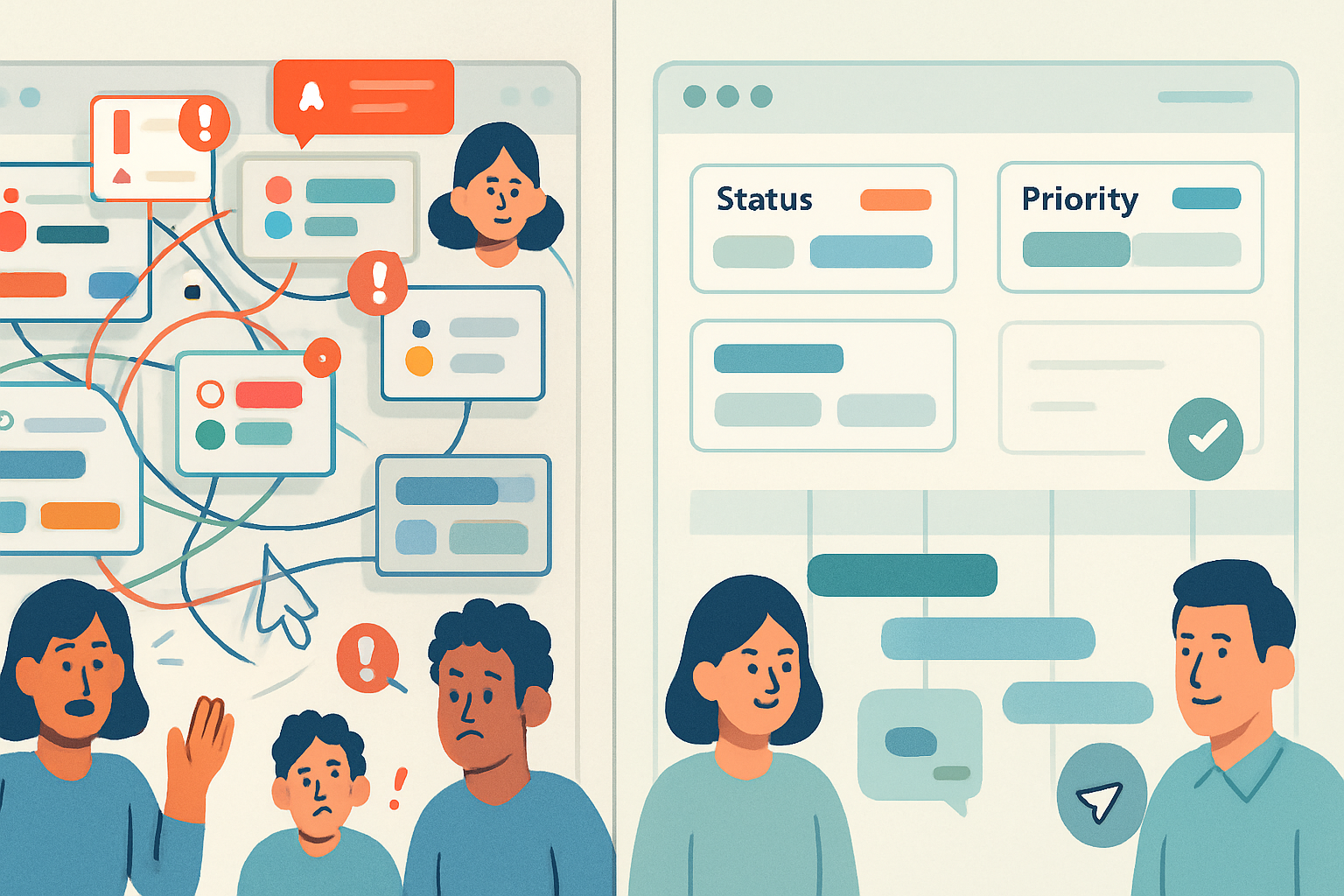
Why it hurts: Complexity breeds confusion. People don’t know where to create tasks. Automation and reporting break across many small lists. The tool becomes harder to use than the work itself.
Symptoms to watch for
- Team members create tasks in the wrong place.
- Repeated questions like “Where do I put X?” in team chat.
- Many orphan tasks in a general list or Inbox.
How to fix it - a practical approach
- Map outcomes, not activities. Start by listing the outcomes you need (e.g., “Ship sprint work”, “Manage bugs”, “Create marketing campaigns”). Build Spaces/Folders around outcomes.
- Use a thin hierarchy. Aim for - Space → 2–5 Folders → Lists per Folder only when needed. Keep Lists to meaningful queues (Backlog, In Progress, Review, Done).
- Consolidate and rename. If you have many tiny Lists, combine similar ones and use tags or custom fields to differentiate work.
- Document the structure in a short “How we use ClickUp” doc pinned in your Workspace or Space Docs.
Quick win: Run a 30-minute cleanup. Move orphan tasks into a single Backlog List, then triage them in your next planning meeting.
Mistake 2 - Relying only on the Inbox and not defining workflows
Why people do it: Inbox is convenient. It’s quick to add tasks, capture ideas, and push work into ClickUp. Teams assume they’ll sort later.
Why it hurts: Unstructured capture becomes a pile of unsorted tasks. Priority, status, and ownership get lost. Work falls through the cracks.
Symptoms to watch for
- Inbox task list grows unchecked.
- Tasks missing due dates, assignees, or statuses.
- Repeated “What’s next?” conversations during standups.
How to fix it - create a lightweight intake and triage process
- Define required fields for new tasks (e.g., assignee, priority, due date, estimate). Use required custom fields where helpful so tasks can’t be created without them.
- Use a weekly triage session (15–30 minutes). Move items from Inbox to the proper List, add context, and set next steps.
- Implement a clear workflow - Backlog → Ready → In Progress → Review → Done. Map ClickUp statuses to this workflow.
- Use Automations to move tasks based on status changes or to remind owners to triage old Inbox items.
Quick win: Add a custom field called “Next Action” and make it required for tasks added to Inbox.
Mistake 3 - Underusing Views and Dashboards (or using too many of them)
Why people do it: ClickUp has many Views and widgets. Users either stick to one (usually List) and miss visibility, or they create dozens of Views that no one uses.
Why it hurts: Bad visibility - stakeholders lack context, PMs spend time assembling reports, and teams don’t see cross-project conflicts.
Symptoms to watch for
- Stakeholders ask for status updates you don’t have at-a-glance.
- Team members create custom Views that only they use and never share.
- Duplicate effort to assemble weekly reports.
How to fix it - standardize and simplify visibility
- Identify 3 essential Views per Space. For most teams - Board (for workflow), List (for details), and Timeline/Gantt (for schedule).
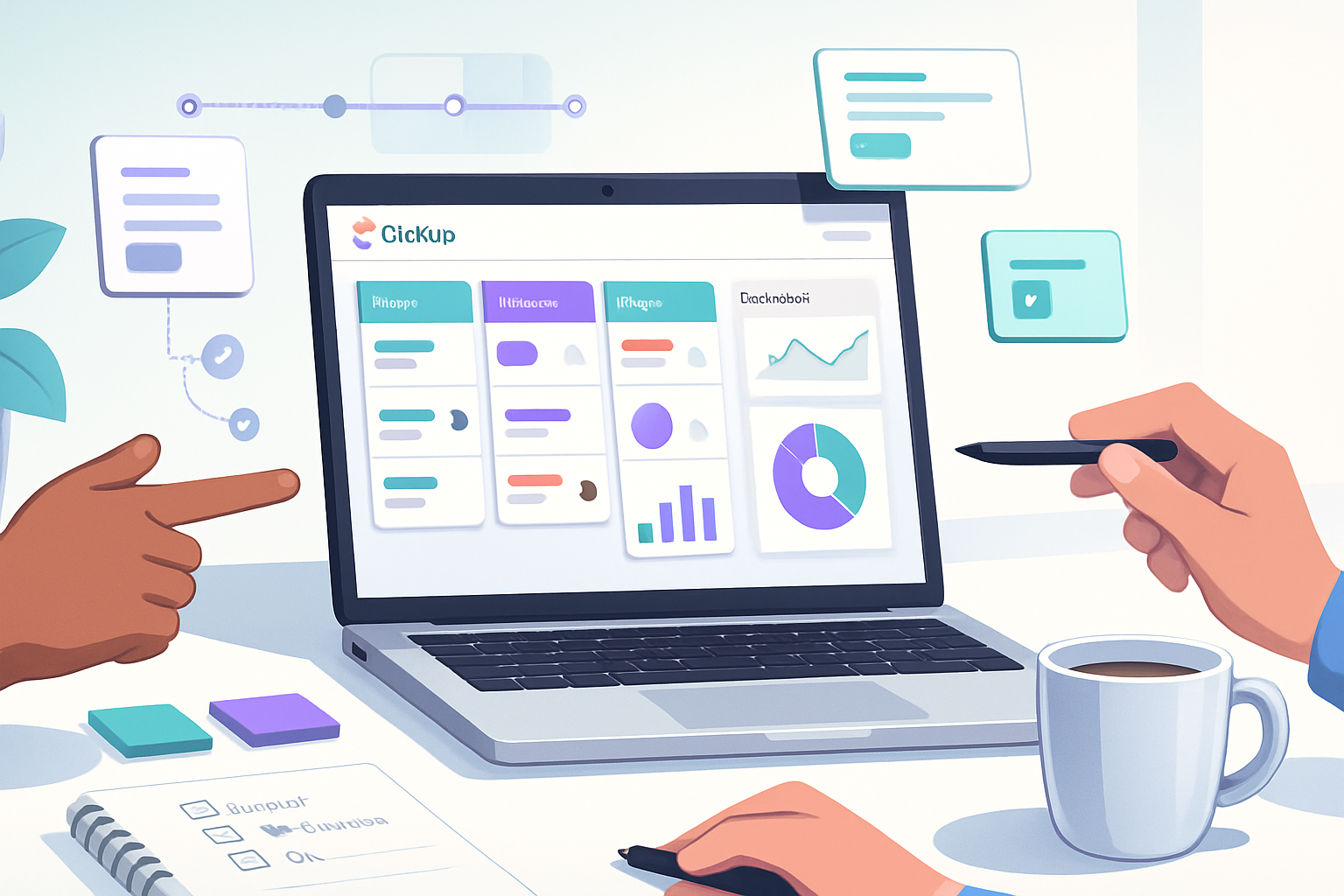
- Create a shared Dashboard per Space with key widgets - Completed vs Planned, Workload, Overdue Tasks, and a Sprints or Milestones widget.
- Use View and Dashboard templates so every project starts consistent.
- Limit personal Views to personal work only; encourage sharing only useful Views.
Quick win: Build one shared Dashboard with an Overdue widget and a Workload widget - then present it in your next team meeting.
References: ClickUp Views and Dashboards docs: https://clickup.com/help/en/articles/2480316-views and https://clickup.com/help/en/articles/3539522-dashboards
Mistake 4 - Ignoring Automations, but also automating blindly
Why people do it: Automations look magical. Some teams never use them and stay manual. Others automate everything and create unpredictable side effects.
Why it hurts: Without Automations, teams spend time on repetitive tasks. With too many or poorly designed Automations, tasks get unexpected updates, assignments change unexpectedly, and notifications explode.
Symptoms to watch for
- Repetitive manual updates (status changes, assignments, reminders).
- Unexpected task changes or notifications in activity logs.
- Hard-to-debug workflow problems that only happen sometimes.
How to fix it - automate conservatively and intentionally
- Automate the obvious manual steps first - status transitions on checklist completion, reminders for overdue tasks, or moving tasks to a Review list when a PR link is added.
- Use naming conventions and prefixes for automation-created tasks or comments so they’re easy to identify (e.g., [AUTO] or [BOT]).
- Test automations in a staging Space or a single Folder with a small team before workspace-wide rollout.
- Document automations in a short registry (what they do and why). Review the registry quarterly.
Quick win: Create one automation that assigns the QA person when a task status changes to Ready for QA.
Reference: ClickUp Automations docs: https://clickup.com/help/en/articles/2916382-automations
Mistake 5 - Not using Custom Fields, or using them inconsistently
Why people do it: Custom Fields are powerful, but teams either ignore them and rely on task titles and descriptions or they create many fields without a naming or usage convention.
Why it hurts: Inconsistent fields reduce the value of filtering, reporting, and Templates. People can’t reliably filter by effort, priority, customer, or sprint.
Symptoms to watch for
- Reports show inconsistent or missing data.
- Team members use different field names or free-text in titles instead of fields.
- Filters and Dashboards return incomplete results.
How to fix it - a pragmatic custom fields strategy
- Agree on a small set of standard custom fields across your Workspace (e.g., Priority, Effort/Story Points, Client, Sprint). Keep it to the essential 4–6 fields.
- Use field types that enforce structure - dropdowns for priority, numbers for estimates, dates for milestones.
- Add field descriptions and examples in the field settings.
- Bake fields into Task Templates so every new task has the same structure.
Quick win: Create a single “Priority” dropdown custom field with 3 values (High / Medium / Low) and make it required for all new tasks in a Space.
A practical rollout plan (30 / 60 / 90 days)
- 0–30 days - Triage and cleanup. Consolidate Lists, add required fields, and start a weekly triage.
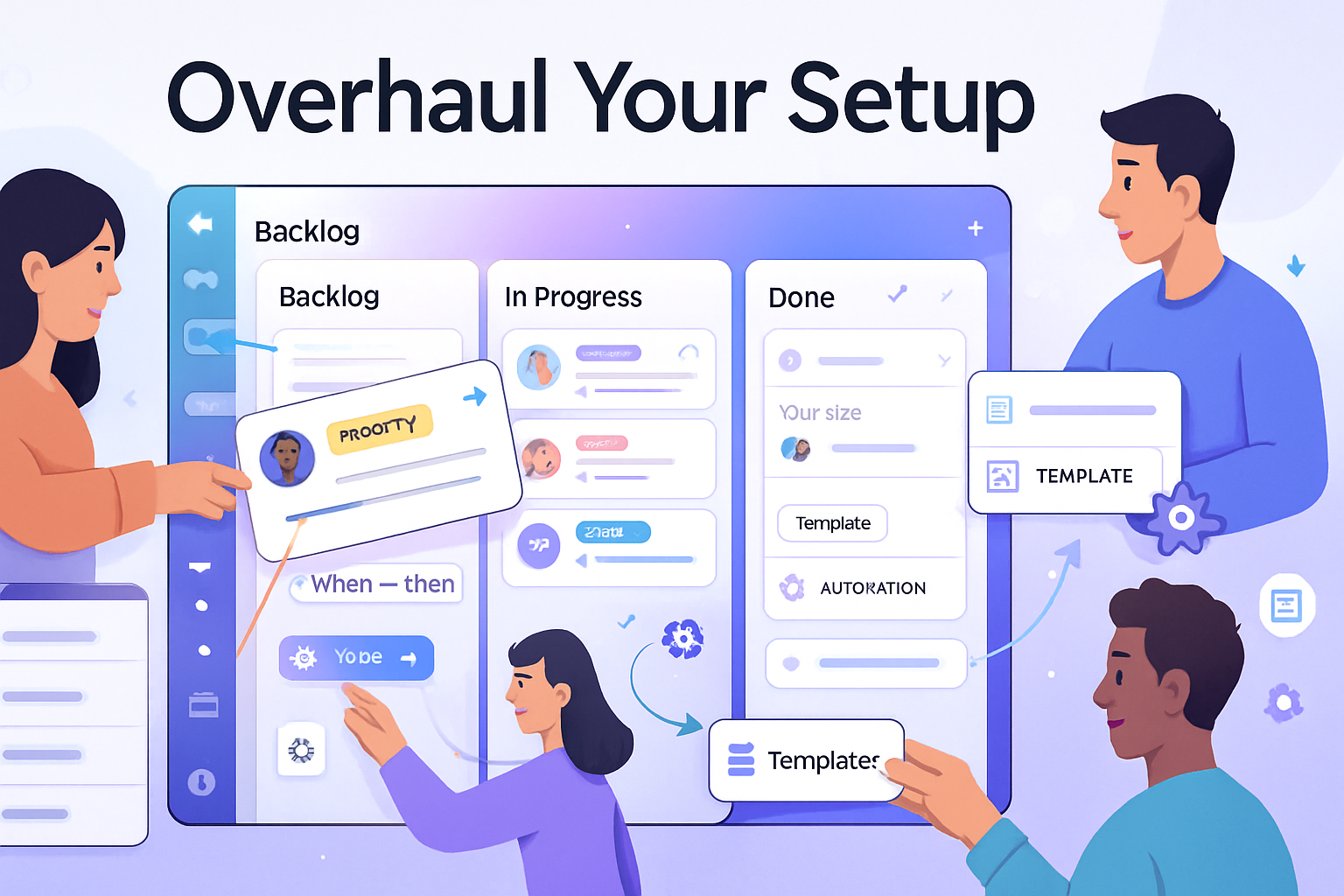
- 30–60 days - Introduce Views and a shared Dashboard. Add 3–5 strategic Automations and test them.
- 60–90 days - Standardize custom fields, create Templates, and run training for the team.
This staged approach reduces disruption and builds confidence.
Quick checklist to avoid the most common pitfalls
- Map outcomes before building hierarchy.
- Use Inbox, but triage weekly.
- Standardize 3 core Views and one shared Dashboard.
- Automate only clear repetitive tasks; test before scaling.
- Limit custom fields to the essentials and enforce them via templates.
Final note - make ClickUp a team habit, not a solo effort
Tools don’t change outcomes - practices do. ClickUp gives you the bones. Your processes add the muscle. Start simple. Standardize what matters. Iterate quickly. Do that and ClickUp stops being an administrative burden and starts being a force multiplier.
References
- ClickUp Help Center: https://clickup.com/help
- ClickUp Views: https://clickup.com/help/en/articles/2480316-views
- ClickUp Automations: https://clickup.com/help/en/articles/2916382-automations