· creativity · 8 min read
Scrivener Cloud vs. the Competition: A Comprehensive Comparison for Freelancers
A practical, side-by-side comparison of Scrivener Cloud and leading writing tools. Learn strengths, weaknesses, and which platform fits your freelance workflow-whether you draft novels, deliver client copy, or collaborate with editors.
Outcome first: after reading this you’ll know whether Scrivener Cloud is the tool that will speed your drafts, protect your notes, and fit into client workflows - or whether another app will do the job better.
Why this matters. You have deadlines, varied clients, and messy research. Choosing the wrong writing tool costs time, confuses versioning, or forces repeated format juggling. Pick the right one once, and your writing workflow becomes a productivity engine. Pick the wrong one, and every project leaks time.
Quick verdict
- Scrivener Cloud excels when your work is project-heavy - long-form pieces, lots of research, complex structure. It keeps everything in one place while letting you work in the cloud.
- For real-time collaboration and fast client edits, Google Docs or Microsoft Word (Online) are still superior.
- For distraction-free, beautiful Markdown-based drafting and a great mobile experience, Ulysses and Novlr are strong alternatives.
- Notion and Reedsy serve niche needs - Notion for project management + writing, Reedsy for book-production and collaboration with editors.
Read on for the full breakdown and actionable recommendations by freelancer type.
What is Scrivener Cloud (brief)
Scrivener Cloud is the cloud-access layer for Literature & Latte’s Scrivener projects. It lets you open and edit Scrivener projects from a browser (and sync with desktop/mobile Scrivener) so you can continue working when you’re away from your main machine while keeping the project structure, research, and metadata intact.
Official info: Literature & Latte - Scrivener Cloud: https://www.literatureandlatte.com/scrivener/cloud
Comparison criteria (what freelancers care about)
We’ll compare tools across the following practical dimensions:
- Collaboration and real‑time co‑editing
- Offline access and syncing reliability
- Project organization and research storage
- Version history and backups
- Exporting / client deliverable formats
- Learning curve and speed of writing
- Mobile experience
- Price and licensing
- Privacy and ownership
The competitors (short intros)
- Google Docs - Ubiquitous cloud editor. Real-time collaboration, simple formatting, universal share links. https://www.google.com/docs/about/
- Microsoft Word (Office 365 / Word Online) - Industry-standard formatting, robust export options, real-time co-authoring in Office 365. https://www.microsoft.com/microsoft-365/word
- Ulysses - Focused, Markdown-based app with a clean UI, great for long-form writing and export to multiple formats. https://ulysses.app/
- Novlr - Built for novelists - clean interface, goal tracking, offline-first sync, and export tools.
- Reedsy Book Editor - Free web editor focused on book production and clean online collaboration with editors. https://reedsy.com/write-a-book
- Notion - All-in-one workspace - writing pages + databases + project management. Powerful for client/project organization.
(Plus: local Scrivener desktop - one-time purchase - remains an important part of many freelancers’ toolkits.)
Deep-dive: how Scrivener Cloud stacks up, criterion by criterion
Collaboration and real-time co-editing
- Scrivener Cloud - Not designed for simultaneous multi-author, real-time editing the way Google Docs is. Its strength is in syncing single-authors across devices and enabling reviewers to access projects online. Collaboration typically happens via exported docs or by sharing Scrivener project files.
- Google Docs / Word Online - Superior. True simultaneous editing, comments, suggestions, and shareable links.
Recommendation: If you work with editors or clients who need to edit inside the document in real time, use Google Docs/Word. Use Scrivener Cloud when collaboration is less immediate and more review/comment-based.
Offline access and sync reliability
- Scrivener Cloud - Works as a bridge with the desktop app; offline work is handled by local Scrivener apps which sync when online. The cloud viewer/editor is browser-based.
- Google Docs - Offline mode exists (with setup) and is reliable for single documents.
- Novlr/Ulysses - Built with offline-first thinking; Ulysses and Novlr sync reliably when reconnected.
Recommendation: For long trips with unreliable internet, a local app (Scrivener desktop, Ulysses, Novlr) plus Scrivener Cloud for occasional remote access is a solid combo.
Project organization and research storage
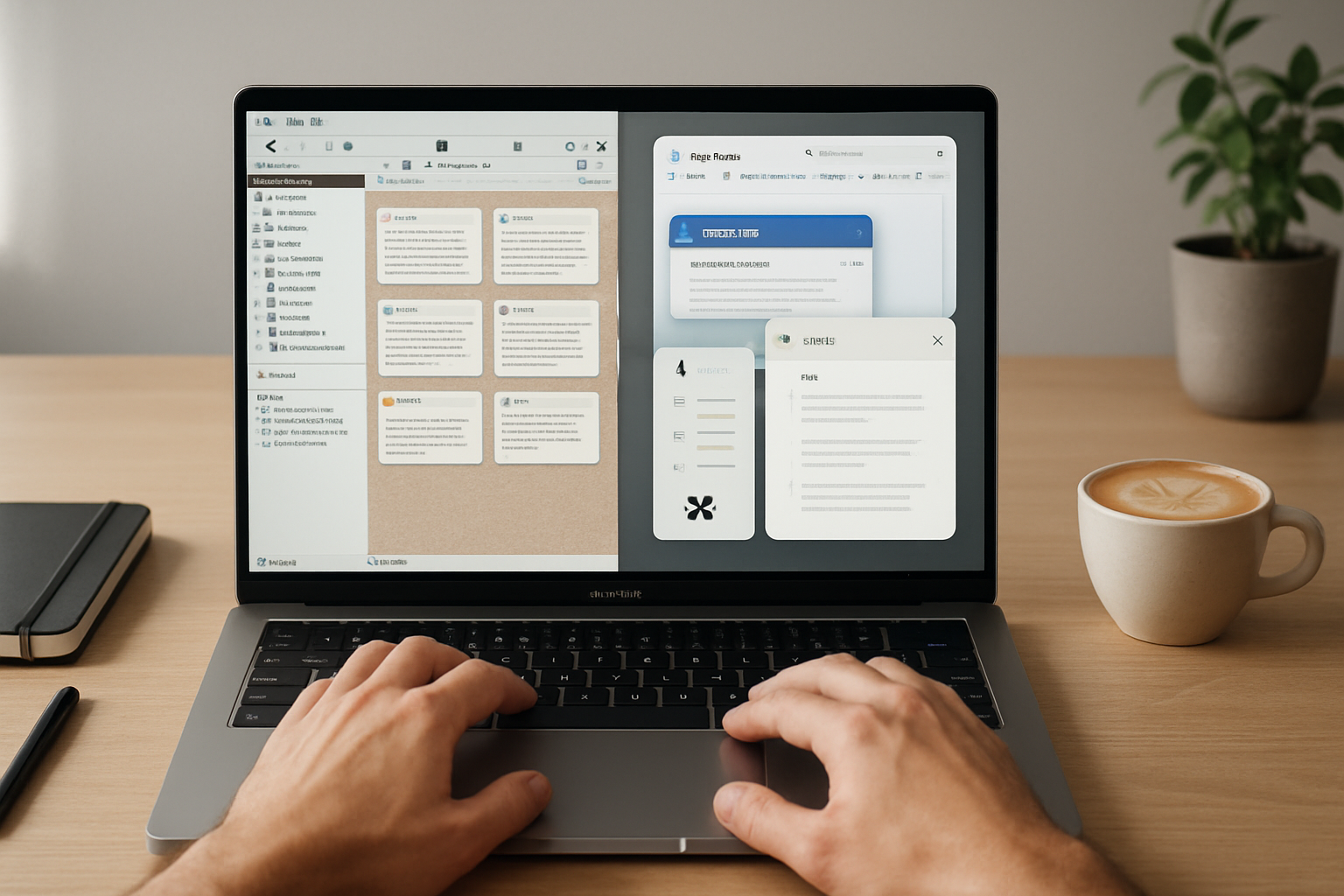
- Scrivener Cloud - Excellent. Scrivener’s binder, corkboard, split-editor, and research storage are purpose-built for projects that mix notes, snippets, images, and multi-file scenes.
- Notion - Very flexible - databases and pages let you model complex workflows, but it’s not a dedicated writing composition tool.
- Ulysses/Novlr - Simpler organizational models (folders/tags/sheets) - great for streamlined writing but less full-featured for dense research.
Recommendation: If your freelance work involves heavy research (interviews, source documents, multiple drafts, notes), Scrivener Cloud + Scrivener desktop wins.
Version history and backups
- Scrivener Cloud - Syncs changes and works with Scrivener’s snapshot feature (desktop) for internal versioning. Cloud keeps your project but it’s not a real-time VCS like Git.
- Google Docs - Built-in revision history that’s easy to browse and restore.
- Notion - Page history exists on paid plans.
Recommendation: For easy restore and visible revision trails for clients, Google Docs is simpler. For author-centric versioning tied to manuscript structure, Scrivener’s snapshot + cloud sync is better.
Exporting and client deliverables
- Scrivener Cloud - Exports via desktop Scrivener give fine-grained control - multi-format (Word, PDF, ePub, etc.). The cloud side is primarily for access; heavy export work usually happens on desktop.
- Word/Google Docs - Clients routinely expect .docx or direct Google links; both excel at producing client-ready files with tracked changes.
Recommendation: Keep Scrivener as your drafting home, then export to Word/Google Docs for client delivery.
Learning curve and speed of writing
- Scrivener Cloud - Steeper learning curve because Scrivener’s desktop app offers many features. The cloud layer reproduces project access but doesn’t remove the overall complexity.
- Google Docs / Ulysses / Novlr - Minimal onboarding. Ulysses and Novlr are optimized for distraction-free speed.
Recommendation: If you need to onboard quickly with minimal training (e.g., client-facing workflows), choose Google Docs or Ulysses.
Mobile experience
- Scrivener Cloud - Browser-based mobile access works, and Scrivener apps exist on iOS - but mobile editing is not as fluid as Ulysses or Google Docs on phones/tablets.
- Ulysses/Novlr - Excellent mobile-first editing.
Recommendation: Frequent mobile drafting favors Ulysses or Novlr; occasional mobile edits are fine with Scrivener Cloud + Scrivener iOS app.
Price and licensing
Check current pricing before subscribing. Broad patterns:
- Scrivener desktop - one-time purchase for Mac/Windows; Scrivener Cloud is a separate subscription option for cloud access.
- Google Docs - included with free Google account; business features in Google Workspace.
- Microsoft Word - part of Microsoft 365 subscription.
- Ulysses/Novlr - subscription models; often free trials available.
Recommendation: Factor in whether you prefer one-time purchases (lower long-term cost) or subscriptions (continuous updates, cloud features).
Privacy and ownership
- Scrivener projects are files you own; cloud layer stores them but the original file model is retained.
- Google/Notion store data on their servers; read their privacy/terms if you work with sensitive material.
Recommendation: For sensitive client data, prefer local storage/backups plus encrypted cloud storage (or check provider privacy policies).
Pros & Cons (at a glance)
| Tool | Pros | Cons |
|---|---|---|
| Scrivener Cloud (+ Scrivener desktop) | Best for project-heavy long-form work; powerful structure, research storage, exports | Not ideal for live multi-author collaboration; learning curve; cloud is add-on rather than native collaborative layer |
| Google Docs | Real-time collaboration; universal for clients; simple | Weak for nested project research and long-form structuring |
| Microsoft Word Online | Industry-standard formatting; co-authoring; robust exports | Desktop Word still needed for advanced features; subscription model |
| Ulysses | Clean UI; excellent Markdown workflow; great mobile app | Less project research power; macOS/iOS only |
| Novlr | Built for novelists; goals & progress; offline-first | Fewer advanced export/project metadata features than Scrivener |
| Notion | All-in-one organization + writing + databases | Not a dedicated manuscript composer; can be slow for very long documents |
| Reedsy Book Editor | Built for book formatting and editorial collaboration | Narrow focus (book production), not for all freelance writing types |
Which should you pick? (practical recommendations by freelancer type)
- Ghostwriters & Novelists
- Primary - Scrivener desktop + Scrivener Cloud for remote access. Use Scrivener’s binder and snapshot features for drafts. Export to Word/Google Docs for client review.
- Content / Copywriters (short-form, quick turnarounds)
- Primary - Google Docs or Microsoft Word Online. Use shared folders and templates for repeatability.
- Journalists / Reporters
- Primary - Google Docs for fast collaboration; Notion for research aggregation. Use Scrivener if producing long investigative pieces with heavy research.
- Self-published Authors
- Primary - Scrivener for drafting and structure, Reedsy/desktop Word for final production and typesetting.
- Technical writers & consultants
- Primary - Notion or Word depending on client standards. Use Scrivener only when projects become large and document-heavy.
A recommended hybrid workflow (if you like Scrivener but need collaboration)
- Draft and organize in Scrivener (desktop). Use research binder and snapshots liberally.
- When ready for client review, compile and export to .docx. Upload to Google Docs or send as Word with tracked changes enabled.
- Keep the Scrivener project as the canonical source of truth. Sync to Scrivener Cloud for access from other devices.
- Use versioned backups (cloud + local timestamped copies) to protect against accidental overwrite.
This hybrid gives you Scrivener’s project power and Google/Word’s collaboration ease. The strongest point: you get the best of both worlds without forcing clients into a new tool.
Final checklist to choose the right tool
- Do you need real-time co-authoring? If yes → Google Docs/Word.
- Is your writing heavy on research, structure, and multiple drafts? If yes → Scrivener (Cloud + desktop).
- Do you write on mobile often and want a beautiful, fast experience? If yes → Ulysses or Novlr.
- Do you need to hand off clean, client-ready .docx files frequently? If yes → Word + Scrivener export path.
- Are privacy and ownership paramount? If yes → prefer local files + self-managed encrypted backups.
Bottom line
Scrivener Cloud is not a drop-in replacement for Google Docs or Word when it comes to live collaboration. It is, however, one of the strongest cloud-access solutions for freelancers who treat the manuscript as a project: rich structure, dedicated research storage, and powerful export controls. If most of your work is long-form, research-heavy, and you prefer owning your file structure, Scrivener Cloud (paired with Scrivener desktop) will likely speed your workflow and reduce friction. If you live in shared documents with editors and clients, keep Google Docs or Word at hand - and use Scrivener as your drafting engine.
Choose with intent: match tool strengths to how you actually work, not how you wish you worked. The difference shows up in hours saved and fewer revision headaches.