· business · 5 min read
Debunking Myths: Is Zoho CRM Only for Tech-Savvy Users?
Think Zoho CRM is only for developers? Think again. This article breaks down common myths, highlights the platform's no-code tools, onboarding aids, automation wizards, and real-world paths non-technical users can follow to run CRM like a pro.

Outcome first: you can get Zoho CRM up and working for real sales and service work in a few hours - without writing a single line of code. Read on and you’ll see exactly how.
Why this matters (and what you’ll achieve)
Many small teams delay adopting a CRM because they fear complexity. The result: lost leads, messy spreadsheets, and inconsistent follow-ups. This piece will show you how Zoho CRM addresses that fear directly. By the end you’ll be able to:
- Understand which common myths about Zoho CRM are false.
- Use the intuitive setup tools to import data, configure layouts, and create simple automations.
- Pick the right no-code features for your business (templates, workflows, Zia suggestions, mobile app).
Short version: it was designed for people who want results more than they want to write code.
Myth 1 - “Zoho CRM is only for tech-savvy users”
Truth: Zoho CRM offers a guided setup, pre-built templates, and point-and-click configuration for most everyday needs. The interface targets regular business users - sales reps, marketers, and customer-support teams - while still offering advanced tools for admins who want deeper customization.
Evidence: Zoho’s product pages and help center highlight features like setup wizards, templates, and the drag-and-drop layout editor that are aimed at non-technical users (Zoho CRM Overview, Zoho Help).
Myth 2 - “I need to code to customize it”
Truth: You don’t. Most customization is no-code:
- Page layouts and custom fields - drag-and-drop in the Layout Editor.
- Record types and modules - created through simple UI options.
- Automation - Workflow rules, Blueprint flows, and Assignment rules can be built with dropdowns and checkboxes.
- Email templates and sequences - pick a template, personalize placeholders, and send.
Only a subset of advanced actions-custom server-side logic or complex integrations-need scripting (Deluge). Everything essential for daily operations is available without coding.
Myth 3 - “Automation is for big companies with engineers”
Truth: Zoho provides visual automation builders. Create triggers like “When a lead status changes to ‘Qualified’” and then add actions such as sending an email, creating a task, or updating a field. Blueprints let you model step-by-step processes visually so your team follows the same path every time.
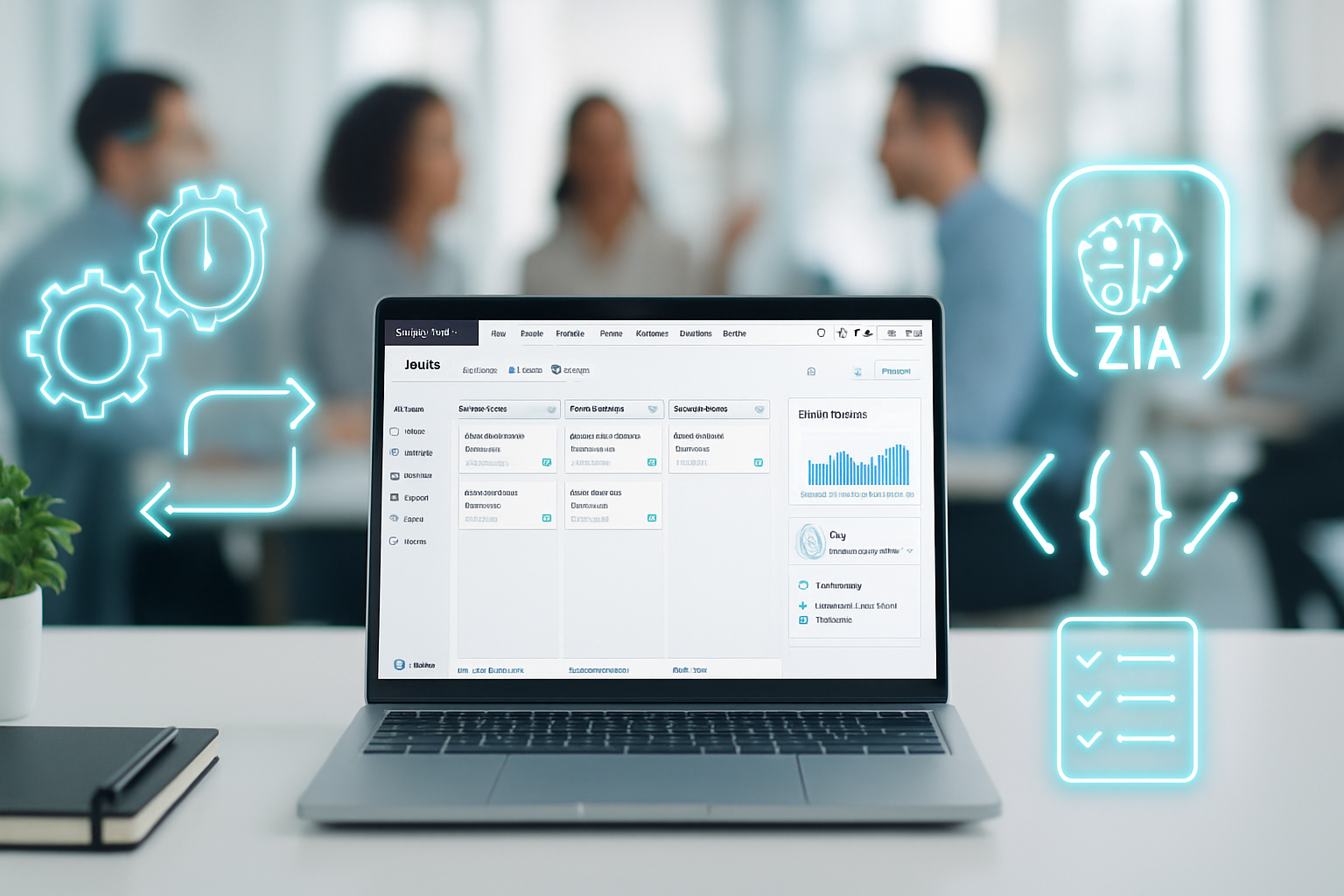
See the AI assistant, Zia, which recommends email actions, highlights sales signals, and suggests workflow improvements - all to make automation accessible (Zia by Zoho).
Walkthrough: Getting started quickly (non-tech path)
Follow this short, practical plan. Each step uses built-in UI tools - no developer required.
- Pick a plan and create your account
- Start with a free or trial plan to explore features.
- Use the Setup Wizard
- Add company info, define your business hours, and invite users. The wizard walks you through common choices.
- Import your contacts and leads
- Upload a CSV and map columns to CRM fields using the import mapping UI. Fix mismatches in the preview step.
- Choose a template or layout
- Apply a pre-built layout for sales or support. Then use the Layout Editor to reorder fields using drag-and-drop.
- Create a simple workflow
- Example - When a new lead is created, send a welcome email and create a follow-up task for the rep. Use the Workflow Rules builder.
- Add automation steps visually with Blueprint (optional)
- Map a sequence like - Prospect -> Contacted -> Demo -> Proposal -> Closed. Each stage can enforce required fields and assign activities.
- Use email templates and macros
- Speed up outreach with templates and one-click macros for common actions.
- Install the mobile app
- Log calls, update records, and capture notes on the go. The app is designed for quick use by non-technical users.
If you want to explore further, Zoho offers step-by-step documentation and guided webinars for everyday tasks (Zoho CRM Help).
Features that make Zoho CRM approachable
- Setup Wizards - Guided account and org setup to reduce friction.
- Drag-and-drop Layout Editor - Rearrange and add fields visually.
- Pre-built Templates - Industry-focused layouts and email templates.
- Workflow Rules & Blueprints - Visual automation builders that don’t require scripts.
- Zia (AI) - Suggests actions and surfaces important records.
- Marketplace & Integrations - Install extensions from a catalog rather than building integrations from scratch (
- Mobile App - A polished app for field and remote users (
- Training Resources - Webinars, documentation, and community forums for common tasks.
Real-world examples - non-technical users succeeding
Freelance consultant - Imports client list via CSV, uses email templates for outreach, and logs calls on the mobile app. Result: consistent follow-up and fewer missed invoices.
Local services company (HVAC/plumbing) - Uses Blueprints to standardize service work (Schedule -> Dispatch -> Complete -> Invoice). Field techs update statuses on mobile.
Small sales team - Uses pre-built dashboards and simple workflows to auto-assign leads and send nurture emails. No coder needed; just a few admins managing automation rules.
Each of these teams gets meaningful ROI from CRM in weeks, not months.
Common pitfalls and how to avoid them
- Pitfall - Importing messy data.
- Fix - Clean spreadsheets first. Use preview and mapping during import.
- Pitfall - Over-automating too soon.
- Fix - Start with 2–3 workflows that save the most time. Measure impact before adding more.
- Pitfall - Too many custom fields.
- Fix - Only add fields that your team will use. Start lean and expand.
When you might need technical help
Most daily CRM tasks don’t need coding. But consider an admin or developer if:
- You need complex cross-system orchestration (custom APIs).
- You want advanced custom functions for niche logic.
- You require enterprise-grade data migrations.
Even then, these are edge cases. They don’t invalidate Zoho’s core user-first design.
Checklist: Are you ready to use Zoho CRM (non-technical)?
- Can you prepare a contacts/leads CSV? If yes, you can import.
- Can you click through a setup wizard? If yes, you can configure org basics.
- Can you drag and drop fields in a UI? If yes, you can customize pages.
- Can you select triggers and actions from dropdowns? If yes, you can automate.
If you answered “yes” to these, you can run a productive CRM without being a developer.
Final thoughts - the real bottom line
Zoho CRM scales from simple to sophisticated. That’s the point. You can start as a non-technical user and gain immediate value using friendly UI tools, templates, automation builders, and AI suggestions. When - and only when - your needs outgrow the no-code tools, you can bring in deeper technical customization.
Don’t let the myth of required technical skill keep you from fixing messy processes and winning back your time. Zoho CRM is built so everyday users can succeed fast. And that changes everything.