· creativity · 6 min read
5 Common Mistakes New Descript Users Make and How to Avoid Them
Avoid the pitfalls that slow you down or produce shaky results. This guide walks new Descript users through five frequent mistakes - and gives clear, practical fixes so you can edit faster, publish cleaner audio/video, and use Descript like a pro from day one.
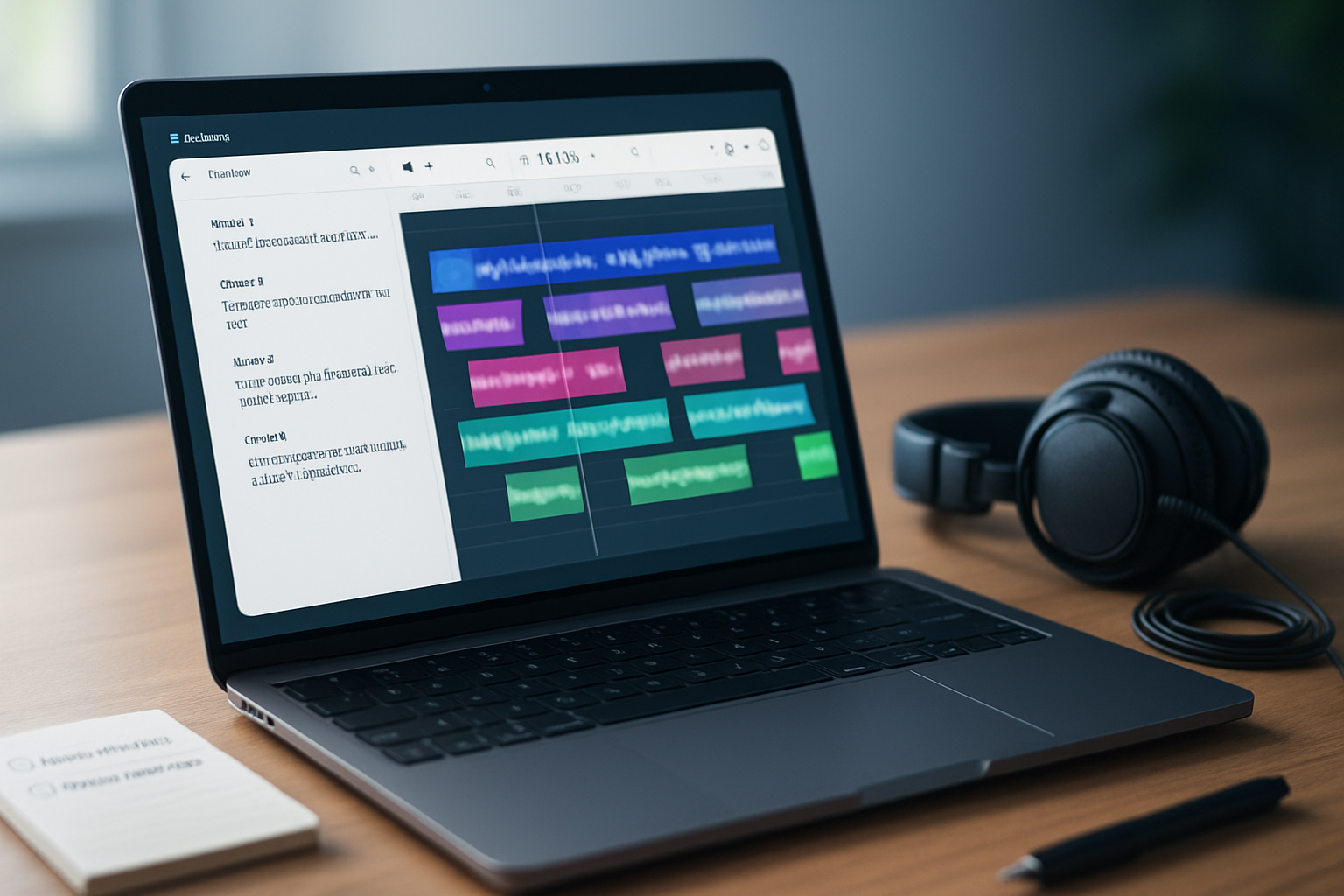
Start faster. Make better edits. Ship polished audio and video without the common stumbles most new Descript users hit.
By the time you finish this post you’ll be able to: organize projects so they scale, cut cleanly without breaking audio, use Overdub responsibly, export with confidence, and adopt a workflow that saves hours every week.
Quick TL;DR - the five mistakes
- Treating Descript only as a transcript editor.
- Overreliance or misuse of Overdub.
- Trusting the transcript 100% without manual checks.
- Letting projects and media get messy.
- Exporting with the wrong settings or skipping final checks.
Read on for why each matters, exact steps to avoid it, and a short checklist you can use immediately.
Mistake 1 - Treating Descript only as a transcript editor
Why this happens
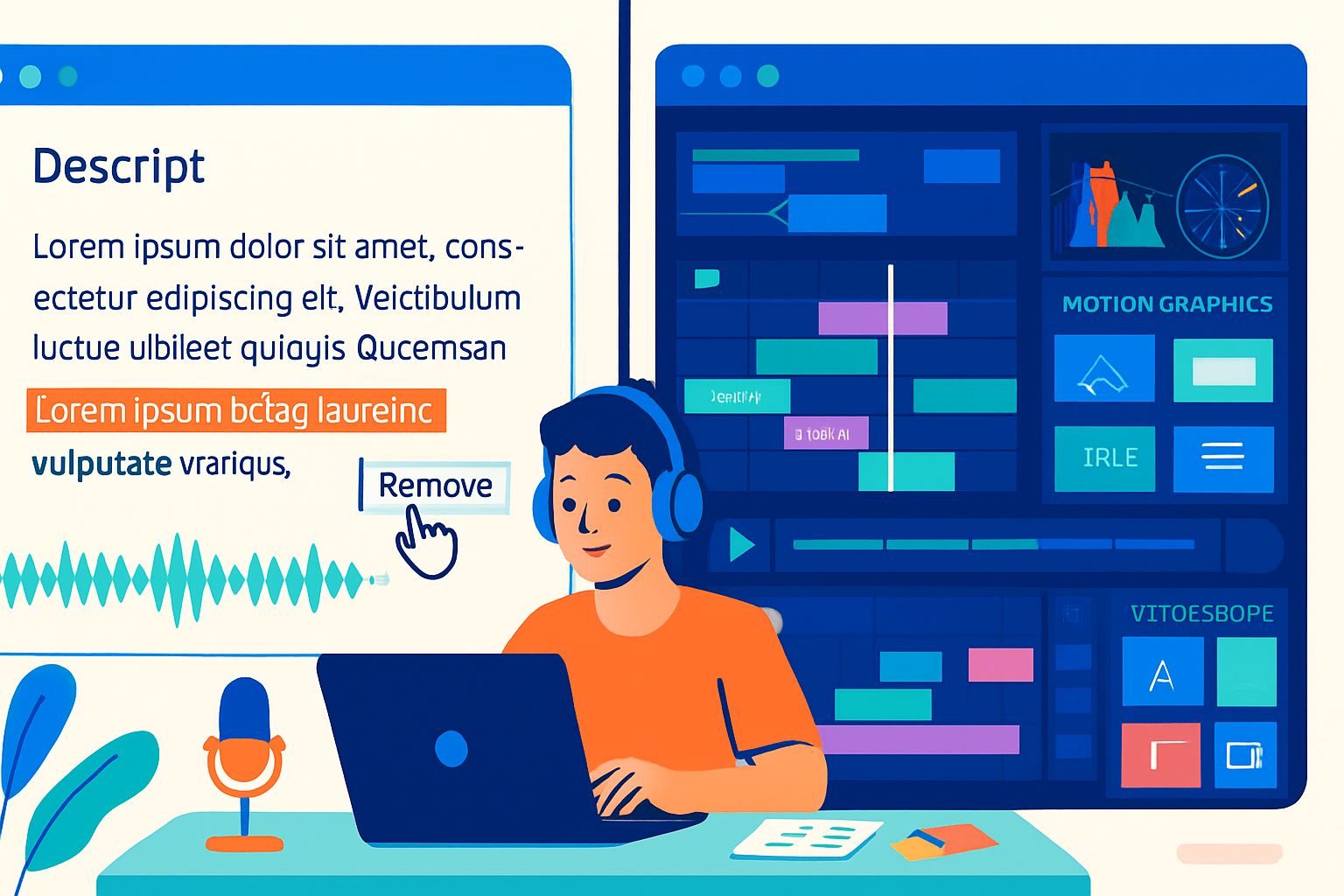
New users discover the transcript-first workflow and assume Descript is just a fancy text editor for audio. It’s powerful for transcripts - yes - but Descript is also a timeline-based multitrack editor, video editor, and composition tool.
Why it hurts
Ignoring timeline and multitrack features makes complex edits clumsy. You lose precise control over crossfades, track routing, video frames, and advanced layering - and you end up exported files that sound or look amateurish.
How to avoid it
- Learn to toggle between the transcript view and the timeline (multitrack) view early.
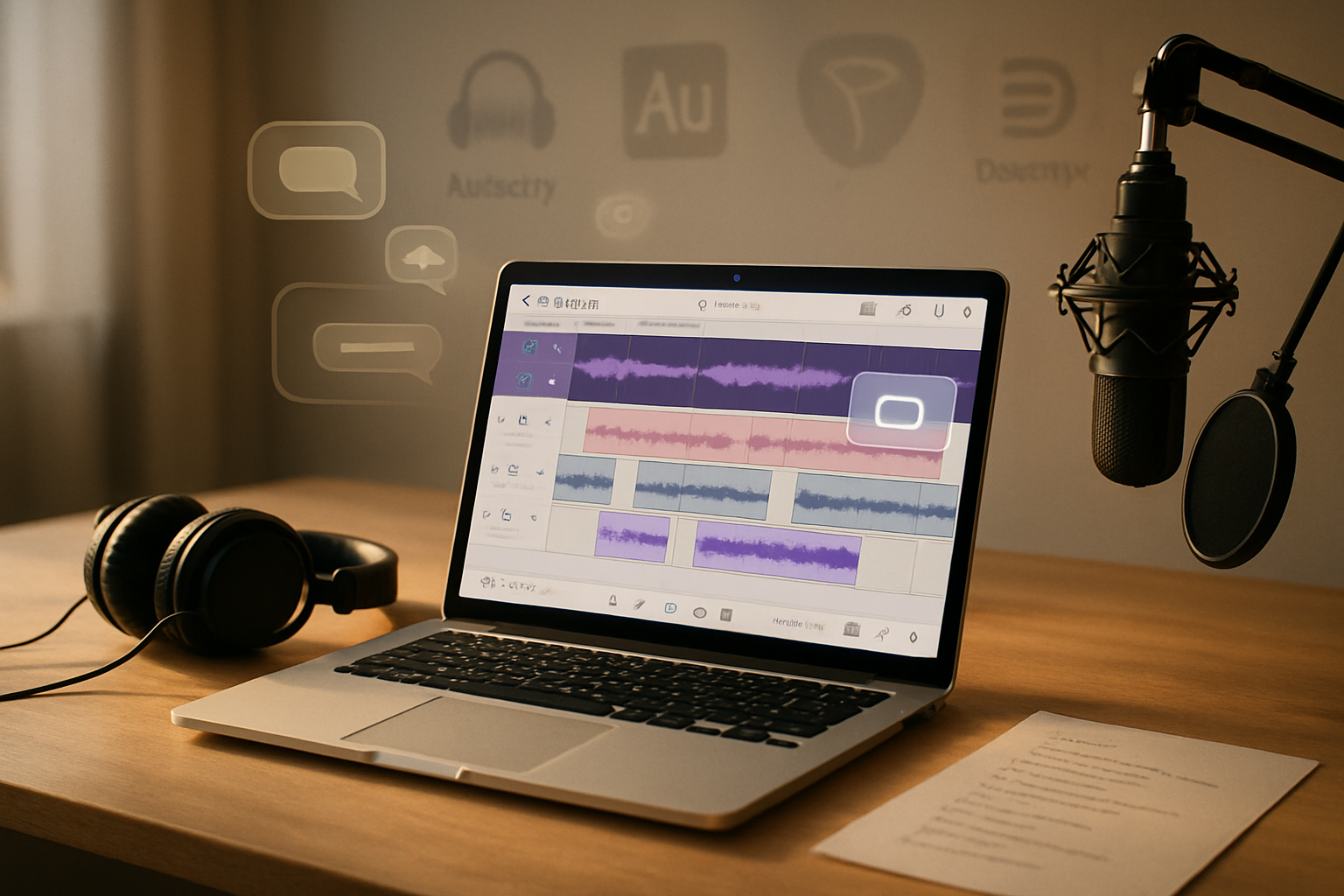
- Use multitrack for interviews or layered audio so each speaker or mic can be treated independently.
- When editing video, switch to the timeline to trim frames, align cuts with visuals, and add transitions.
Quick actions
- Open one project and deliberately edit the same clip in both transcript and timeline views - notice how changes reflect across both.
- Read Descript’s multitrack guide to learn track routing and clip-level controls: https://help.descript.com/hc/en-us/articles/360050060173-Multitrack-Editing
Mistake 2 - Overreliance or misuse of Overdub
Why this happens
Overdub is magical: you can synthesize voice for cosmetic fixes or to finish a sentence. That power invites reckless use - patching large sections, faking content, or training Overdub from poor audio.
Why it hurts
Bad Overdub use creates unnatural-sounding lines, ethical and legal issues, and a fragile workflow if you haven’t trained a clean voice model.
How to avoid it
- Use Overdub for short cosmetic fixes (a word or two), not whole paragraphs.
- Only create an Overdub voice after reading Descript’s policies and with consent from the speaker.
- Train Overdub with high-quality, noise-free recordings and follow the onboarding guidance.
Quick actions
- Reserve Overdub for corrections - change a word or fix a name - then listen critically.
- Learn Overdub basics: https://help.descript.com/hc/en-us/articles/360045445594-Overdub
Mistake 3 - Trusting the transcript 100% and skipping manual checks
Why this happens
Transcripts look good. They make fast edits tempting. But automatic speech-to-text is still imperfect - especially with names, technical terms, or overlapping speech.
Why it hurts
Publishing without checking can propagate embarrassing errors, factual mistakes, and awkward phrasing. Those errors are hard to catch once exported and can damage credibility.
How to avoid it
- Always do a manual pass - read the transcript while listening at 1× or 1.25× speed.
- Use the “Find & Replace” and speaker labels to fix repeated issues efficiently.
- Correct the text instead of relying solely on Overdub - when you edit the text, Descript updates the timeline accordingly.
Quick actions
- Run one listen-through with video and one with audio-only to catch visual timing mistakes and audio-only slips.
- See tips on editing transcripts and speaker labels: https://help.descript.com/hc/en-us/categories/360001019114-Getting-Started
Mistake 4 - Poor project organization and media management
Why this happens
You’re excited to start editing. You import everything into one project, keep long raw clips, and never name sequences or set markers.
Why it hurts
Messy projects are slow to navigate, hard to collaborate on, and risk accidental deletions or duplicate exports. You waste time hunting for clips instead of editing.
How to avoid it
- Use clear naming conventions for projects, media, and sequences (e.g., 2026-01-29_podcast_ep12_interview).
- Use markers and sequences to break long recordings into stories or episodes.
- Keep raw files in an organized folder structure and use Descript’s project-level notes to document assets and decisions.
Quick actions
- Create a project template - default track names, sequence layout, and an export preset.
- Learn markers and sequences to build a repeatable workflow: https://help.descript.com/hc/en-us/articles/360050060173-Multitrack-Editing
Mistake 5 - Exporting with wrong settings or skipping final quality checks
Why this happens
You assume the default export is fine and press Export. Fast-and risky.
Why it hurts
Wrong codecs, bitrates, or frame sizes produce low-quality audio or video, incorrect captions, or files your host won’t accept. Also, automated features (Studio Sound, Remove Silence) can introduce artifacts if used without a final listen.
How to avoid it
- Pick the right export format for your destination - WAV/AIFF for masters, MP3 128–320 kbps for podcasts, MP4 (H.264 or H.265) for video platforms.
- Export a short test clip and check it on the target device or platform before exporting the full file.
- After automated processing (Studio Sound, Remove Silence), always do a final human listen. Automation speeds you up. Human ears save your reputation.
Example export best-practices
- Podcast master - WAV 48 kHz / 24-bit (or 44.1 kHz / 16-bit if required by host).
- Podcast delivery - MP3 128–192 kbps for spoken word; 192–320 kbps if music-heavy.
- Video - MP4, H.264, 1080p (or match source resolution), 16:9, AAC audio 256 kbps.
Quick actions
- Use Descript’s export help if unsure: https://help.descript.com/hc/en-us/articles/360050060613-Exporting
- Run a final export test and check captions/subtitles on the platform where you’ll publish.
Bonus: Time-saving features new users often miss
- Filler words & Remove Silence - Automate repetitive cleanup, but check results:
- Studio Sound - Great for noisy or distant mics - but compare before/after:
- Keyboard shortcuts and templates - Learn the most-used shortcuts to dramatically speed editing:
A practical day-one checklist
- Create a project template with named tracks and an export preset.
- Label speakers and add markers for chapters or segments.
- Do a first-pass transcript clean-up while listening at 1–1.25× speed.
- Use Overdub sparingly - correct text first, Overdub for tiny fixes only.
- Run Studio Sound or Remove Silence, then do a final listen.
- Export a short test file, check on the target platform, then export the full deliverable.
Closing - the one habit that changes everything
Automation is powerful. So are clever tricks. But the single habit that prevents more problems than any setting is simple: always do a final human listen (and watch, for video) before you publish.
You can fix bad exports, retrain an Overdub model, or reorganize a chaotic project. You cannot undo a published mistake that hurt your credibility. Listen. Then publish.
References
- Descript Help Center - Getting Started: https://help.descript.com/hc/en-us/categories/360001019114-Getting-Started
- Overdub: https://help.descript.com/hc/en-us/articles/360045445594-Overdub
- Multitrack Editing: https://help.descript.com/hc/en-us/articles/360050060173-Multitrack-Editing
- Exporting: https://help.descript.com/hc/en-us/articles/360050060613-Exporting
- Remove Filler Words: https://help.descript.com/hc/en-us/articles/360047989953-Remove-Filler-Words
- Remove Silence: https://help.descript.com/hc/en-us/articles/360047730733-Remove-Silence-Automatically
- Studio Sound: https://help.descript.com/hc/en-us/articles/360047731973-Enhance-Audio-with-Studio-Sound
- Keyboard Shortcuts: https://help.descript.com/hc/en-us/articles/360037399594-Keyboard-Shortcuts