· business · 6 min read
The Ultimate Guide to Customizing Your Square POS for Enhanced Customer Experience
Learn how to tailor Square POS-from interface tweaks and organized item libraries to loyalty programs and integrations-to deliver faster service, personalized interactions, and higher customer satisfaction.
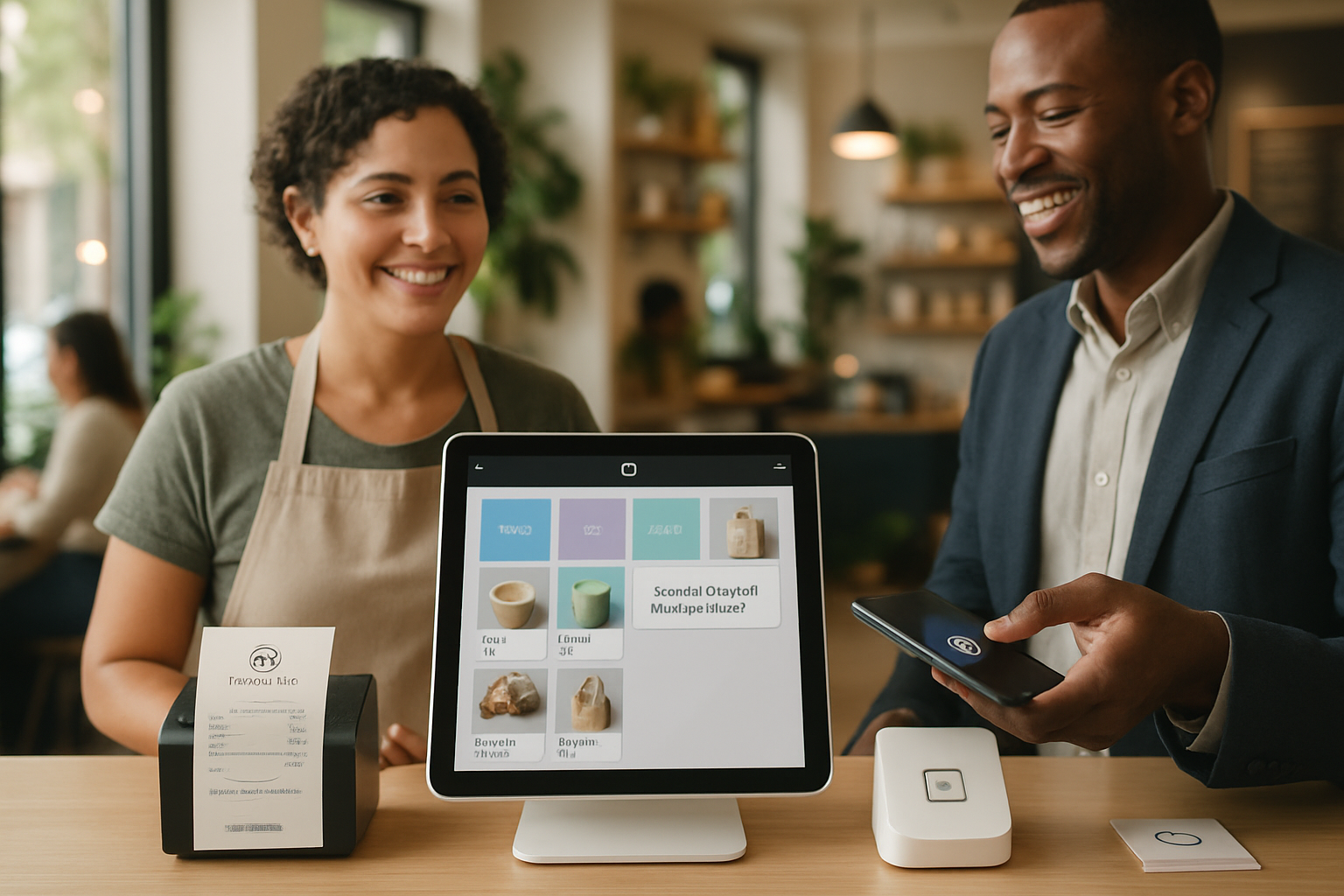
Outcome first: within a few hours you can make Square POS feel like it was built for your business - faster checkouts, clearer menus, targeted rewards, and smarter customer interactions that increase satisfaction and spend.
This guide walks you through practical customizations for Square POS that directly improve the customer experience. Read on for quick wins, configuration checklists, advanced options (APIs and integrations), and measurement tactics so you can see the impact.
Why customize Square POS? Start with the result
Customers notice friction. Confusing menus, slow checkouts, generic receipts, and missed loyalty opportunities all erode satisfaction. Customizing Square POS reduces friction and increases relevance: faster ordering, fewer mistakes, consistent branding, and personalized offers. In short - happier customers, higher retention, and more revenue.
Quick-win customizations (do these first)
These changes are fast to implement and produce immediate improvements.
1. Clean up your Item Library
- Use clear, customer-facing item names. Avoid internal codes in the POS label.
- Organize items into logical categories (e.g., “Coffee → Hot → Signature Lattes”).
- Add high-quality photos for visual menus on tablets and receipts.
- Use modifiers and variations sparingly and logically (size, milk type, add-ons).
Why it matters: Customers and staff can find items faster, reducing order time and mistakes.
Reference: Square Item Library documentation: https://squareup.com/help
2. Simplify your Checkout Screens
- Hide unused tender options to avoid confusion.
- Pre-configure common discounts and gratuities for one-tap access.
- Enable tipping prompts only when appropriate for your business model.
Why it matters: A focused checkout flow increases conversion and improves speed.
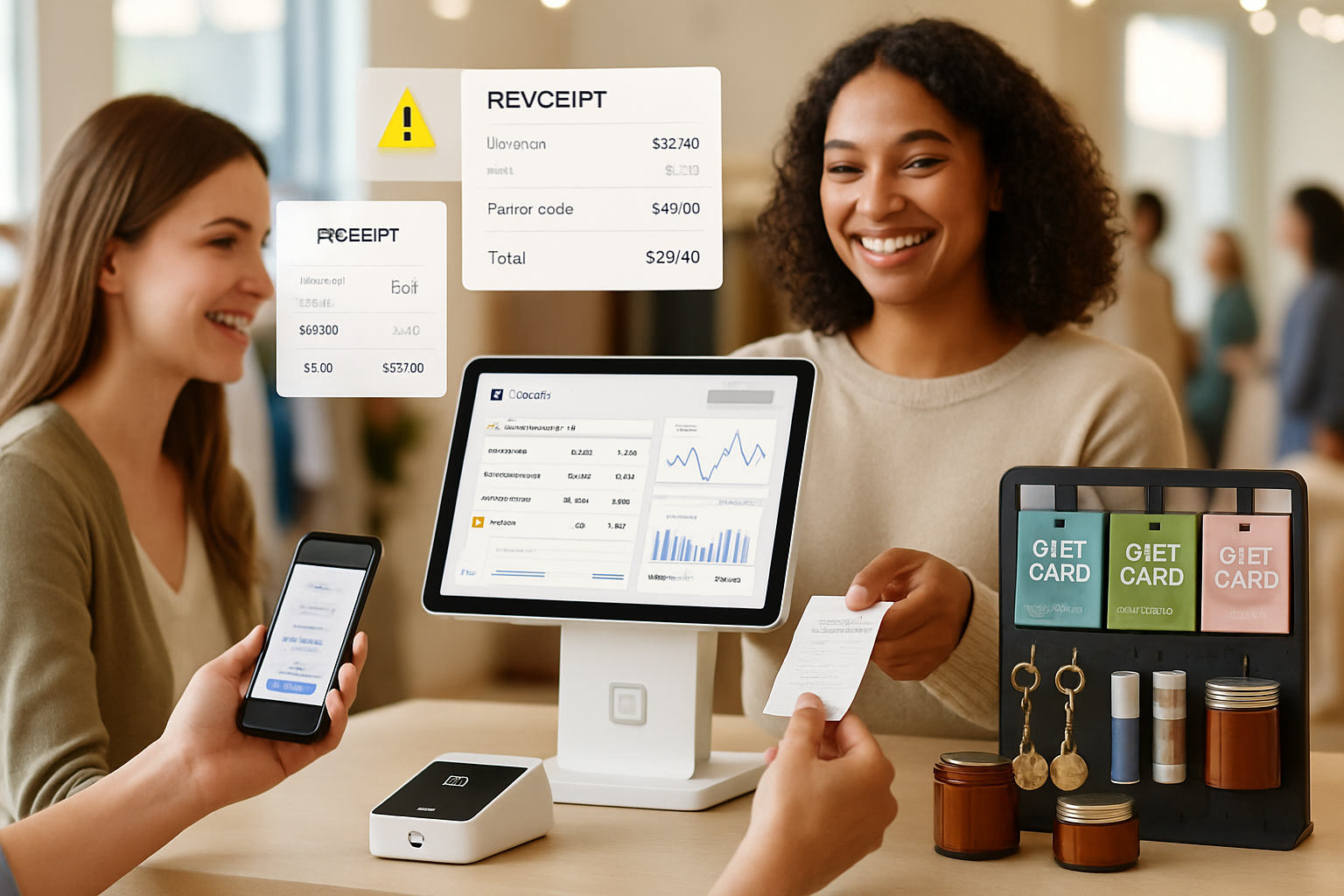
3. Brand your Receipts and Digital Communication
- Add logo, business hours, and helpful links to the receipt template.
- Include a short personalized message or promotion on printed/email receipts.
Why it matters: Receipts are a touchpoint. Use them to reinforce brand and next steps.
Reference: Square Email and Receipt settings: https://squareup.com/help/us/en/article/5061-manage-receipt-email-settings
Mid-level customizations (organizational and UX improvements)
These take a bit longer but pay off in consistency and customer delight.
4. Configure Customer Profiles and Notes
- Collect customer profiles at checkout (phone, email) and attach notes such as “prefers almond milk” or “allergy - peanuts”.
- Use tags to group customers (VIPs, frequent buyers, bakery club).
Why it matters: Personalized service during each interaction fosters loyalty and prevents mistakes.
Reference: Customer Directory: https://squareup.com/help/us/en/article/5064-manage-customer-profiles
5. Implement Square Loyalty
- Set a simple, understandable rewards structure (e.g., 10th coffee free or 1 point per $1).
- Promote enrollment at checkout and on receipts.
- Tie targeted rewards to slow days or lower-margin items to drive traffic and margin.
Why it matters: Loyalty programs increase return visits and average order value.
Reference: Square Loyalty: https://squareup.com/us/en/loyalty
6. Use Custom Discounts and Promotions Strategically
- Create saved discounts for staff to apply quickly (student, employee, happy hour).
- Schedule campaigns using Square Marketing tied to customer segments from your directory.
Why it matters: Well-targeted promotions feel relevant rather than spammy.
Reference: Square Marketing: https://squareup.com/us/en/marketing
Advanced customizations (power features and integrations)
Now we build features that make your POS behave like a bespoke system.
7. Leverage Square Online + POS Integration
- Sync your in-store catalog with Square Online so customers see accurate availability and pricing.
- Offer click-and-collect and curbside options configured in the combined checkout to reduce friction.
Why it matters: Omnichannel experiences increase convenience and trust.
Reference: Square Online: https://squareup.com/us/en/online-store
8. Use APIs and Custom Apps for Unique Flows
If you need a flow Square doesn’t offer out of the box - like loyalty tied to specific combinations, or a custom promo engine - the Square Developer platform lets you extend the system.
Examples:
- Use the Catalog API to programmatically create/update items and variations.
- Use the Orders API to create complex checks and split payments.
- Use Webhooks to trigger external workflows (email, SMS, fulfillment systems) when events occur.
Code snippet (example: pseudo-JSON for creating a catalog item):
{
  "type": "ITEM",
  "id": "#coffee_latte",
  "item_data": {
    "name": "Signature Latte",
    "description": "House espresso with house-made syrup",
    "variations": [
      { "name": "Small", "price": 350 },
      { "name": "Large", "price": 450 }
    ]
  }
}
Why it matters: APIs let you automate catalog changes, build loyalty customizations, and integrate with CRMs.
Reference: Square Developer docs: https://developer.squareup.com
9. Integrate with Third-Party Tools
- CRM integrations keep customer data in one place and power targeted campaigns.
- Inventory systems sync real-time stock to prevent overselling.
- Kitchen display systems (KDS) route orders to the right station and reduce mistakes.
Why it matters: Best-of-breed integrations let you optimize each part of the customer journey.
UX and staff training: the human side of customization
Customization succeeds only when staff know and use it.
- Create a short operations guide for common tasks and troubleshooting.
- Run role-based training - managers, cashiers, and floor staff need different knowledge.
- Use the Square Dashboard to monitor performance and reinforce good habits.
Tip: Run a 1-week pilot after each major change and collect staff and customer feedback.
Hardware considerations that impact customer experience
- Choose the right hardware (Square Stand, Square Terminal, or Square Register) based on how you interact with customers.
- Tablet mounts and customer-facing displays speed authentication and payment flow.
- Consider contactless and mobile wallet acceptance for convenience.
Why it matters: Hardware is the touch surface. Comfortable, intuitive devices reduce friction.
Measuring impact: what to track
To know whether customizations improve experience, track a handful of metrics:
- Average transaction time (speed of checkout).
- Average order value (AOV).
- Repeat purchase rate (30/60/90-day cohorts).
- Loyalty program enrollment rate and redemption rate.
- Customer satisfaction (post-purchase NPS or simple receipt survey).
Use the Square Dashboard reports and export data for deeper analysis.
Reference: Square Dashboard reporting: https://squareup.com/help
Testing and iteration (don’t set and forget)
- A/B test small changes (two different receipt messages, two tip prompts) and compare results over a fixed period.
- Document each change and its business impact.
- Roll back or refine based on data and anecdote.
Common pitfalls and how to avoid them
- Over-cluttering the interface - More options slow staff and confuse customers. Keep core flows minimal.
- Reward complexity - If your loyalty rules are hard to explain, customers won’t engage.
- Poor data hygiene - Duplicate or outdated items cause errors; schedule regular catalog clean-ups.
Implementation checklist (step-by-step)
- Audit current POS flows - time a complete transaction and note friction points.
- Clean and organize your Item Library; add photos and categories.
- Streamline checkout screens and enable appropriate tipping and tender options.
- Set up Customer Directory and start tagging key segments.
- Configure a simple loyalty program and promote enrollment at checkout.
- Brand receipts and craft a short post-purchase message.
- Train staff with a 1-page guide and 30-minute practical session.
- Monitor metrics for 30 days; collect feedback and iterate.
When to work with developers or partners
- You need custom loyalty logic that Square Loyalty can’t support.
- You have complex inventory or multi-location fulfillment rules.
- You want a custom kiosk app or an integration with an in-house CRM.
In these cases, use Square’s Developer platform or hire a Square integration partner. Developer docs and partner listings: https://developer.squareup.com
Real-world example (coffee shop)
Situation: Long lines at morning rush, inconsistent customizations (milk requests), and low loyalty sign-ups.
Actions taken:
- Reorganized the menu into hot/iced and specialty sections.
- Added modifier presets (non-dairy options) and a customer note template.
- Rolled out a simple “Buy 9, get 10th free” loyalty program and trained baristas to invite sign-ups.
- Added a friendly receipt message offering a morning-only 10% discount when they bring the receipt back the same day.
Results: Reduced order processing time by 18%, loyalty enrollment increased 28% in the first month, and customer complaints about wrong customizations dropped significantly.
Final thoughts
Customizing Square POS is less about adding every possible feature and more about removing friction, personalizing interactions, and aligning the system to how your customers actually shop. Start small, measure impact, iterate, and scale the customizations that deliver real value. Do this well, and the POS becomes not just a checkout tool, but a central driver of customer satisfaction and loyalty.
References
- Square Help and product pages: https://squareup.com/help
- Square Loyalty: https://squareup.com/us/en/loyalty
- Square Developer: https://developer.squareup.com
- Square Online: https://squareup.com/us/en/online-store